View submission history
Submission history is the audit trail of the actions taken on a submission. Applicants and officers can both view it. A submission snapshot is part of the history. It is a read-only copy of the whole submission, with all its fields, as it was in a given state.
Who this applies to
- Audience: Applicants and backoffice officers.
- Access required: None beyond access to the submission. What you see differs between the portals.
- Assumed knowledge: None.
What the history shows
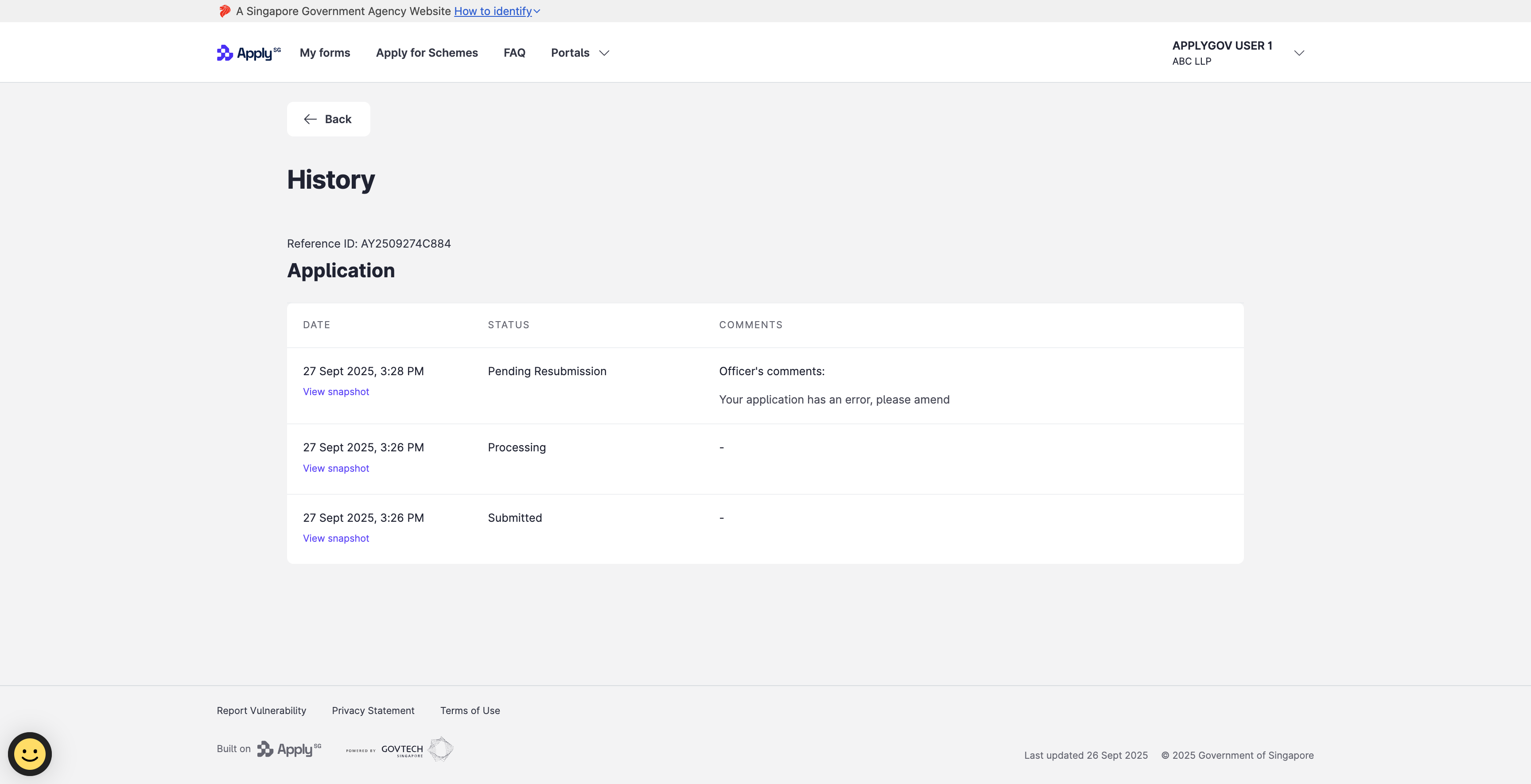
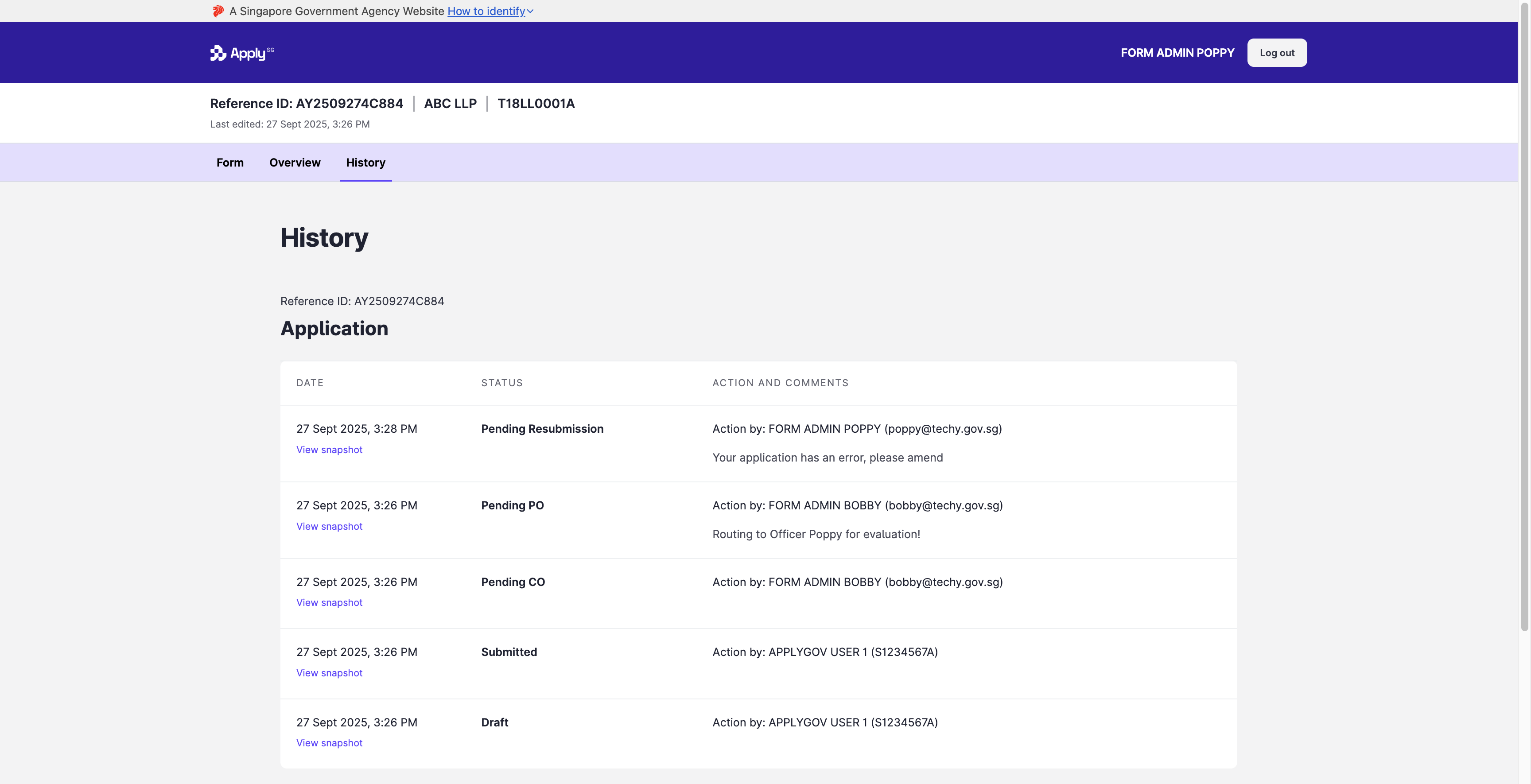
| Detail | Applicant portal | Backoffice portal |
|---|---|---|
| Date and time of the action | Shown. | Shown. |
| State name, for example Submitted | Applicant-facing state names only. | Shown. |
| Name and ID of the user who acted | Masked. | Shown. |
| Comments | Shown. | Shown. |
Save actions do not appear in the history.
View the history
- Open the submission.
- Open History. Officers select History in the navigation bar. Applicants select the History card on the Submission Overview page.
Each row is one action. The applicant view lists the date, the status and the officer’s comments.
The backoffice view adds the user who took each action, with their email address or ID.
View a snapshot
- On the History page, find the action.
- Select View snapshot.
The snapshot shows the submission, with all its fields, as it was in that state, immediately before the next action.
Constraints and limitations
| Constraint | Detail |
|---|---|
| Save actions | Save actions are not shown. |
| Applicant view | Applicants see applicant-facing state names and masked user details. |
| Snapshots | A snapshot is read-only. It shows the submission as it was in that state. |
Related features
- Export submission data: download submission data for analysis.
- Set edge permissions: choose whether applicants see transit actions.
