Invite applicants to a closed scheme
A closed invite scheme lets only the applicants that you invite apply. Use it when a scheme is administered on an invite-only basis, instead of open to any member of the public or any company. Each invite creates one submission. You send invites from the Invite Applicants card, and the invite email uses the latest email template.
Who this applies to
- Audience: Configurators and officers who send invites.
- Access required: The Invite permission on the scheme. Without it, the Invite Applicants card does not appear.
- Assumed knowledge: The scheme type is Close, and the form version is published. Refer to Publish a form version.
Steps
- On the Backoffice dashboard, select the Invite Applicants card.
- Choose the scheme from the list.
- Select Edit email template and fill in every mandatory field. You cannot send invites until you do.
- On the Send invites tab, add each applicant. The fields depend on the applicant type. Refer to the next three sections.
- Select Send invites, then select Proceed in the confirmation dialog.
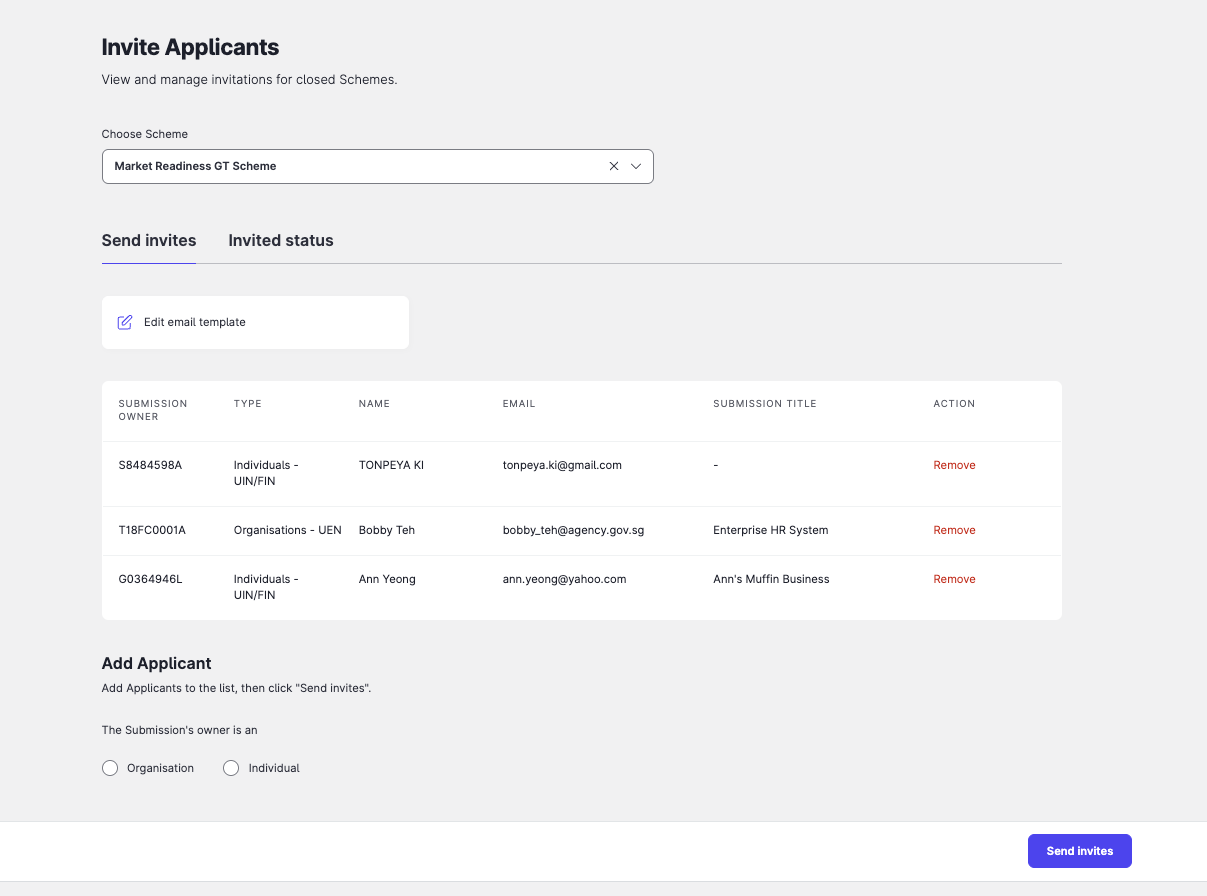
Applicants move to the Invited status tab and receive the email. An invite is valid for 90 days. When an applicant accepts, ApplySG creates a draft submission for them.
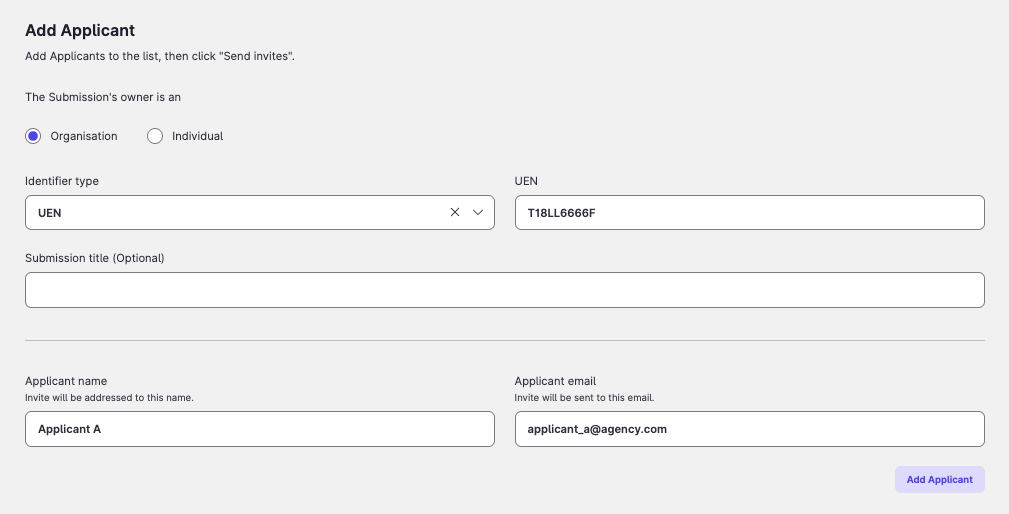
Add an organisation that uses Corppass
- Select Organisation. The identifier type is UEN.
- Enter the Unique Entity Number (UEN) of the applicant’s organisation.
- Optional: enter a Submission title (up to 100 characters).
- Enter the Applicant name (up to 40 characters) and the Applicant email that receives the invite.
- Select Add Applicant.
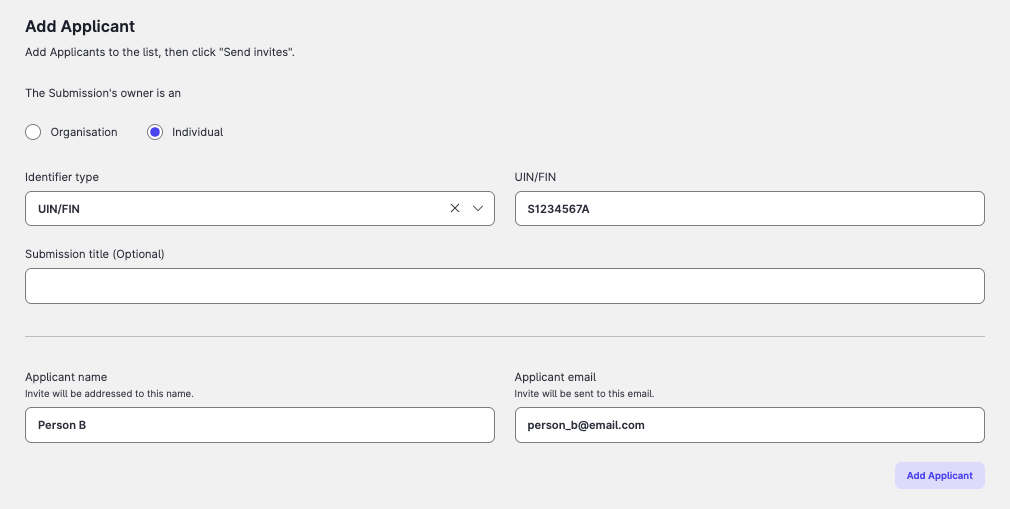
Add an individual that uses Singpass
- Select Individual, then select the identifier type UIN/FIN.
- Enter the applicant’s Unique Identification Number or Foreign Identification Number (UIN/FIN).
- Optional: enter a Submission title (up to 100 characters).
- Enter the Applicant name (up to 40 characters) and the Applicant email.
- Select Add Applicant.
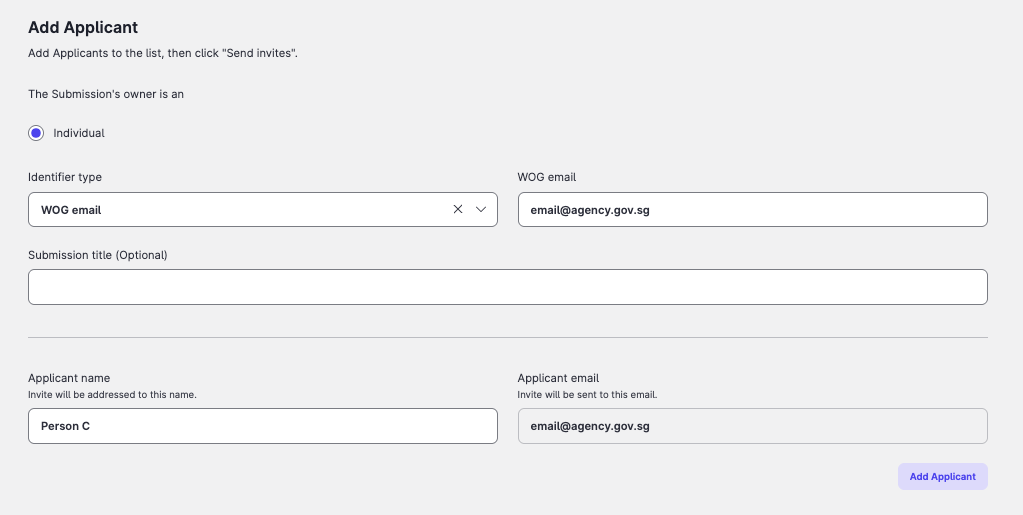
Add an individual that uses WoG Entra ID
- Select Individual, then select the identifier type WOG email.
- Enter the applicant’s WOG email. The invite goes to this address.
- Optional: enter a Submission title (up to 100 characters).
- Enter the Applicant name (up to 40 characters).
- Select Add Applicant.
What an applicant needs to accept
An invite is valid only if the applicant has the matching role and that role can create submissions on the form.
| Applicant type | Required role | Matching check on accept |
|---|---|---|
| Organisation (Corppass) | Business Grants Portal: BGP Acceptor, BGP Preparer or BGP Viewer. ApplySG Portal: ApplySG Editor or ApplySG Viewer. | The Corppass account UEN matches the invited UEN. |
| Individual (Singpass) | Singapore-based Individual User, on both portals. | The Singpass UIN/FIN matches the invited UIN/FIN. |
| Individual (WoG Entra ID) | A WoG Entra ID login. | The account email matches the invited WOG email. |
For each type, the role must also have the Create form permission. Refer to Set State Builder settings. After a matching sign-in, the applicant chooses to accept or reject the invite.
Track and revoke invites
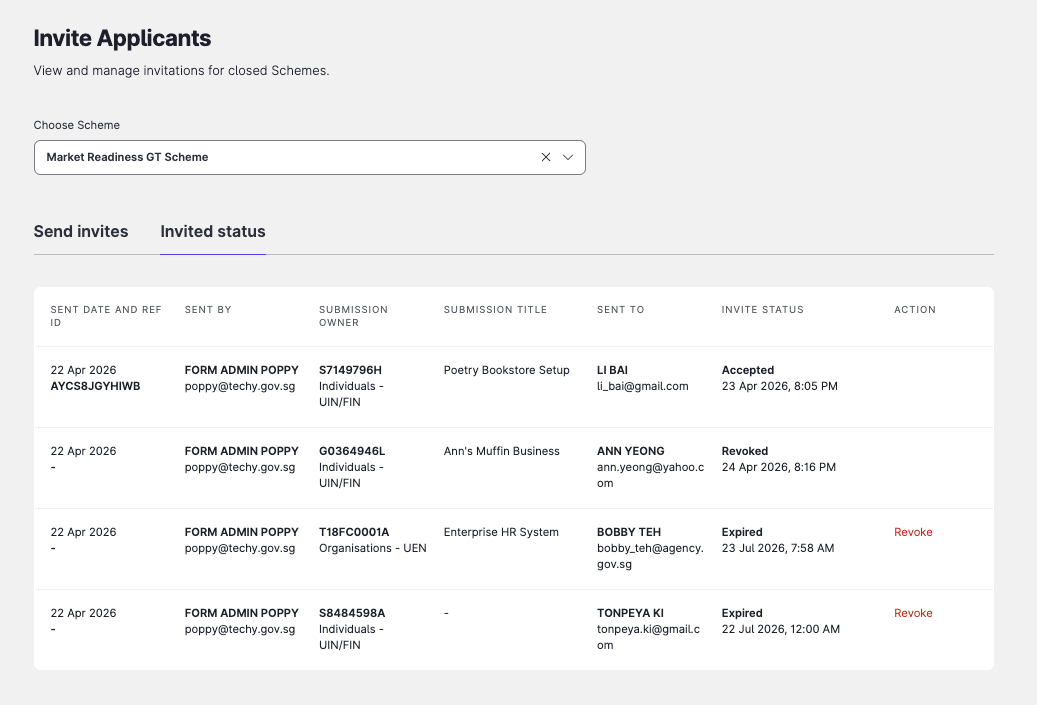
The Invited status tab lists every invite. Each row shows the date sent, who sent it, the submission owner, the title, the recipient, the status and an action. Once the applicant accepts, the row also shows the reference ID of the new submission.
| Status | Meaning |
|---|---|
| Pending | The invite is valid and not yet accepted. |
| Accepted | The applicant accepted. |
| Rejected | The applicant rejected. |
| Revoked | You revoked the invite. |
| Expired | The applicant did not accept within 90 days. |
To revoke an invite, select Revoke in its row. You can revoke only a Pending invite.
Constraints and limitations
| Constraint | Detail |
|---|---|
| One invite, one submission | Each invite creates one submission. |
| Validity | Invites expire after 90 days. |
| Revoke | You can revoke only a Pending invite. |
| Field limits | Submission title: up to 100 characters. Applicant name: up to 40 characters. |
| Staging email addresses | In staging, an applicant’s email address must be on a whitelisted domain unless it ends in .gov.sg. Use a .gov.sg address for testing, or ask the ApplySG team to whitelist yours. |
| Integrators | Integrators with the Invite permission can also send invites through the API. Refer to the Integrator guide. |
Related features
- Set up an open listing: the alternative to a closed invite.
- Assign scheme permissions: give users the Invite permission.
- Manage email templates: workflow emails.
