Configure team-based submissions
Team-based submissions let an applicant invite other people to work on the same submission before it is submitted. Invited collaborators can view or edit it according to the role that they receive. After submission, it continues through the workflow that you built in the State Builder. Enable it when an application needs input from more than one person. Examples are a grant application with several team members, or a request that needs details from several departments.
Applicability: Team-based submissions are available on the Research Grants Portal, the ApplySG Portal (invitations through Corppass only) and the ApplySG Portal (Public Officers).
Who this applies to
- Audience: Configurators.
- Access required: The Edit permission on the scheme.
- Assumed knowledge: You have a workflow with states, form roles and component permissions. Refer to Build your workflow: roles, states and form permissions.
How it works
The person who sends invitations needs the Manage permission on the submission. That permission lets them invite people, give each person a submission role, and manage who can access the submission. The role that an invited person receives decides what they can view and edit.
Enable and configure the feature in the scheme settings before you publish the scheme. Once the scheme is live:
- User A invites User B and assigns User B a role.
- User B views or edits the submission according to that role.
Steps
- Open the State Builder for the form.
- Select the state in which applicants may invite others. For example, select the Draft state.
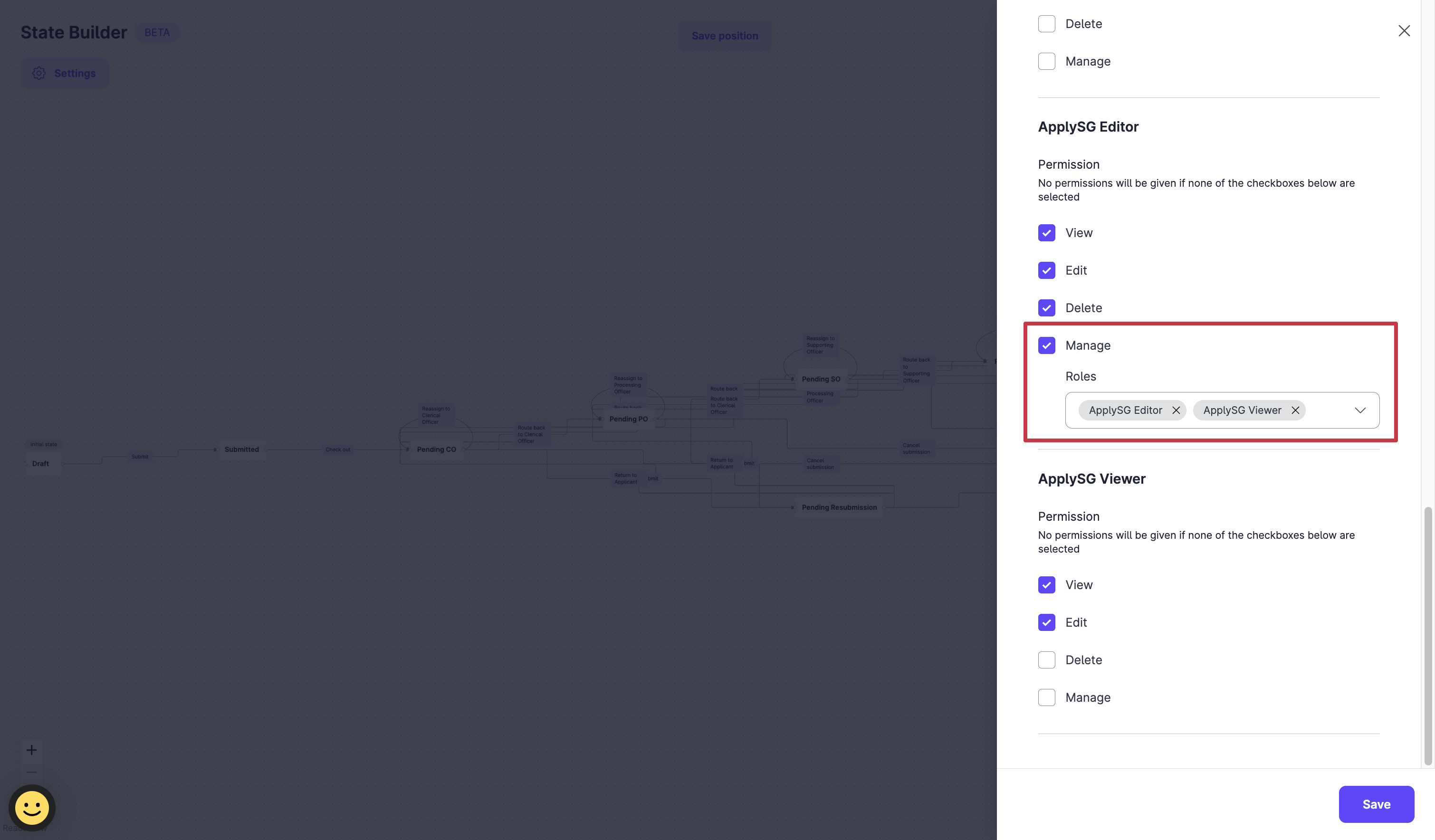
- Select Edit Form permission, then give the Manage permission to the form role that may send invitations.
- Under Manage, choose the roles that this person may assign. The person can assign their own role to an invited user.
- Check the form permissions and component permissions for each role, so that invited users can view and edit the sections that they must complete.
- Publish the scheme.
- Test the form: confirm that an applicant can invite a user, and that the invited user has the right access.
Constraints and limitations
| Constraint | Detail |
|---|---|
| Portals | Available on the Research Grants Portal, the ApplySG Portal (Corppass invitations only) and the ApplySG Portal (Public Officers). |
| Manage permission | Only a role with the Manage permission can invite people. It must be set on the state where invitations are allowed. |
| Invitations by state | The invitation option appears only in states where the applicant has Manage, and only if the applicant can assign at least one role. |
| Component access | Invited users get component access from their role. Set component permissions for each role. |
Related features
- Invite a collaborator to a submission: what the applicant does.
- Set form permissions: all form permissions.
- Set component permissions: control access to each field.
