Add and edit edges
An edge is a route between two states. It sets how a submission can move from one state to the next. Each edge appears as an action that officers or applicants select, so give each edge a clear name.
Feature availability: State Builder is in Beta.
Who this applies to
- Audience: Configurators.
- Access required: The Edit permission on the scheme.
- Assumed knowledge: The form has the states that the edge connects. Refer to Add and edit states.
Add an edge
- In the State Builder, select the + button at the bottom right, then select Add Edge.
- Enter the Edge name, up to 48 characters. It appears in the Take Action box. Keep it unique among the edges that leave the same state.
- Select the From State and the To State.
- Set the edge configuration and submission validation. Refer to the next two sections.
- Select Save.
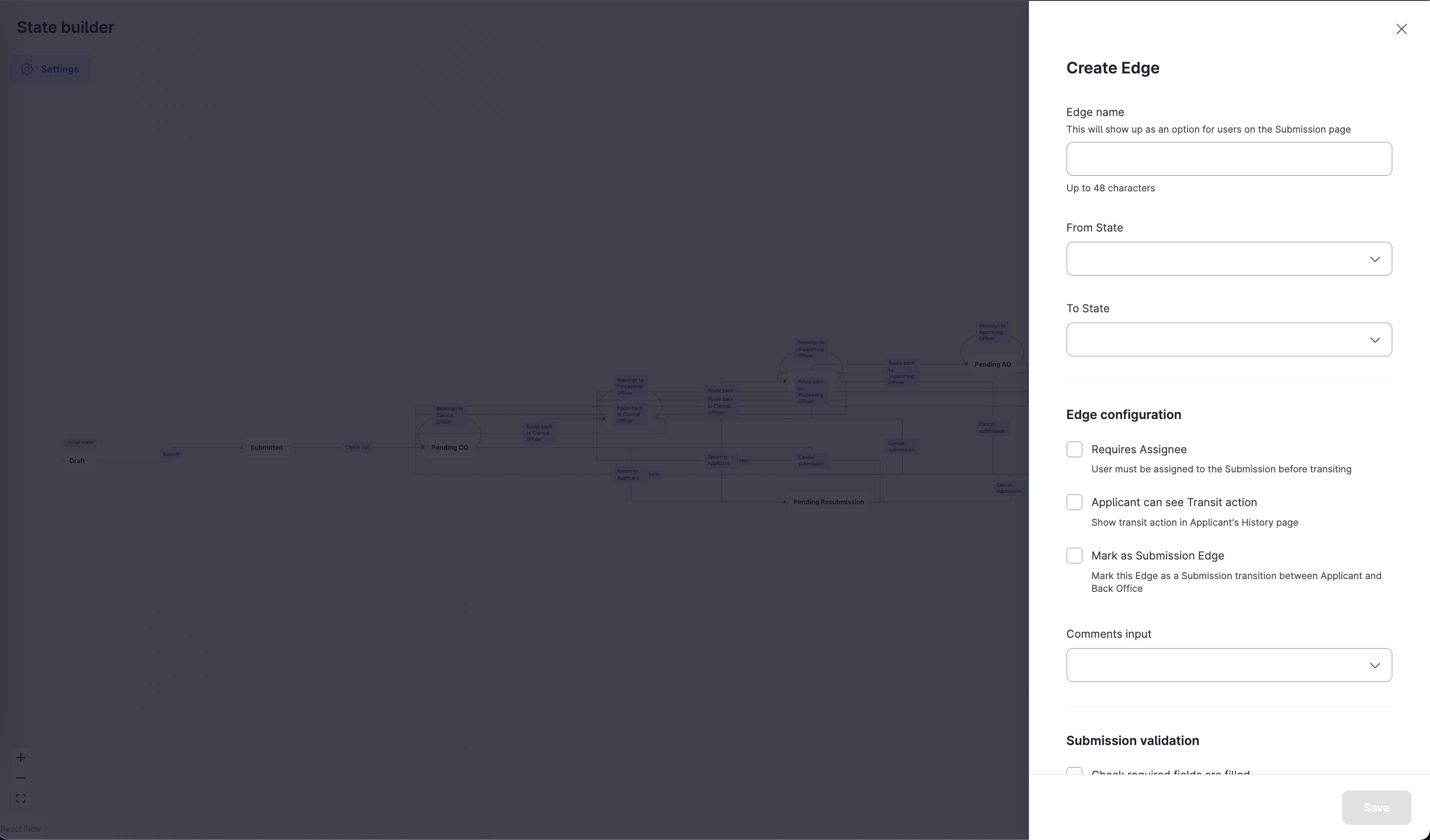
Edge configuration options
| Option | What it does | Example |
|---|---|---|
| Requires Assignee | The submission must have an assigned user before it can move. | A submission in Pending AO can be approved or rejected only after an approving officer is assigned. |
| Applicant can see Transit action | Shows the action in the applicant’s History page, so applicants can track what happened and when. | An applicant sees the “Resubmitted” action after resubmitting. |
| Mark as Submission Edge | Marks a transition between the applicant and the back office, such as Submit or Accept Offer. | An edge from Draft to Submitted. |
| Comments input | Sets whether a user must enter a comment: Required, Optional or Hidden. | Set Required on a rejection so that the officer gives a reason. |
Submission validation options
| Option | What it does |
|---|---|
| Check required fields are filled | Blocks the transition until every mandatory field is complete. |
| Check field values are valid | Blocks the transition while any field fails its validation rules or conditional rules. |
Edit an edge
- Select the edge in the State Builder.
- Select Edit Edge.
- Change the configuration fields, then save.
Delete an edge
- Select the edge in the State Builder.
- Select Delete Edge.
For pre-built edges, refer to Workflow template behaviours first.
Constraints and limitations
| Constraint | Detail |
|---|---|
| States cannot change | You cannot edit the From State or To State of an existing edge. Delete the edge and create a new one. |
| Unique names | An edge name must be unique among edges from the same state. |
| Submission edge | A form needs at least one edge marked as a submission edge to publish. |
| Pre-built edges | Some edges in portal templates have pre-built logic. Deleting them removes that logic. |
Related features
- Set edge permissions: decide which roles can use each edge.
- Add and edit states: create the states first.
