Set form permissions
Form permissions decide what each form role can do with a form’s submissions in each state. You set them per state, so one role can have different access at different stages. Set them to make sure that submissions are handled correctly and that people can only take the actions that suit their role.
Feature availability: State Builder is in Beta.
Who this applies to
- Audience: Configurators.
- Access required: The Edit permission on the scheme.
- Assumed knowledge: The form has form roles and states. Refer to Add form roles and Add and edit states.
Steps
- In the State Builder, select a state.
- Select Edit Form permission.
- For each role, tick the permissions that the role has in this state. A role with no ticks has no access.
- Select Save.
- Repeat for every state.
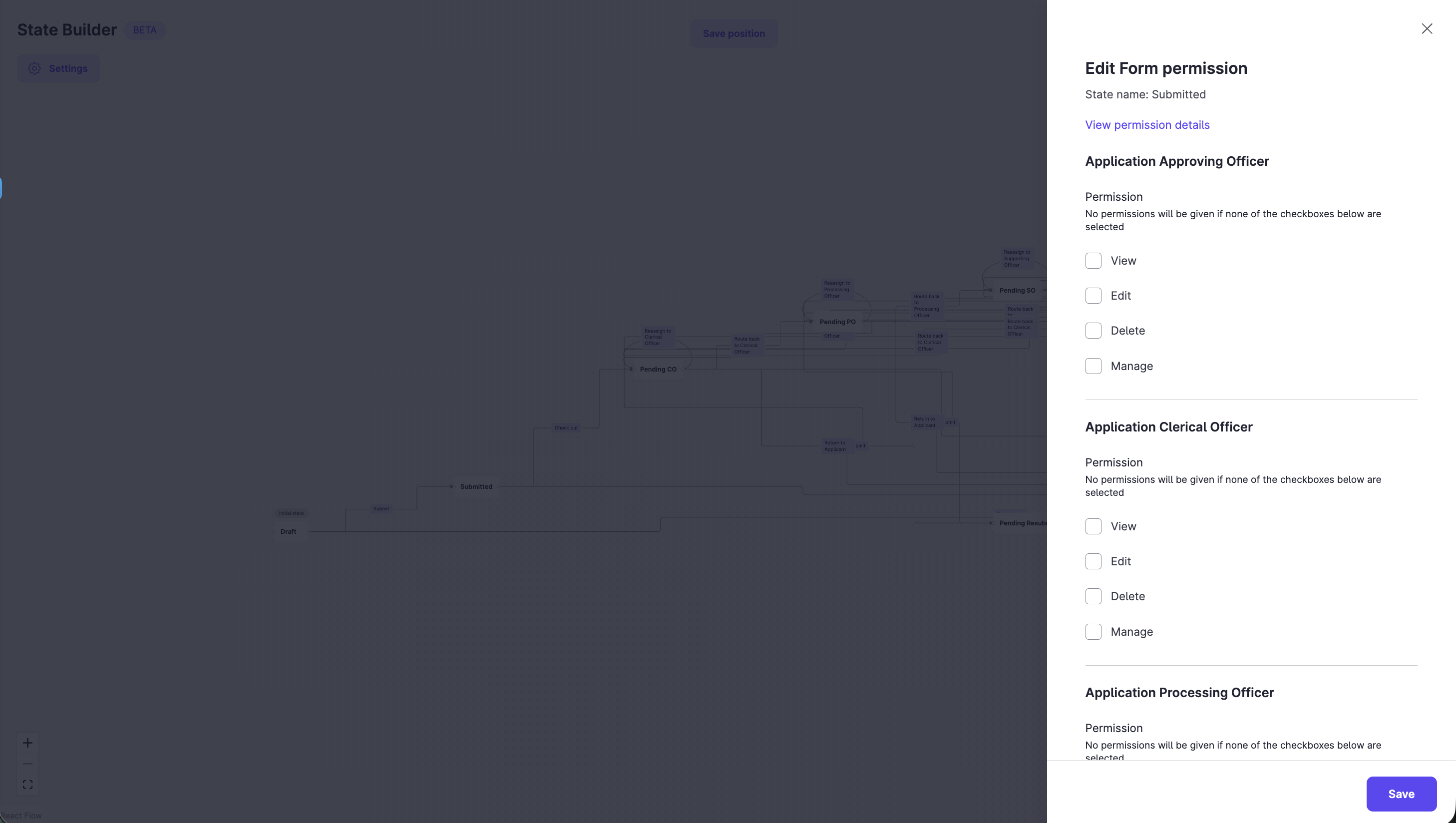
Form permissions
| Permission | What it lets the role do |
|---|---|
| View | See submissions in this state, in both the applicant and the backoffice dashboards. |
| Edit | Change the fields of a submission in this state. |
| Delete | Delete submissions in this state. Deleting removes the submission with its inputs and history. |
| Manage | Assign or manage the users on a submission. Available for schemes with team-based submissions. |
Give the Create permission to at least one role through the State Builder settings. Refer to Set State Builder settings.
Constraints and limitations
| Constraint | Detail |
|---|---|
| Delete | Delete permanently erases the submission and its history. Give it only where needed. |
| Default access | A role has no access to a state until you tick a permission. |
| Manage | Available for schemes with team-based submissions. |
| After publishing | You can edit form permissions on a published form version, and the change applies to existing submissions. Refer to Change a scheme after go-live. |
Related features
- Set edge permissions: control who moves a submission between states.
- Set up a data patcher role: grant Edit for data corrections.
- Configure team-based submissions: use Manage.
