Transit submissions in bulk
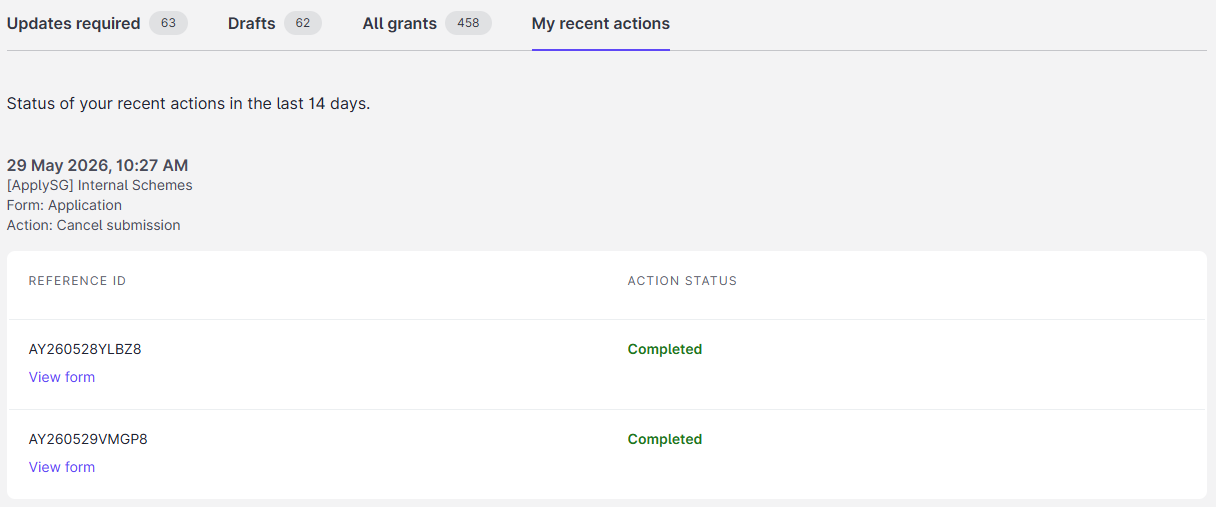
Bulk action moves several submissions to the same state in one operation. Applicants and backoffice users on the Business Grants Portal can use it. You can select up to 50 submissions that share the same form and state, then apply one workflow action to all of them. The result shows on the My recent actions tab for 14 days.
Who this applies to
- Audience: Applicants and backoffice users on the Business Grants Portal.
- Access required: The permission to take the action on the selected submissions.
- Assumed knowledge: The submissions are on the Updates required tab.
Steps
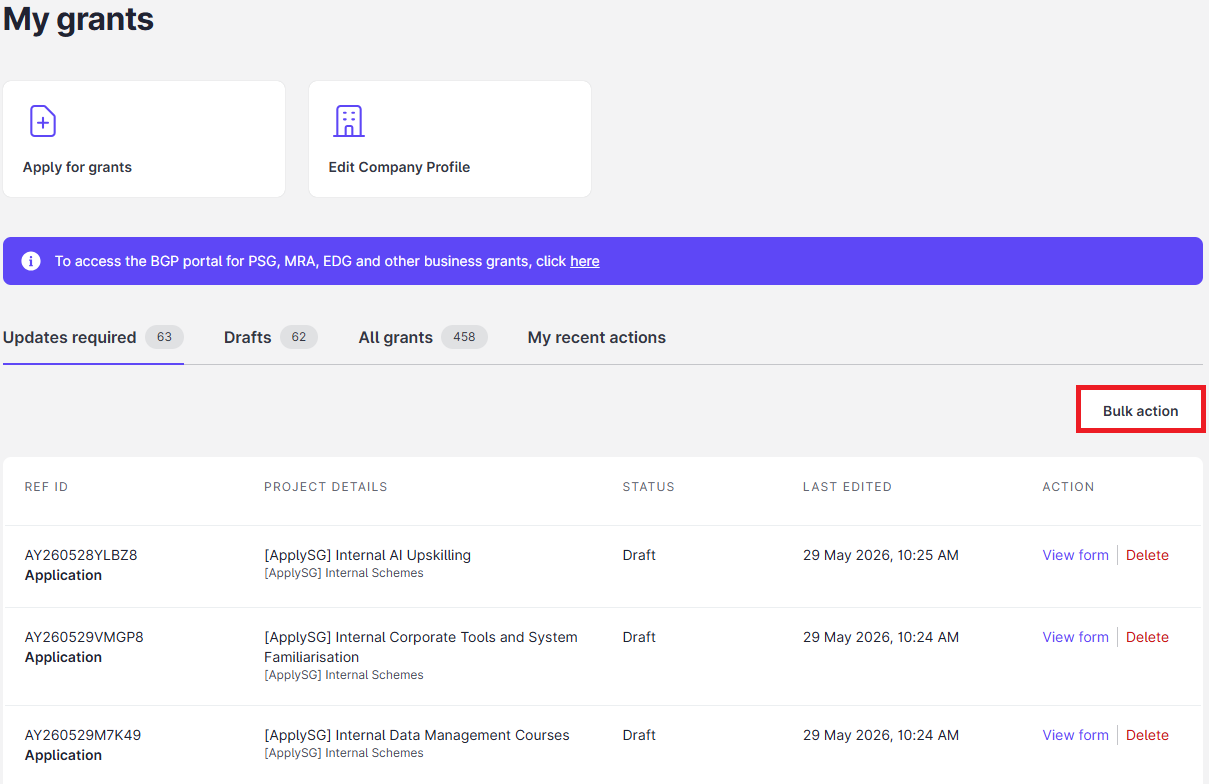
- On the dashboard, open the Updates required tab.
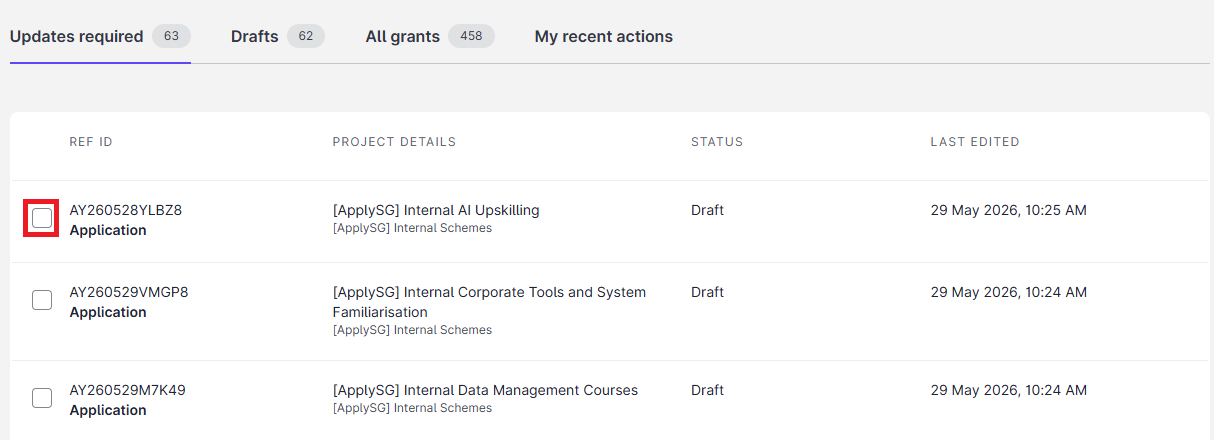
- Select Bulk action. A column of tick boxes appears.
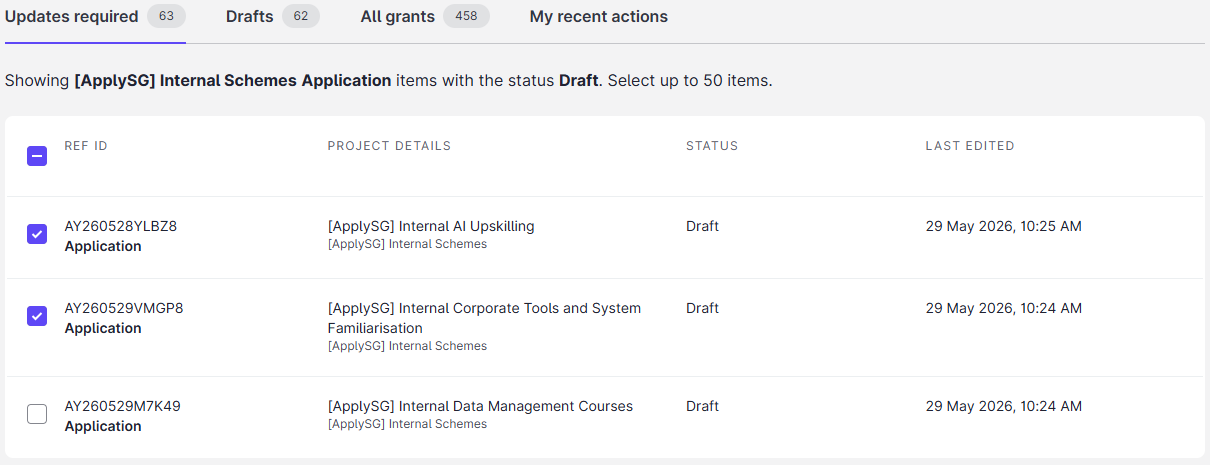
- Tick the first submission. The list refreshes to show only the submissions that can move together.
- Tick the other submissions, or tick the box in the header row to select the maximum allowed. Select Next.
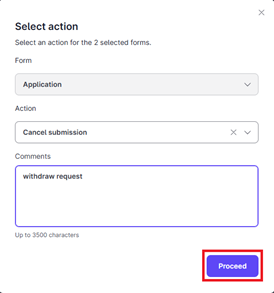
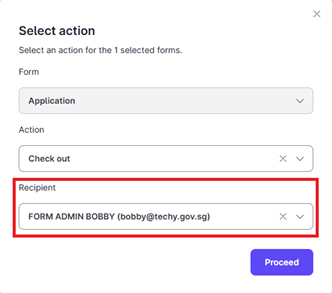
- In the dialog, select the action. Enter a comment if the transition needs one. If the edge requires an assignee, select the recipient.
- Select Proceed.
The dialog differs for applicants and officers. An applicant selects the action and enters a comment.
A backoffice user also selects a recipient when the edge requires an assignee.
See the result
The completion status shows when the action ends. You can also open the My recent actions tab, which shows each submission with its action status.
Constraints and limitations
| Constraint | Detail |
|---|---|
| Maximum | 50 submissions in each bulk action. |
| Same group | All submissions must have the same lifecycle, form version and state code. |
| Comments | The comment limit is 3,500 characters. |
| Assignee | Required only for backoffice transitions where the edge requires an assignee. |
| History | Bulk action status stays for 14 days. |
| Portal | Business Grants Portal only. |
Related features
- Business Grants Portal template: the states and roles.
- Add and edit edges: set whether an edge requires an assignee or a comment.
