Request a scheme group
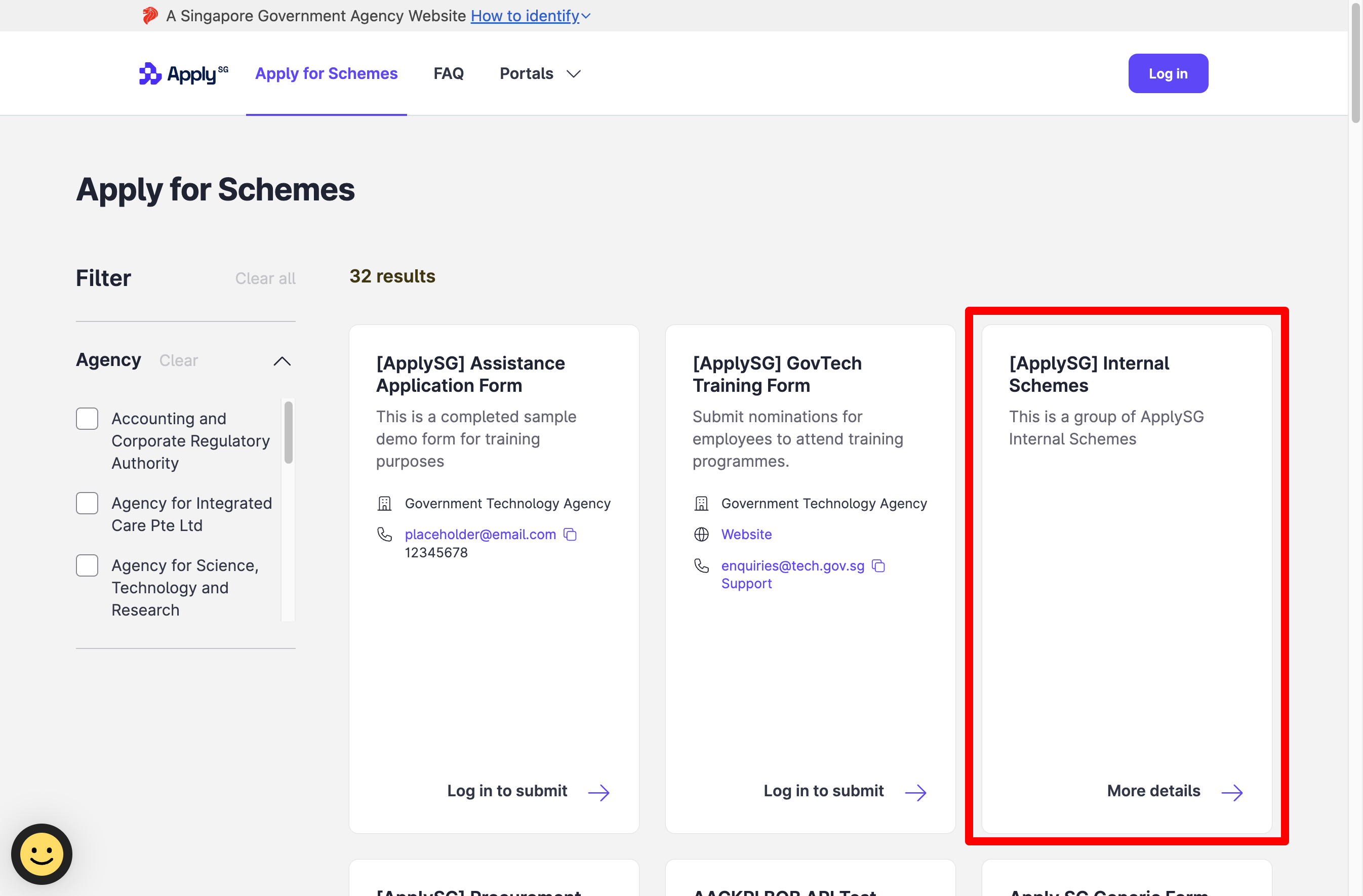
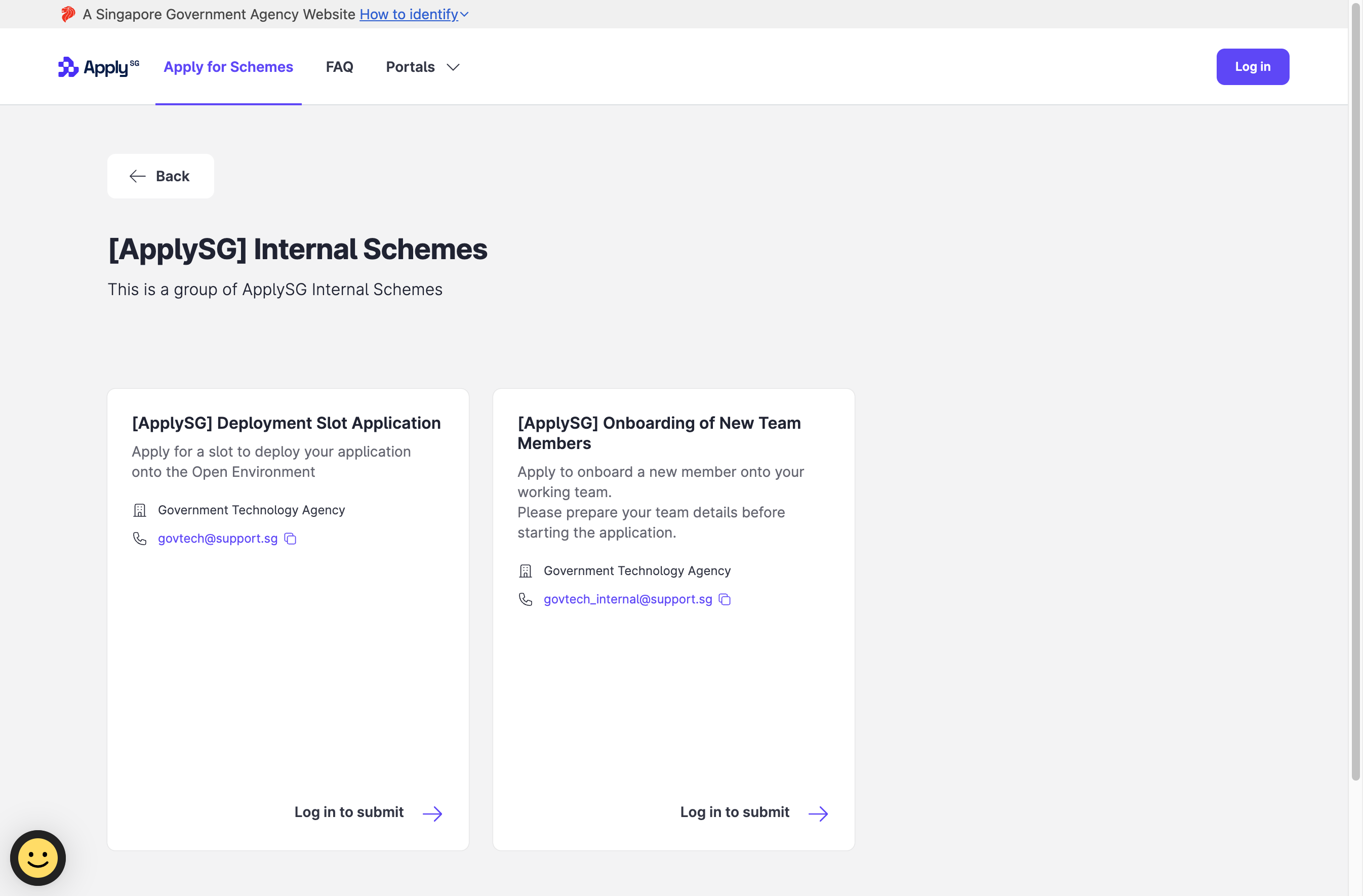
A scheme group displays related schemes together on the listings page. It is also called a lifecycle tag. The listings page shows the group as one card with a More details link. The group has its own page that lists every scheme in it.
The ApplySG product team creates scheme groups for you. This guide covers what you need to do so that they can, and what the group looks like.
Applicability: Scheme groups are available on the Business Grants Portal only.
Who this applies to
- Audience: Scheme owners on the Business Grants Portal.
- Access required: You must have access to every scheme that goes in the group. You must also give the Manage Scheme Groups permission on those schemes to the ApplySG product team.
- Assumed knowledge: Your schemes are open listings. Refer to Set up an open listing.
Steps
- Give the Manage Scheme Groups permission to the ApplySG product team on each scheme in the group. Refer to Assign scheme permissions.
- Contact the ApplySG team to agree the group details. Refer to Contact ApplySG.
The team then creates the group in the Backoffice Portal. They fill in the group name, description, optional URL and schemes, and save.
What the group looks like
On the open listings page, the group appears as a card with a More details link.
The group page lists every scheme in the group.
Constraints and limitations
| Constraint | Detail |
|---|---|
| Portal | Business Grants Portal only. |
| Who creates the group | The ApplySG product team. You cannot create a group yourself. |
| Permission | Manage Scheme Groups must be assigned on each scheme to be grouped. |
Related features
- Set up an open listing: control which schemes appear on the listings page.
- Scheme permissions: what Manage Scheme Groups allows.
