Set State Builder settings
The State Builder settings decide which roles can create submissions for a form, and which roles are assigned to the creator of a submission. Set them for every form, because a form that no role can create cannot start a workflow.
Feature availability: State Builder is in Beta.
Who this applies to
- Audience: Configurators.
- Access required: The Edit permission on the scheme.
- Assumed knowledge: The form has form roles. Refer to Add form roles.
Open the settings
- On the scheme overview page, select the Versions card, select Edit next to the form, then open the State Builder page.
- Select the State Builder tab, then select View State Builder.
- Select the Settings icon at the top left of the State Builder.
The Settings panel opens.
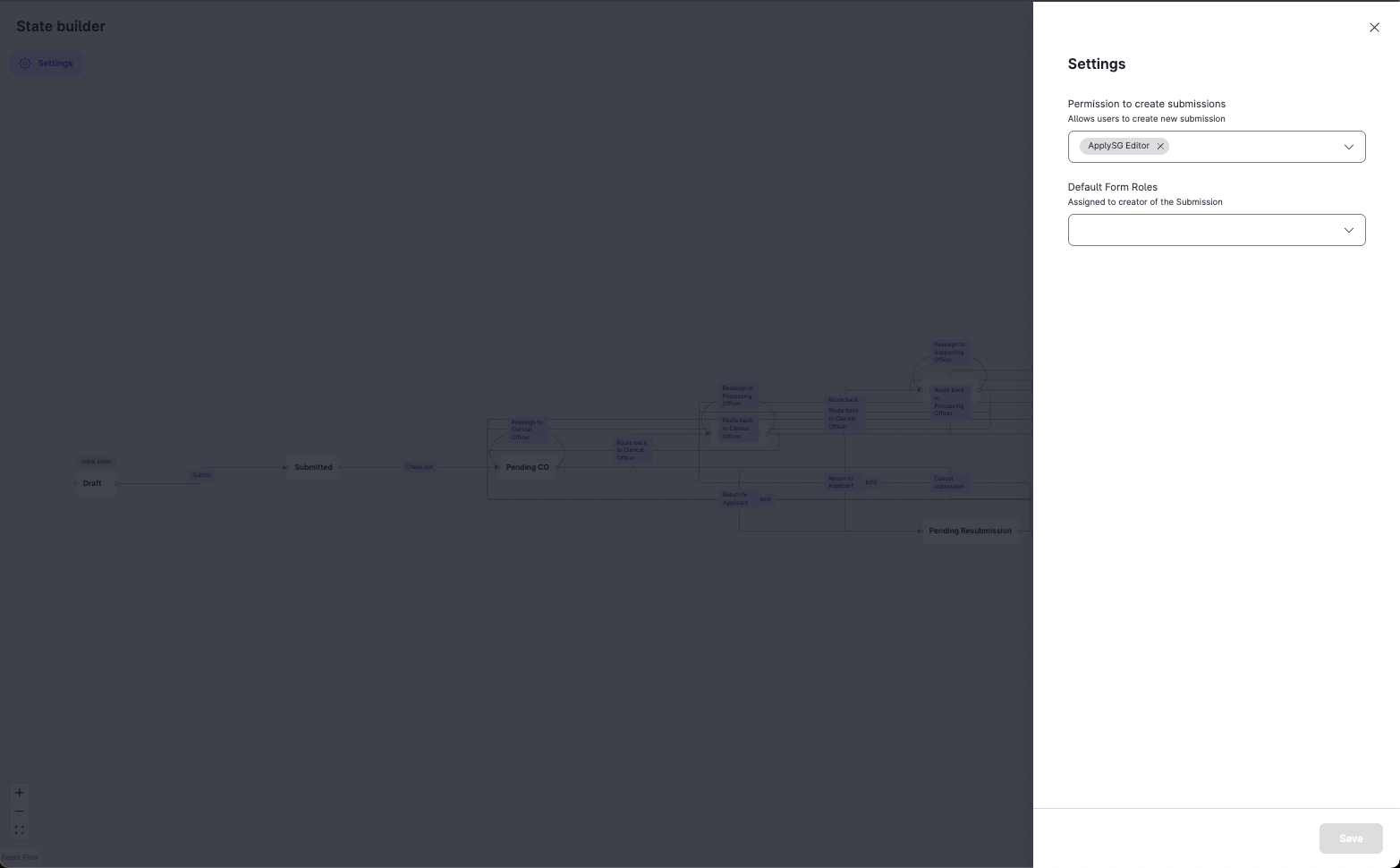
Choose who can create submissions
- In Permission to create submissions, select the roles that can create a submission for this form.
- Select Save.
Only these roles can start a workflow. The roles come from the scheme roles that you added as form roles.
Set default form roles
Default form roles are assigned to the person who creates the submission. They apply to Research Grants Portal schemes with team-based submissions only.
- In Default Form Roles, select the roles to assign to the creator.
- Select Save.
Constraints and limitations
| Constraint | Detail |
|---|---|
| Creating submissions | Only the predefined applicant roles can create submissions. A role that you add yourself cannot create submissions yet, including backoffice roles. |
| Default form roles | Available for Research Grants Portal schemes with team-based submissions only. |
| After publishing | You can edit State Builder settings on a published form version. Refer to Change a scheme after go-live. |
Related features
- Applicant roles: the predefined applicant roles.
- Add form roles: roles must be form roles before you choose them here.
