Create an automation
An automation runs actions automatically when a submission changes. You choose a form and a trigger, then add one or more actions. ApplySG supports three actions: send an email, send a webhook to a target system, and move child submissions to another state. Each automation belongs to one form version.
Use automations to send applicant data to your agency’s reporting tools, or to start a disbursement in your finance system.
Who this applies to
- Audience: Configurators.
- Access required: The Manage Automations permission on the scheme. Webhook actions also need Manage Target Systems.
- Assumed knowledge: The form has a workflow with states. Refer to Build your workflow: roles, states and form permissions.
Steps
- On the scheme overview page, select the Versions card.
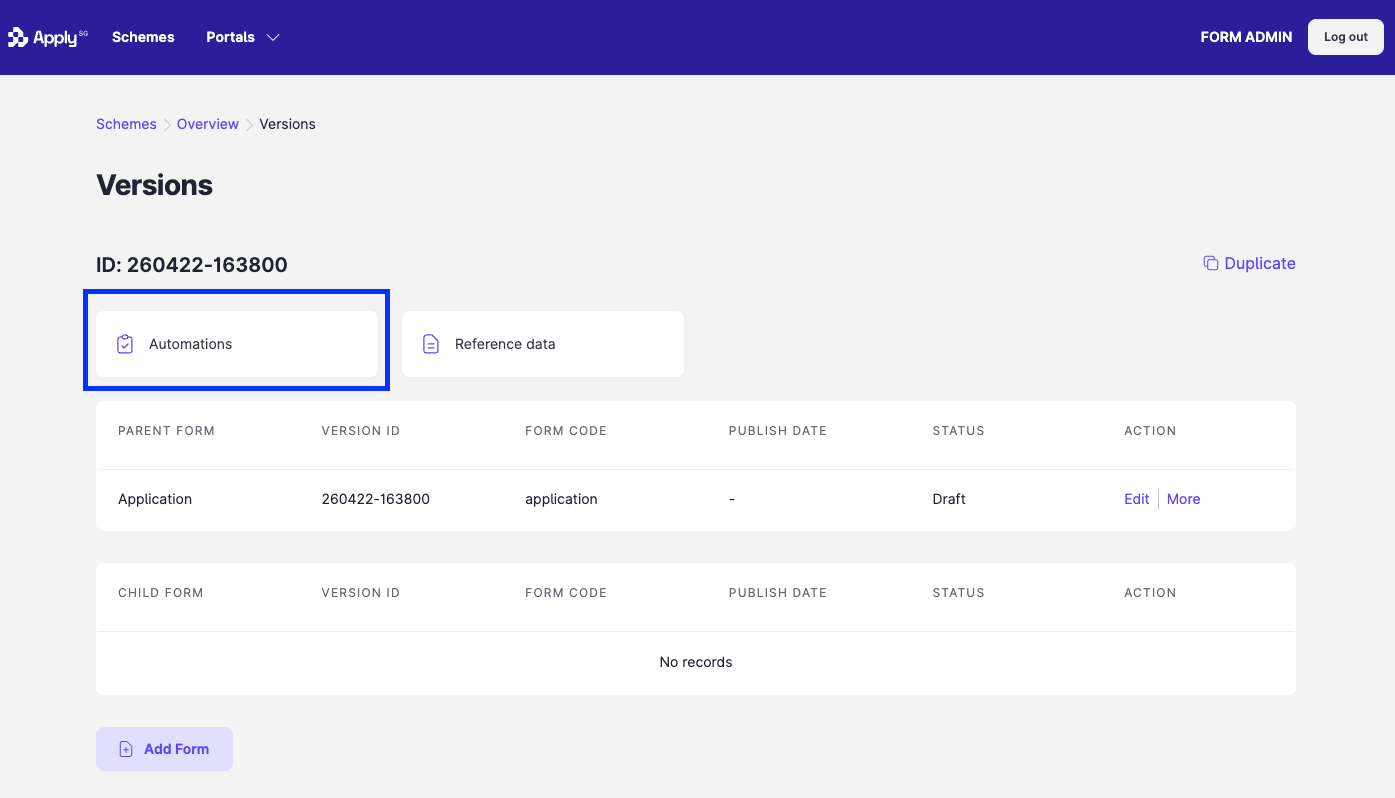
- On the version that you want to configure, select the Automations card.
- Select Create Automation.
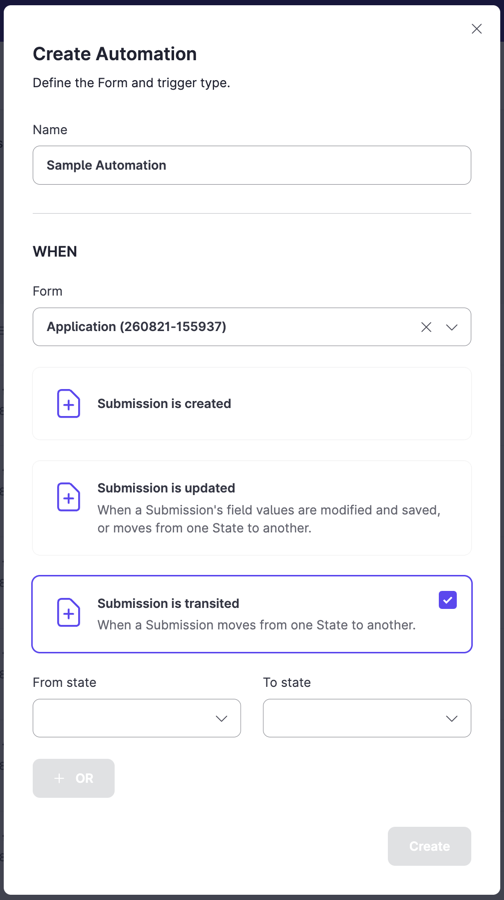
- Enter a Name, up to 96 characters. It must be unique among automations for the same form.
- Select the Form. The list shows each form as form code (version ID).
- Select a trigger and set its conditions. Refer to the next section.
- Select Create, then select Set up actions.
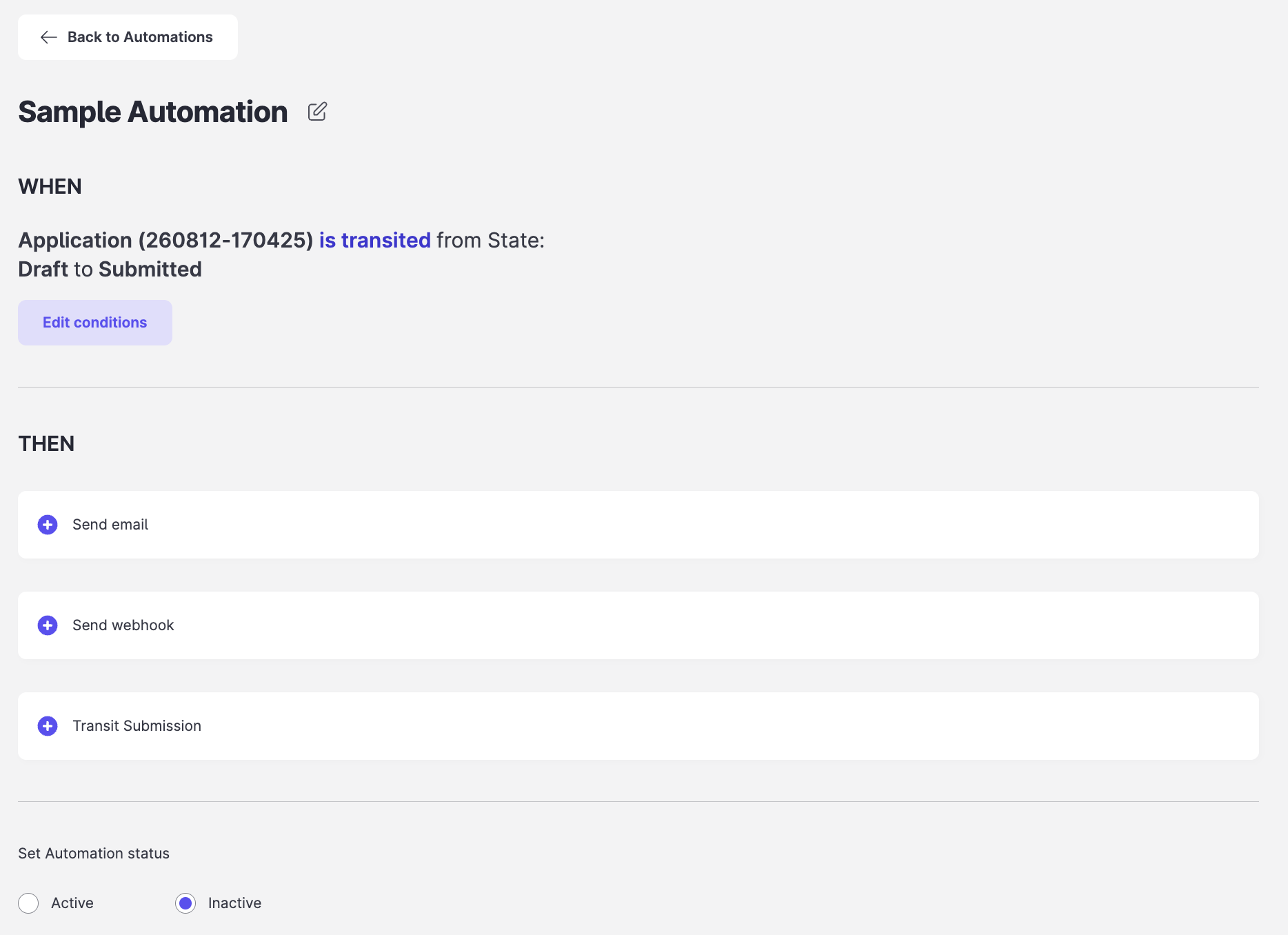
- In the editor, add an action under THEN. Refer to the links in the actions table.
- Set the automation to Active. It starts as Inactive, and you can activate it only after you add at least one action.
Triggers
| Trigger | When it runs | Conditions to set |
|---|---|---|
| Submission is created | A new submission is created, by any route: a closed invite, an open listing, the Create Submission API, or a data import. | None. |
| Submission is updated | A submission is saved as a draft, or any update is applied. A transit also counts as an update. | At State: Any, or Select State and choose one or more states. |
| Submission is transited | A submission moves from one state to another. | At least one From State and To State pair. Select OR to add more pairs. The automation runs when any pair matches. |
Actions
| Action | Triggers it supports | Guide |
|---|---|---|
| Send email | Submission is transited | Send an email automatically |
| Send webhook | Submission is created, updated or transited | Send a webhook automatically |
| Transit submission | Submission is transited | Transit a submission automatically |
Constraints and limitations
| Constraint | Detail |
|---|---|
| Limits | 60 automations per trigger form. 30 trigger conditions per automation. 5 actions per automation. 80 actions per trigger form. |
| Fixed trigger | You cannot change the form or the trigger type after you create an automation. Create a new automation instead. |
| Overlapping triggers | If one automation uses Submission is updated and another uses Submission is transited with overlapping states, one transit runs both. |
| Independent runs | When several automations share a trigger, all of them run independently. The order is not guaranteed. |
| Activation | An automation needs at least one action before you can activate it. |
| New versions | Automations are Inactive in a new form version. Activate them before you publish. |
| Published forms | You can create and change automations after a form is published. |
| Closing the dialog | Closing the Create Automation dialog returns you to the list without saving. |
Related features
- Activate or deactivate automations in bulk: change the status of many at once.
- Set up a target system: needed for webhook actions.
- Manage email templates: needed for email actions.
