Activate or deactivate automations in bulk
Bulk status change sets several automations to Active or Inactive in one action. Use it to turn automations back on after you duplicate a form version, because duplicated versions start with every automation Inactive. Use it also to pause several automations during maintenance or testing, or to enable many new automations before you publish.
Who this applies to
- Audience: Configurators.
- Access required: The Manage Automations permission on the scheme.
- Assumed knowledge: The automations already exist and have at least one action each. Refer to Create an automation.
Steps
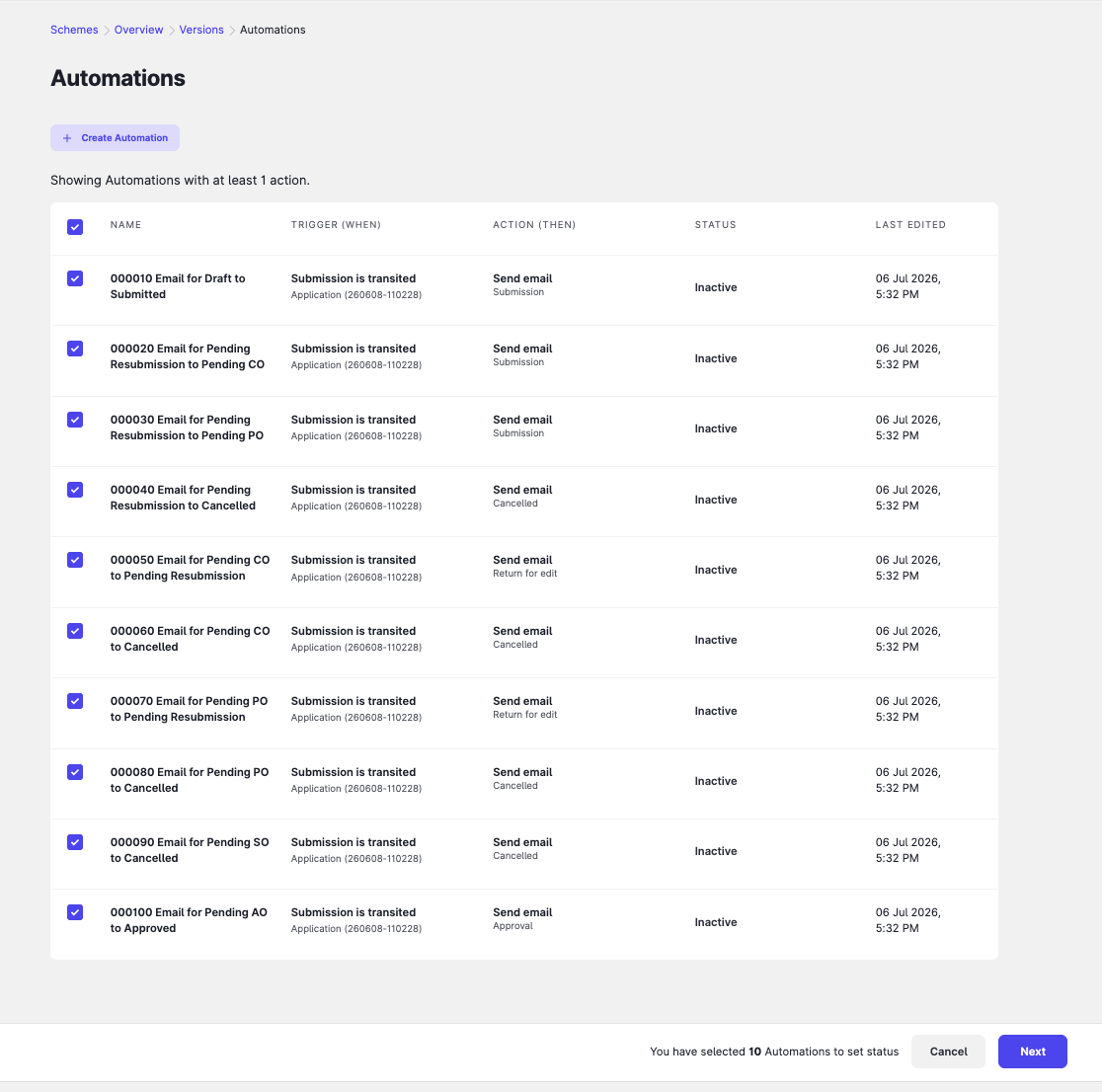
- On the Automations page of the version, select Bulk Action at the top right, then select Set Status.
- Select the automations to change. The list shows only automations with at least one action, because only those can be activated.
- Select Next.
- Select the status to set: Active or Inactive.
- Select Proceed.
Constraints and limitations
| Constraint | Detail |
|---|---|
| Actions required | Only automations with at least one action appear in the list. |
| New versions | Duplicating a form version sets all its automations to Inactive. Activate them before you publish. |
| Publish warning | The publish flow warns you if relevant automations are inactive. |
Related features
- Create and delete form versions: why versions start with inactive automations.
- Pre-publish checklist: confirm that automations are active.
