Add form roles
A form role links a scheme role to one form. Only roles that you add as form roles can act on that form in the State Builder. This lets you give different roles different responsibilities on different forms in the same scheme. For example, a processing officer for application forms handles only application forms, and a processing officer for progress reports handles only progress reports.
Feature availability: State Builder is in Beta.
Who this applies to
- Audience: Configurators.
- Access required: The Edit permission on the scheme.
- Assumed knowledge: The scheme already has roles. Refer to Manage scheme roles.
Add form roles
- On the scheme overview page, select the Versions card, select Edit next to the form, then open the State Builder page.
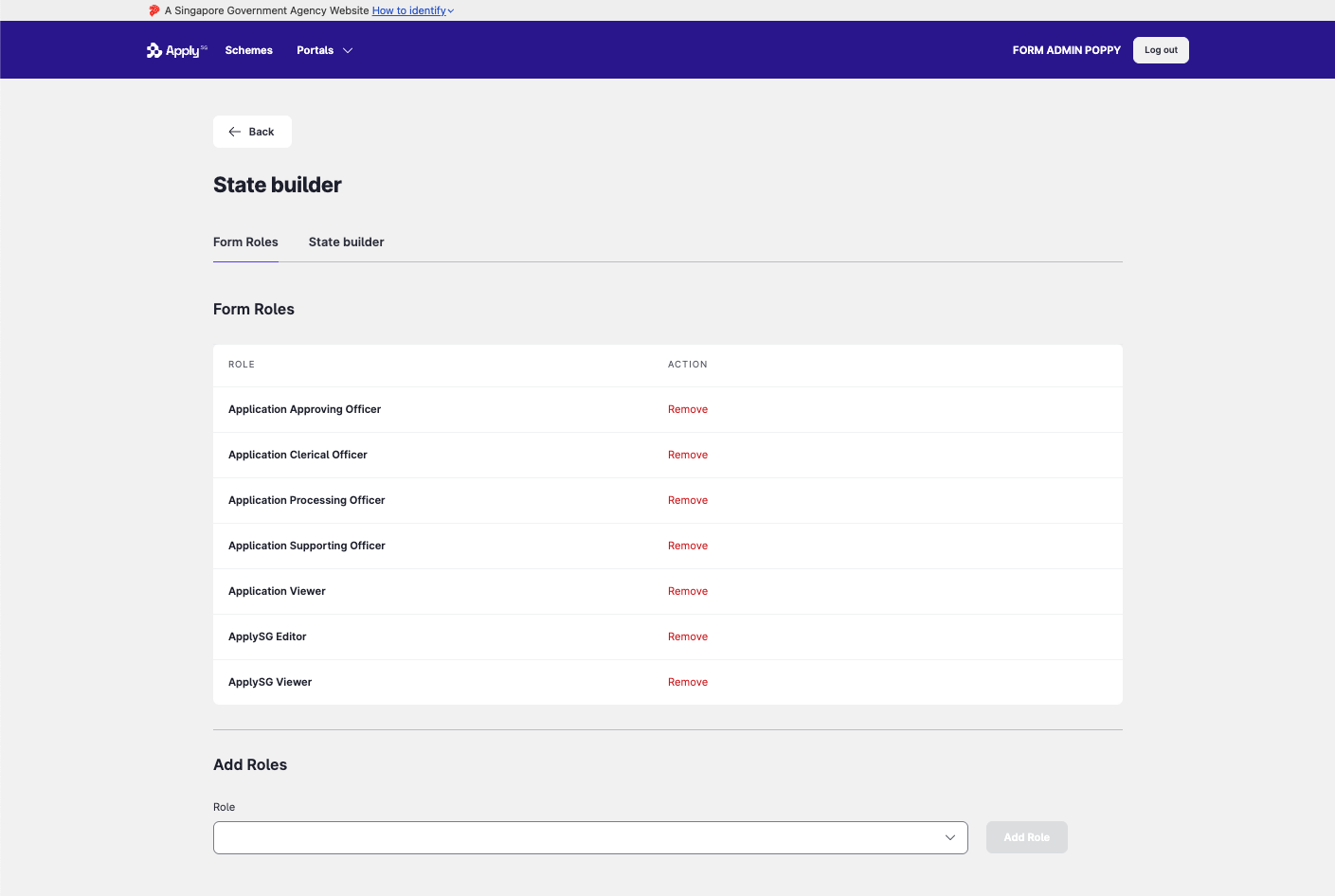
- Select the Form Roles tab.
- Under Add Roles, select one or more roles from the Role list.
- Select Add Role.
The roles appear in the Form Roles table.
Remove a form role
- On the Form Roles tab, find the role in the Form Roles table.
- Select Remove in the Action column.
After you add roles
Set what each role can do. Refer to Set form permissions.
Constraints and limitations
| Constraint | Detail |
|---|---|
| Default component access | A new form role starts with no component access. Set component permissions for each new role. Refer to Set component permissions. |
| Role must exist | You can add only roles that already exist in the scheme. |
Related features
- Manage scheme roles: create the roles first.
- Set form permissions: decide what each role can do in each state.
