View submission documents
The Documents page lists every document that belongs to a submission, grouped by form type, such as Application or Claim. It includes files that applicants or officers uploaded and documents that the Document Generator component produced. Each row has a Download link.
Who this applies to
- Audience: Applicants and backoffice officers.
- Access required: The component permission to view the file at the submission’s current state. Without it, the file does not appear. Refer to Set component permissions.
- Assumed knowledge: None.
What the page shows
For each file, the page shows:
- The file name and type, for example
image1.png. - The date and time that the file was uploaded or generated.
- The file size.
- A Download link that saves the file to your device.
Open the page as an applicant
The route depends on the portal.
| Portal | Steps |
|---|---|
| Business Grants Portal | 1. On the dashboard, open the All Grants tab. 2. Select View Project under Project Title. 3. Select the Documents card on the Project Overview page. |
| Research Grants Portal | 1. On the dashboard, select Project Details under Project for a submission. 2. Select the Documents card on the Project Overview page. |
| ApplySG Portal | 1. On the dashboard, select Submission Overview under Submission Details for a submission. 2. Select the Documents card on the Submission Overview page. |
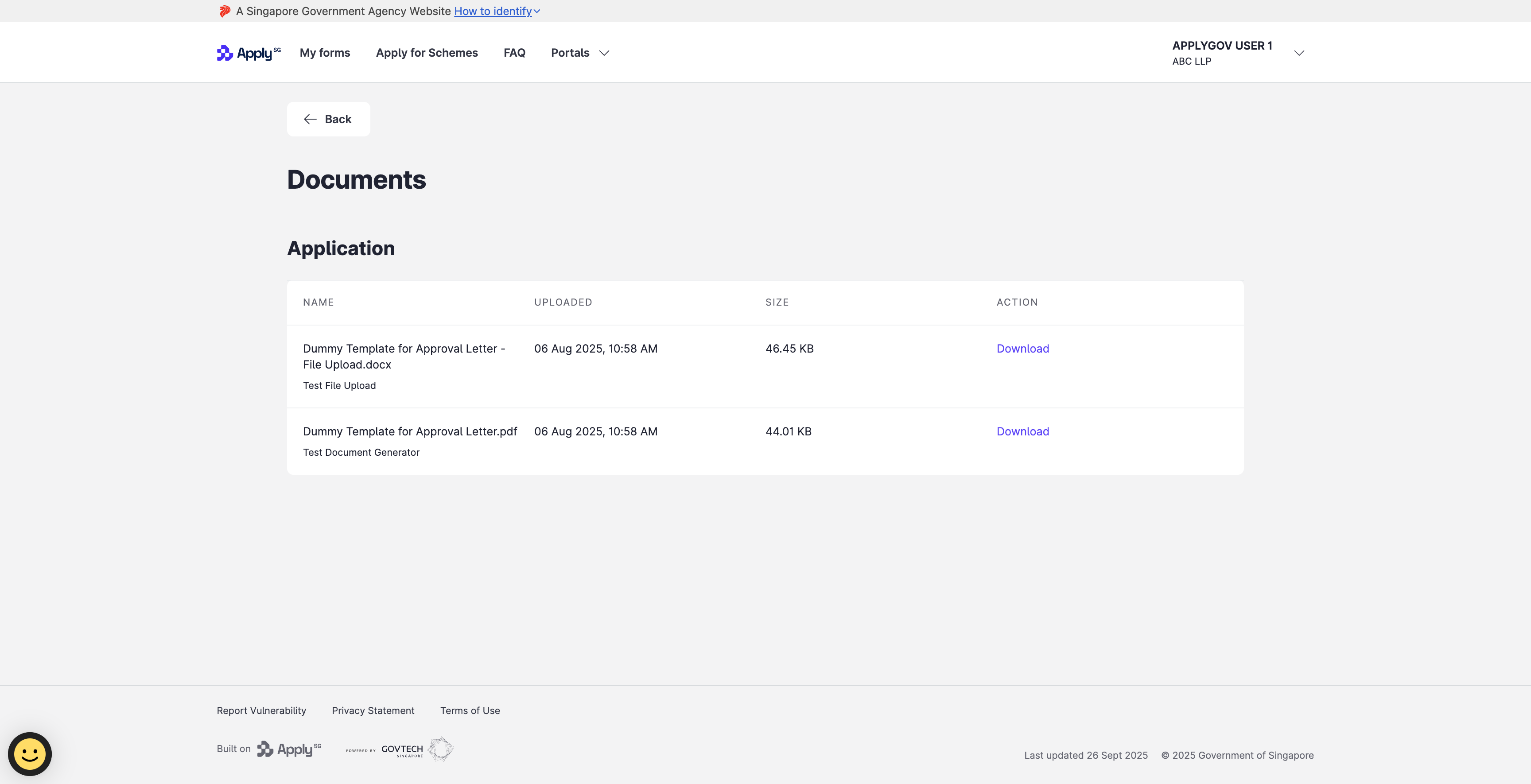
Open the page as a backoffice officer
- On the dashboard, select View Form for the submission.
- Select Overview in the navigation bar.
- Select the Documents card on the Submission Overview page.
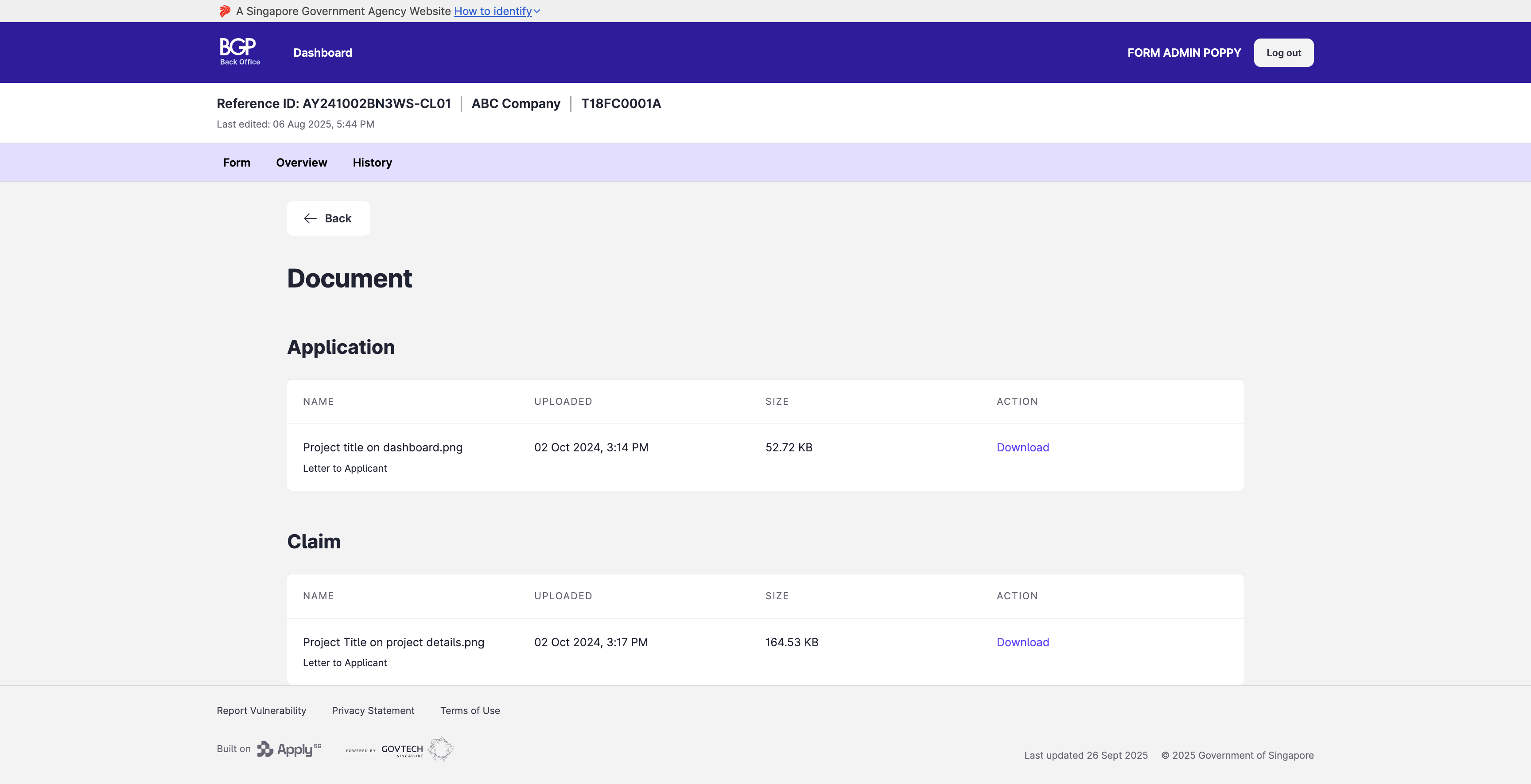
Constraints and limitations
| Constraint | Detail |
|---|---|
| Component permissions | You see a file only if your role has permission to view that component in the submission’s current state. |
| Grouping | Files are grouped by the form type that they belong to. |
Related features
- Export submission data: export uploaded documents for many submissions.
- Document generator component: how generated documents are produced.
