Export submission data
Export Data lets scheme administrators download submission data for offline processing and analysis. It is a shared feature: all backoffice users on the scheme can see and download any exported file. One export runs at a time. This guide also covers downloading a single submission as an HTML file.
Who this applies to
- Audience: Scheme owners and backoffice officers.
- Access required: The Export Submission permission on the scheme. It gives access to the Export data card.
- Assumed knowledge: Each form version is exported separately.
What an export contains
- A
.csvfile of structured data for every submission in the form. It has the form and project details and one column per form field. It also lists every state in the workflow, with the time and the user of the last action in that state. - The First Transition Date, which is the date that the submission first moved out of its initial state.
- Optional: the files that applicants uploaded.
Choose a date filter
| Filter | What it exports | Use it to |
|---|---|---|
| First Submitted Date | Submissions by when they first passed through a submission edge. | Process only submitted applications. |
| Created Date | Submissions by when they were created, in any state. | Export everything created in a period. |
| First Transition Date | Submissions by when they first moved out of their initial state. | Verify transactions, because Finance counts submissions by this date. |
The First Transition Date is filled in for historical submissions too, including those that moved out of their initial state before the filter was introduced.
Steps
- On the scheme overview page, select the Export data card.
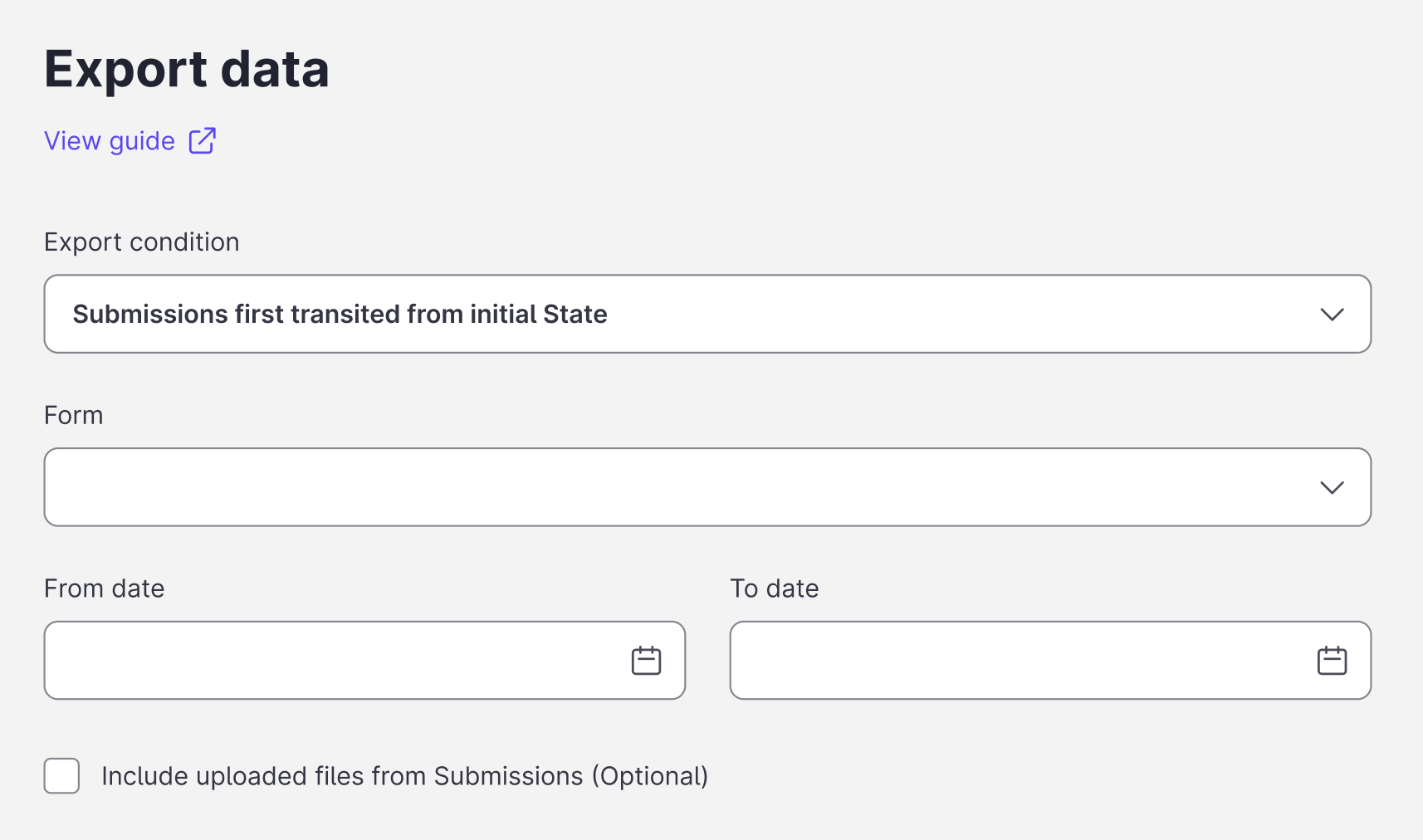
- Select the Export condition. Each condition matches one of the filters in the previous table.
- Select the Form.
- Select the From date and To date of the period.
- Optional: tick Include uploaded files from Submissions to include uploaded documents.
- Select Export. The job appears in the Exported files table.
- When the file is ready, download the
.zipfile. Files are available for 14 days, and then they are deleted.
Exported files table
The Exported files table lists the export jobs from the last 14 days. A job in progress shows its status and updates by itself.
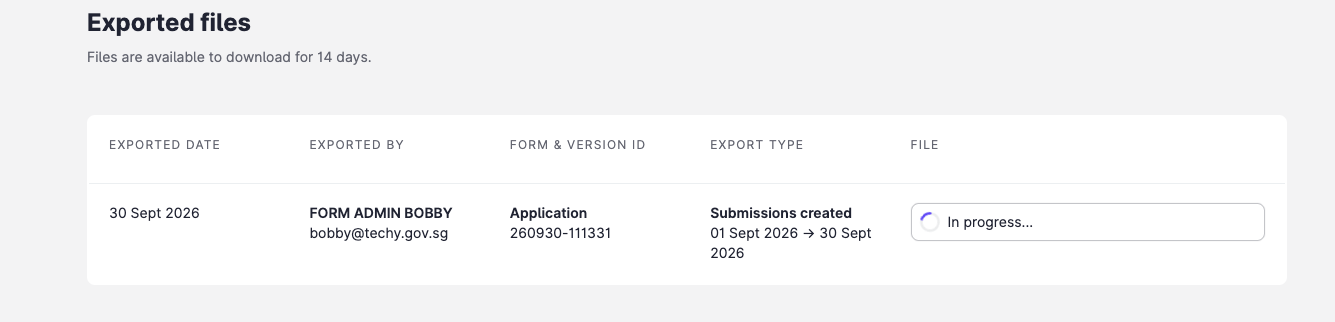
| Column | What it shows |
|---|---|
| Exported Date | The date that the job was created. |
| Exported By | The name and email address of the user who ran the export. |
| Form & Version ID | The form name and version ID. |
| Export Type | The date filter and the start and end dates. |
| File | The download link once the job completes. The job status while it runs. |
Older jobs stay in storage but do not appear in the table. Jobs created before this table was introduced are not listed.
Download one submission as a file
Applicants and officers can save one submission, with its form fields and inputs, as a static .html file that cannot be edited.
- Open the submission.
- Select Download form in the side navigation.
Constraints and limitations
| Constraint | Detail |
|---|---|
| One at a time | Only one export runs at a time. |
| Shared files | All backoffice users on the scheme can download any exported file. |
| Retention | Exported files are available for 14 days. |
| Form versions | Export each form and each version separately. |
| Permission | The Export Submission permission is required. |
Related features
- Verify billing with exported data: reconcile exports against your invoice.
- View submission history: see the audit trail for one submission.
