Dashboards
Each portal has two dashboards: one for applicants and one for backoffice officers. A dashboard is the place to monitor and manage submissions. It shows the status, who owns a submission, and the date and time of each action. What each dashboard shows depends on the portal and on the user’s form permissions.
Applicant dashboards
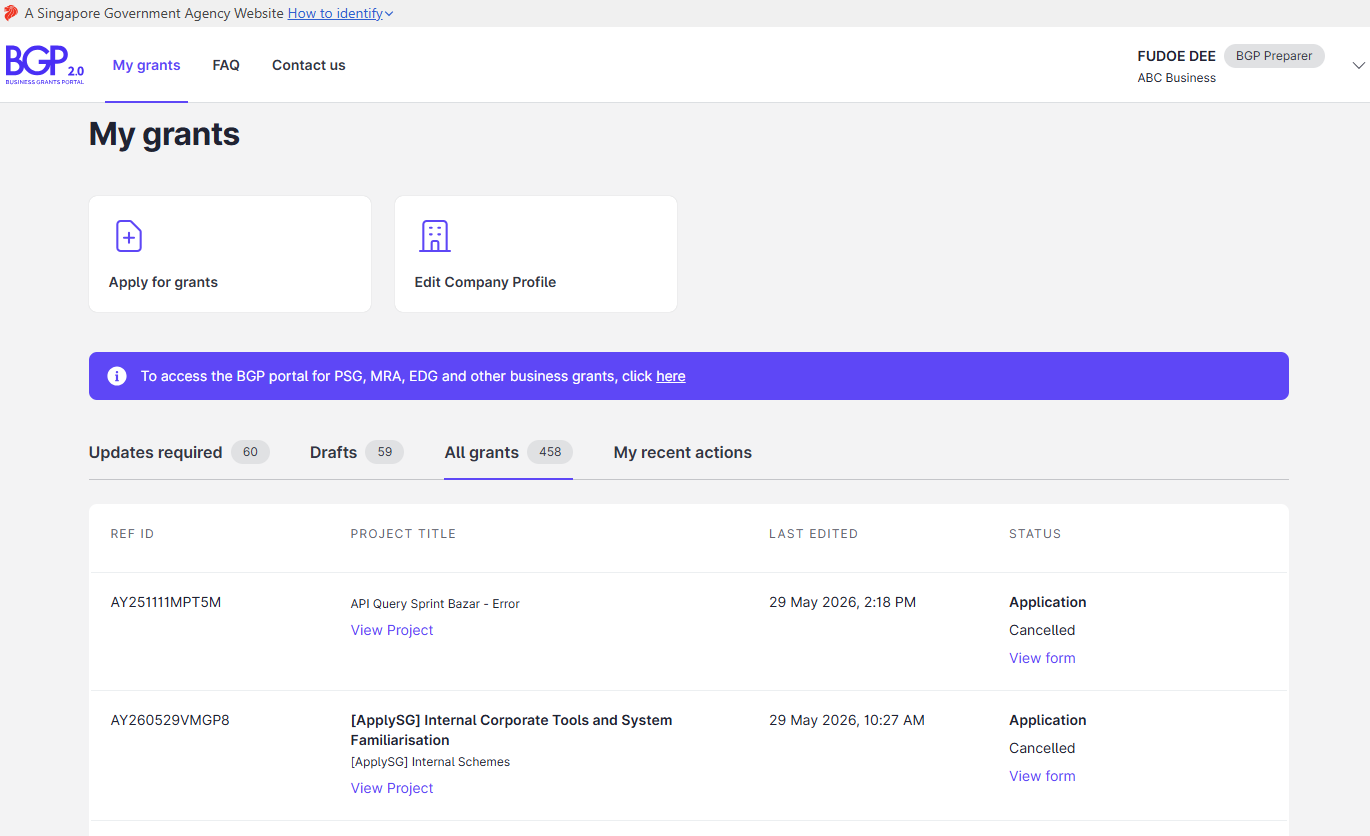
Business Grants Portal
The dashboard shows two cards, Apply for grants and Edit Company Profile, and submissions under four tabs.
| Tab | What it shows |
|---|---|
| Updates required | Submissions that need action from the applicant, for example Pending Resubmission or Pending Offer Acceptance. Bulk actions are available here. |
| Drafts | Drafts that are not yet submitted. |
| All grants | All current and past submissions, including those made by other members of the same organisation. |
| My recent actions | The status and history of bulk transit actions from the past 14 days. |
Each submission shows its reference ID with the form type, the project title, the status, the last edited date, and an action (on the Updates required and Drafts tabs).
ApplySG Portal
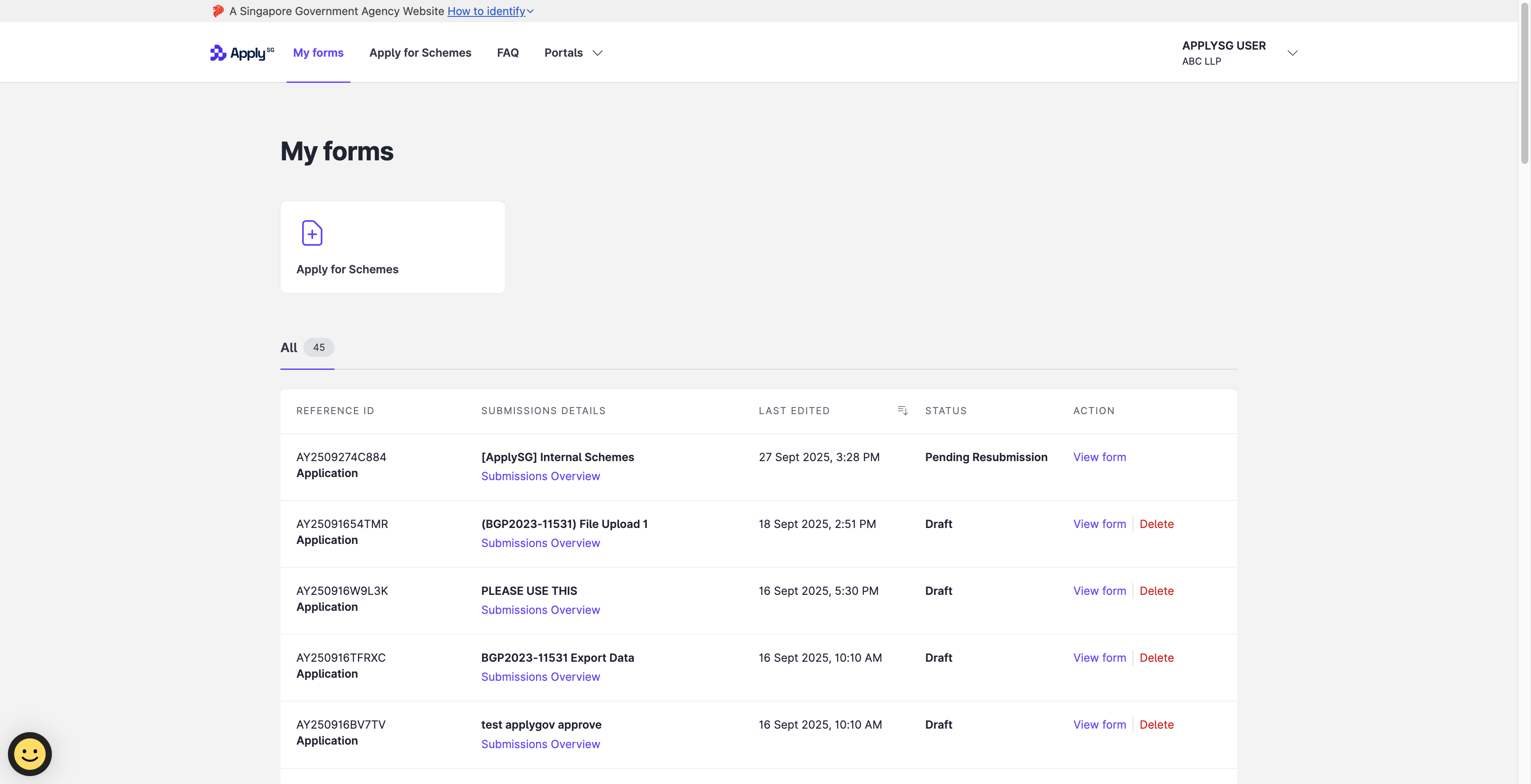
The dashboard shows the Apply for Schemes card and all submissions and drafts under one tab, All. Each submission shows its reference ID with the form type, the submission details, the last edited date, the status and an action.
Research Grants Portal
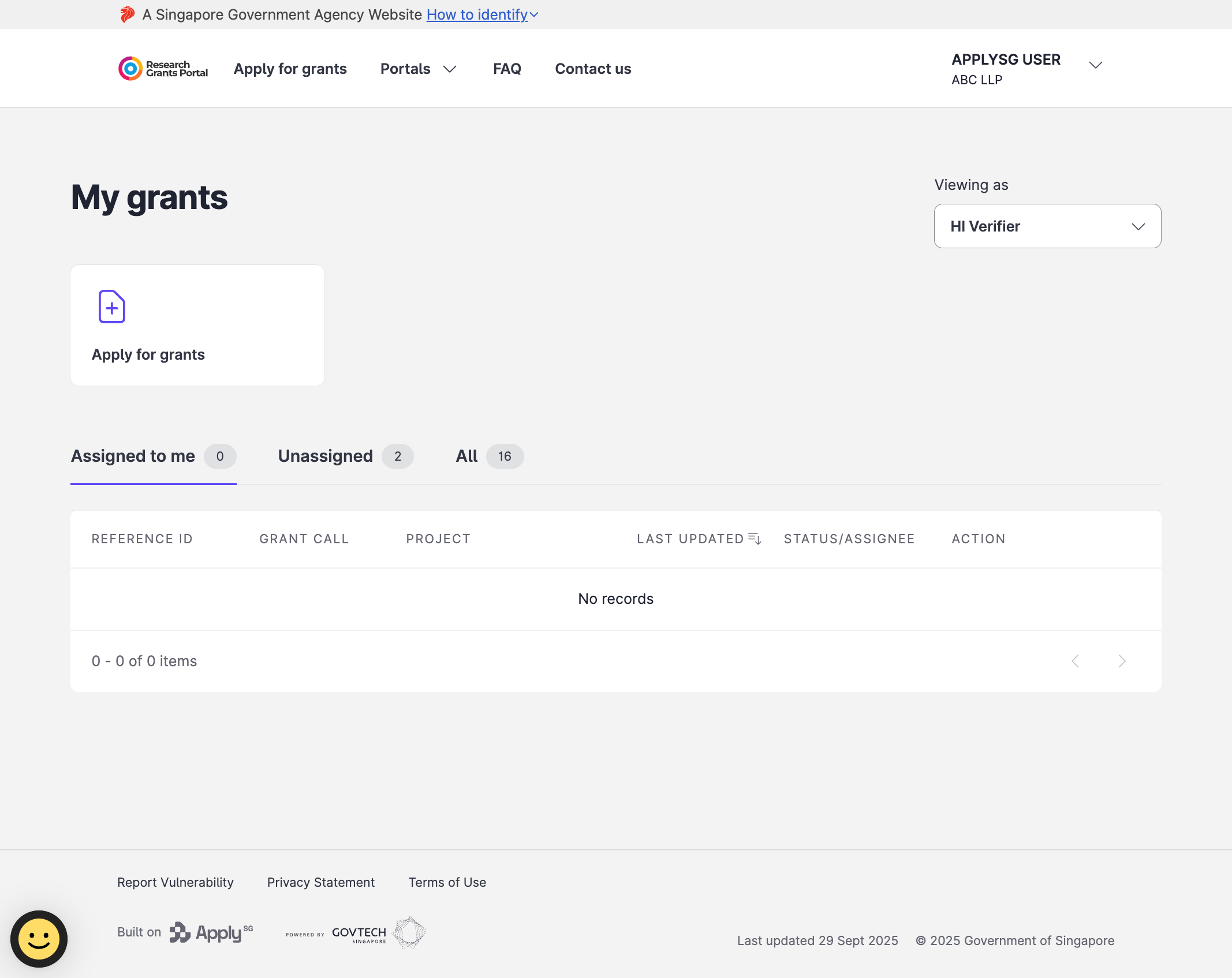
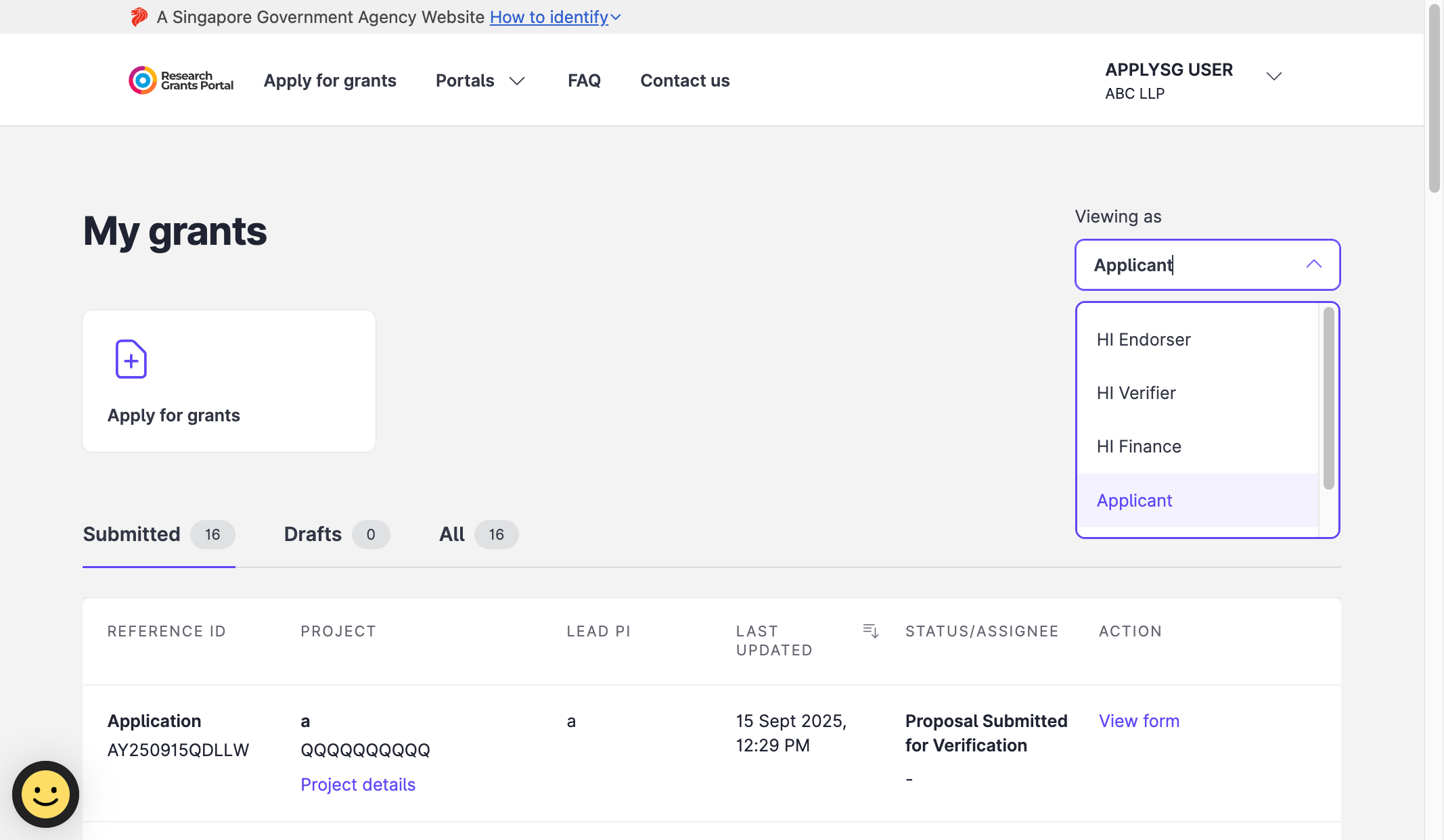
The dashboard shows the Apply for grants card. The tabs depend on the role that the user is viewing as.
| Role | Tabs |
|---|---|
| HI Endorser | Assigned to me, All |
| HI Verifier | Assigned to me, Unassigned, All |
| Applicant | Submitted, Drafts, All |
| Data Administrator | Submitted, Drafts, All |
Each submission shows its reference ID and form type, the project and the last updated date. It also shows the status or assignee, and an action. The Grant Call column appears for HI Endorser and HI Verifier. The Lead PI column appears for Applicant and Data Administrator.
Backoffice dashboards
Officers see the Invite Applicants and Manage Grants or Manage Schemes cards only if they have the permissions for them.
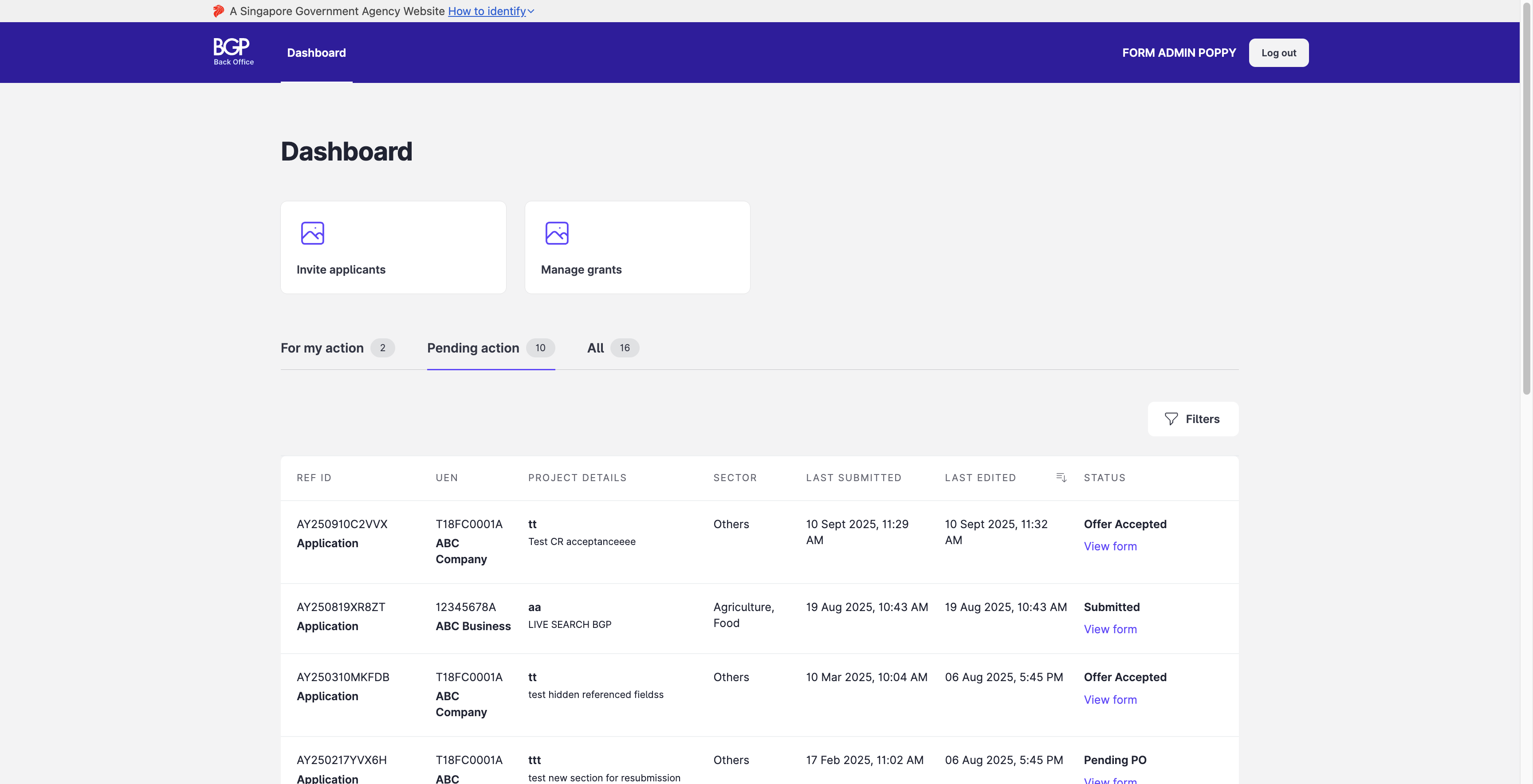
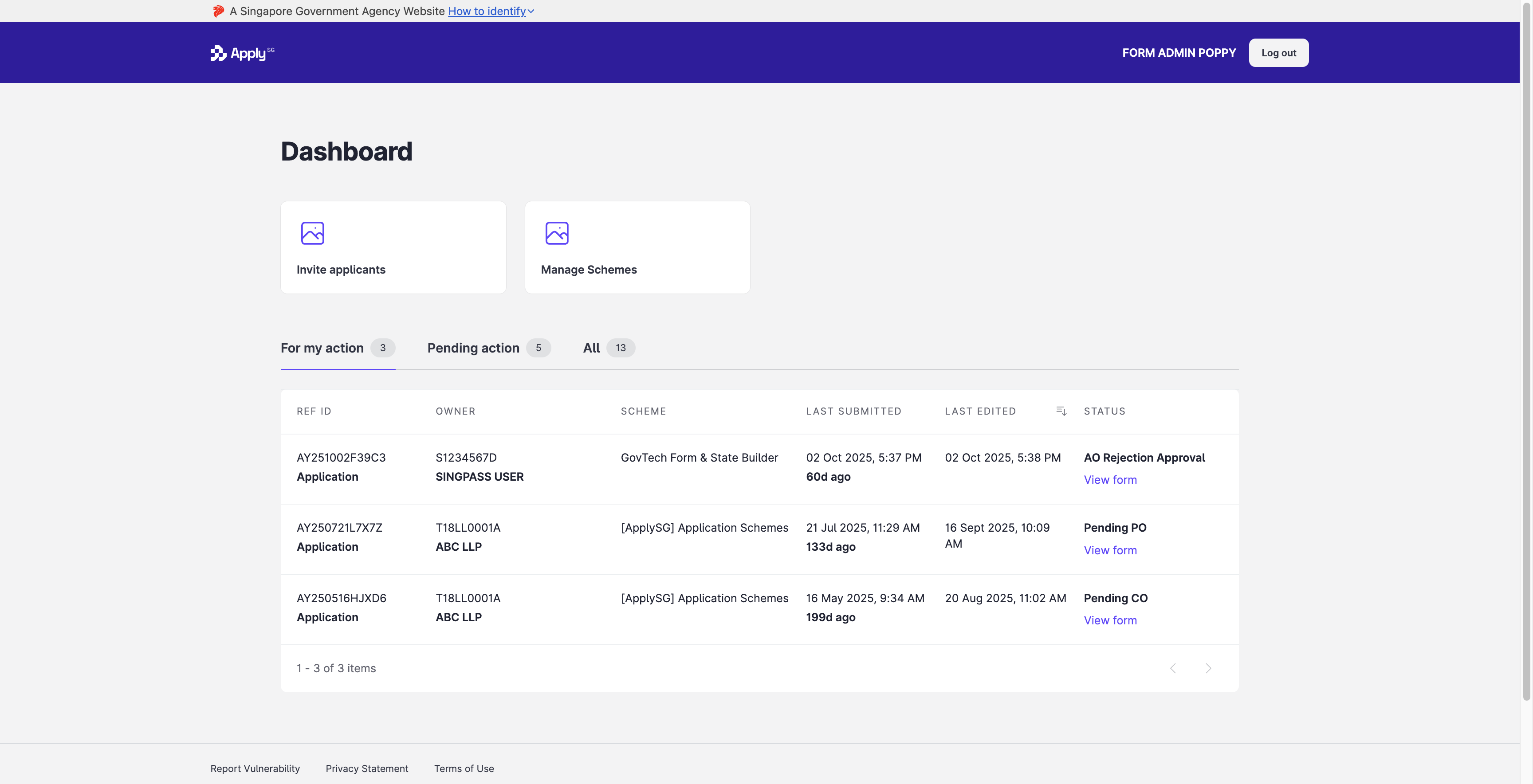
Business Grants Portal and ApplySG Portal
These two dashboards have the same tabs, filters and search.
| Tab | What it shows |
|---|---|
| For my action | Submissions assigned to you, where you have form permissions to view and act on them. |
| Pending action | Submissions with no assignee, or assigned to someone else, where you have form permissions to view and act on them. |
| All | All current and past submissions that you can view or act on. Officers can see the assignee here. |
| Feature | Detail |
|---|---|
| Filters | Filter by scheme, form and state. Available on Pending action and All. |
| Search | Search by the details shown on the dashboard. Available on All. |
The columns differ by portal.
| Portal | Columns |
|---|---|
| Business Grants Portal | Reference ID with form type, project details, sector, last submitted, last edited, status. |
| ApplySG Portal | Reference ID with form type, owner, scheme, last submitted, last edited, status. |
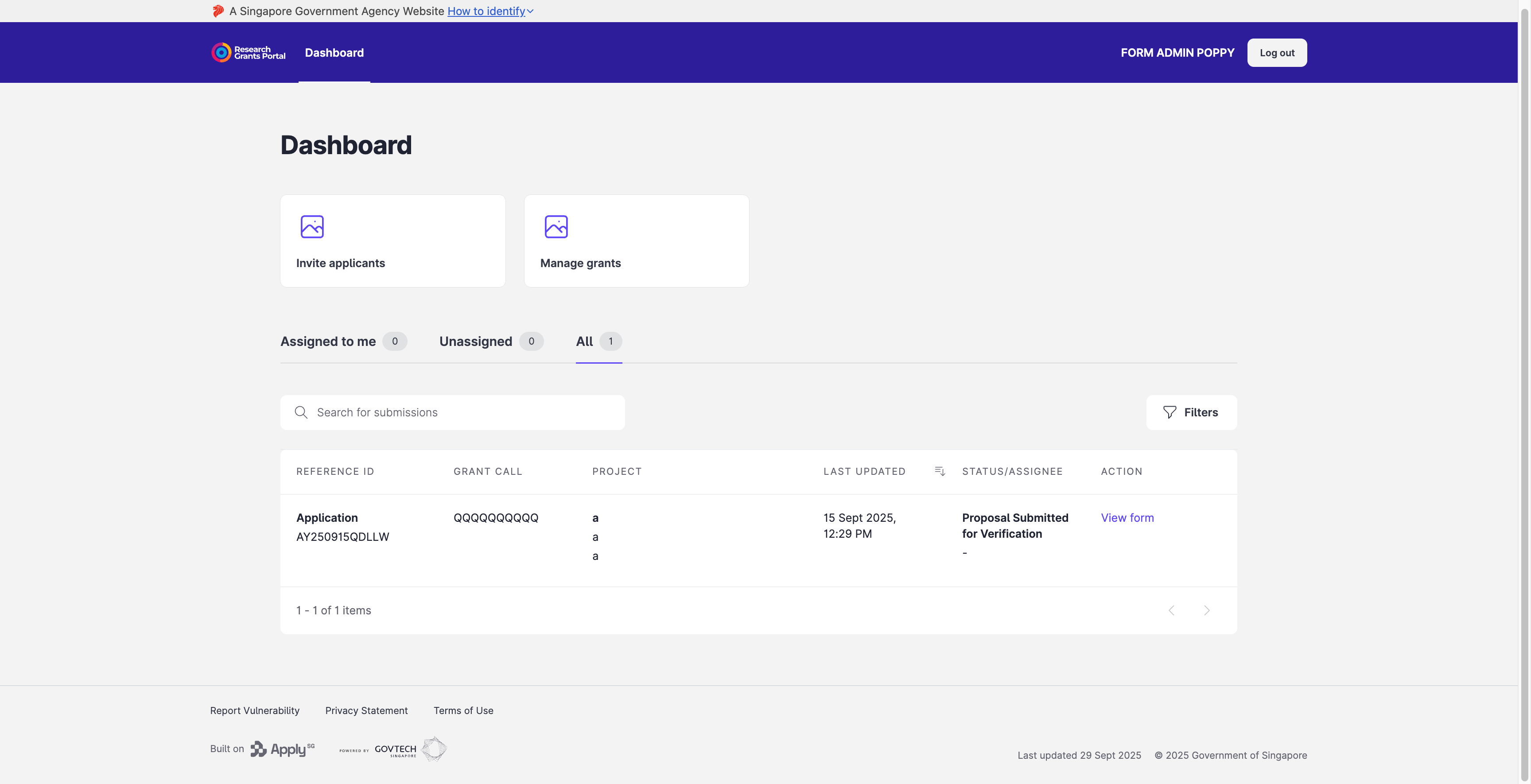
Research Grants Portal
| Tab | What it shows |
|---|---|
| Assigned to me | Submissions routed to you or picked up by you, pending your action. |
| Unassigned | Submissions in the general pool that no officer has picked up. If you can pick up the case, an Accept button appears below the reference ID. |
| All | All current and past submissions that you can view. |
Columns: reference ID with form type, grant call, project, status or assignee, action. The dashboard has a filter by scheme, form and state, and a search box.
Constraints and limitations
| Constraint | Detail |
|---|---|
| Form permissions | Tabs list only submissions for which the user has at least the View form permission in the current state. The “action” tabs also need Edit, Transit or Delete. |
| Cards | Officers see Invite Applicants and Manage Grants or Manage Schemes only with the relevant permissions. |
| Template support | The Business Grants Portal dashboard supports the Business Grants (linear) template configuration only. The ApplySG Portal dashboard supports the ApplySG generic template configuration only. |
| Draft submissions | Drafts, or submissions in the initial state, appear on the All tab for users with at least View. |
Related content
- Workflow template behaviours: the queries behind each dashboard tab.
- Set form permissions: decide who can view and act.
