Manage email templates
An email template is reusable email content that an automation sends when a submission moves between states. Templates keep subject lines, recipients and messages consistent. They can include dynamic data that ApplySG fills in from the submission or the scheme when it sends the email.
Feature availability: Email templates are in Beta. You can open them from Automations and from the State Builder, in both staging and production.
Who this applies to
- Audience: Configurators.
- Access required: The Edit permission on the scheme.
- Assumed knowledge: Dynamic data uses the format
{{Data ID}}. Find the Data IDs on the Reference data card, under Overview in your scheme.
Create an email template
- In the State Builder, select the + button at the bottom right, then select Email templates.
- On the Email templates page, select Create email template.
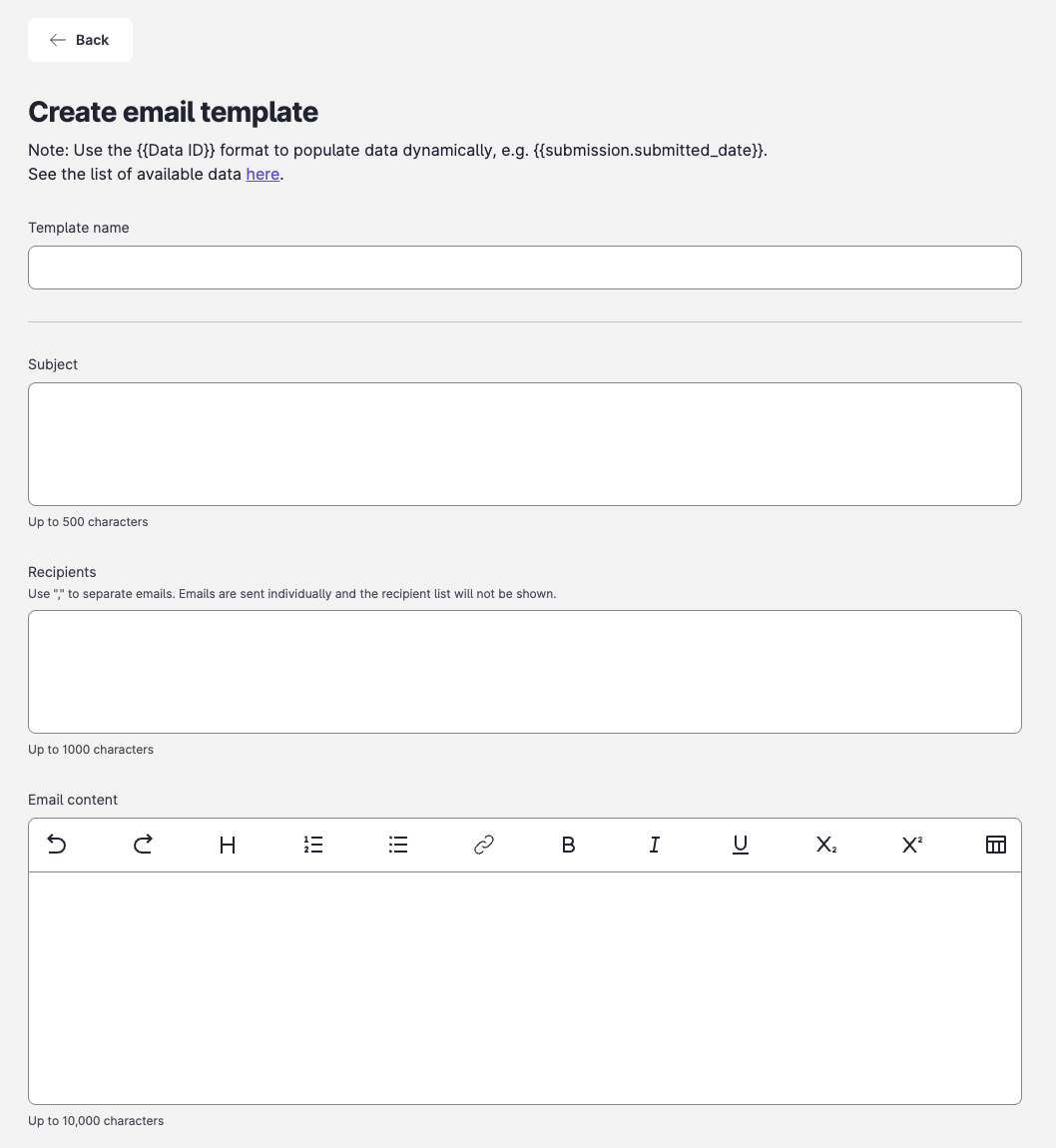
- Fill in the template:
- Template name — a descriptive name. You select the template by this name when you set up an automation.
- Subject — the subject line, up to 500 characters. It can include dynamic data.
- Recipients — the email addresses, separated by commas, up to 1000 characters. Emails are sent individually and the recipient list is not shown. It can include dynamic data.
- Email content — the body, up to 10,000 characters. It can include dynamic data.
- Save the template.
View or update a template
- On the Email templates page, select View next to the template.
- Change the template, then select Save.
Warning: A change to a template affects every automation that uses it.
Use a template in an automation
Apply the template in a send-email automation. Refer to Send an email automatically.
Common configurations
Link officers to a submission
Use {{submission.id}} to build a link to the submission in the Backoffice Portal. The path depends on your portal:
| Portal | Path after https://backoffice.apply.gov.sg |
|---|---|
| ApplySG Portal | /schemes/process/submissions/{{submission.id}}/view |
| Business Grants Portal | /grants/business/process/submissions/{{submission.id}}/view |
| Research Grants Portal | /grants/research/process/submissions/{{submission.id}}/view |
Example email content:
A submission requires your review.
View the submission here:
https://backoffice.apply.gov.sg/schemes/process/submissions/{{submission.id}}/viewLink applicants to their dashboard
Use {{dashboard_link}} to send applicants to their dashboard.
Your submission {{submission.reference_id}} has been updated.
Log in to view your submissions:
{{dashboard_link}}Personalise an email
| Placeholder | Fills in |
|---|---|
{{submission.reference_id}} |
The submission reference ID. |
{{submission.submitter.name}} |
The submitter’s name. |
{{submission.comments_history.comments}} |
The comments added during the transit. |
{{dashboard_link}} |
The applicant dashboard URL. |
Dear {{submission.submitter.name}},
Your application {{submission.reference_id}} has been returned for edits.
Officer's comments:
{{submission.comments_history.comments}}
Log in to review and resubmit:
{{dashboard_link}}Send to the next assigned officer
Enter {{assignee.email}} in Recipients to email the officer assigned to the submission in the next state.
Constraints and limitations
| Constraint | Detail |
|---|---|
| Shared templates | A change to a template applies to every automation that uses it. |
| Field limits | Subject: 500 characters. Recipients: 1000 characters. Email content: 10,000 characters. |
| Portal-specific links | The path to a submission differs for each portal. |
Related features
- Send an email automatically: apply a template to a transit.
- Create an automation: general automation setup.
