Manage scheme roles
A scheme role is a responsibility that people or systems hold in your approval workflow, such as processing officer or approving officer. Roles decide who can create, edit, view, transit or delete a submission, and what each group can do at each state. Roles also decide how form permissions and component permissions apply to each group of users.
This guide covers adding a role, adding users to a role, and changing or removing them. To link a role to a form, refer to Add form roles. For roles that applicants hold, refer to Applicant roles.
Who this applies to
- Audience: Configurators.
- Access required: The Edit permission on the scheme. It gives access to the Roles card.
- Assumed knowledge: You know the actors in each state of your workflow. Base your roles on them. For examples, refer to ApplySG Portal backoffice.
Add a role
- On the scheme overview page, select the Roles card.
- Select Add Role.
- Select the role type:
- Portal for a role from the list of template roles.
- Custom for a role that you define.
- For a portal role, select the role from the list. For a custom role, enter the Role name, then choose whether to create your own role code or use a system-generated code.
- Select Add.
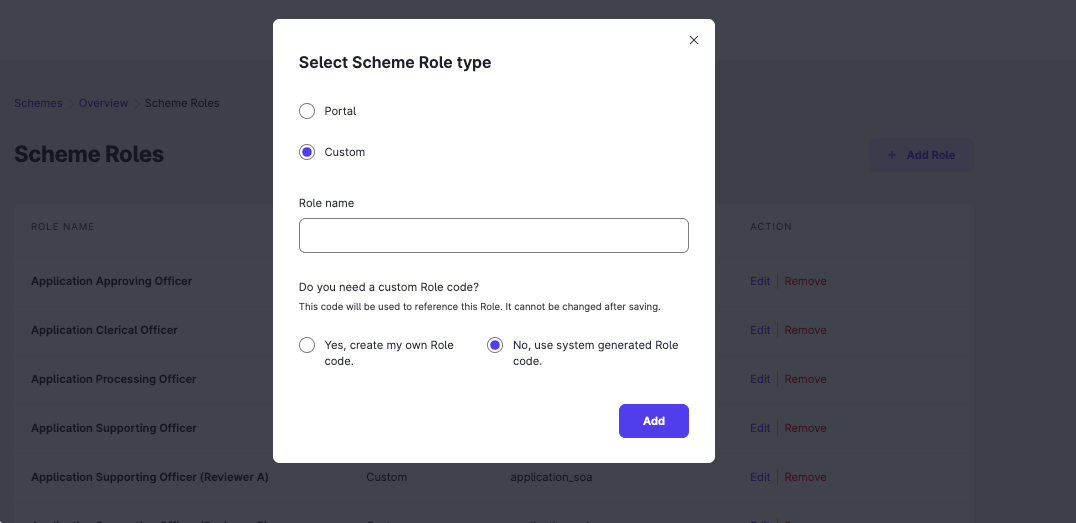
The role appears in the Scheme Roles list with its name, type and role code. To change a role’s name, select Edit. To delete a role, select Remove.
Add users to a role
- On the Scheme Roles page, select Edit next to the role.
- Under Add Actors, select the actor type:
- Portal user for an officer with a TechPass account.
- Integrator (API) for a system that takes action on submissions, such as editing or transiting them.
- Enter the officer’s email address. For an integrator, enter its client ID.
- If the role is an approving officer role, enter the Approving limit (S$). Leave it empty for no limit.
- Select Save.
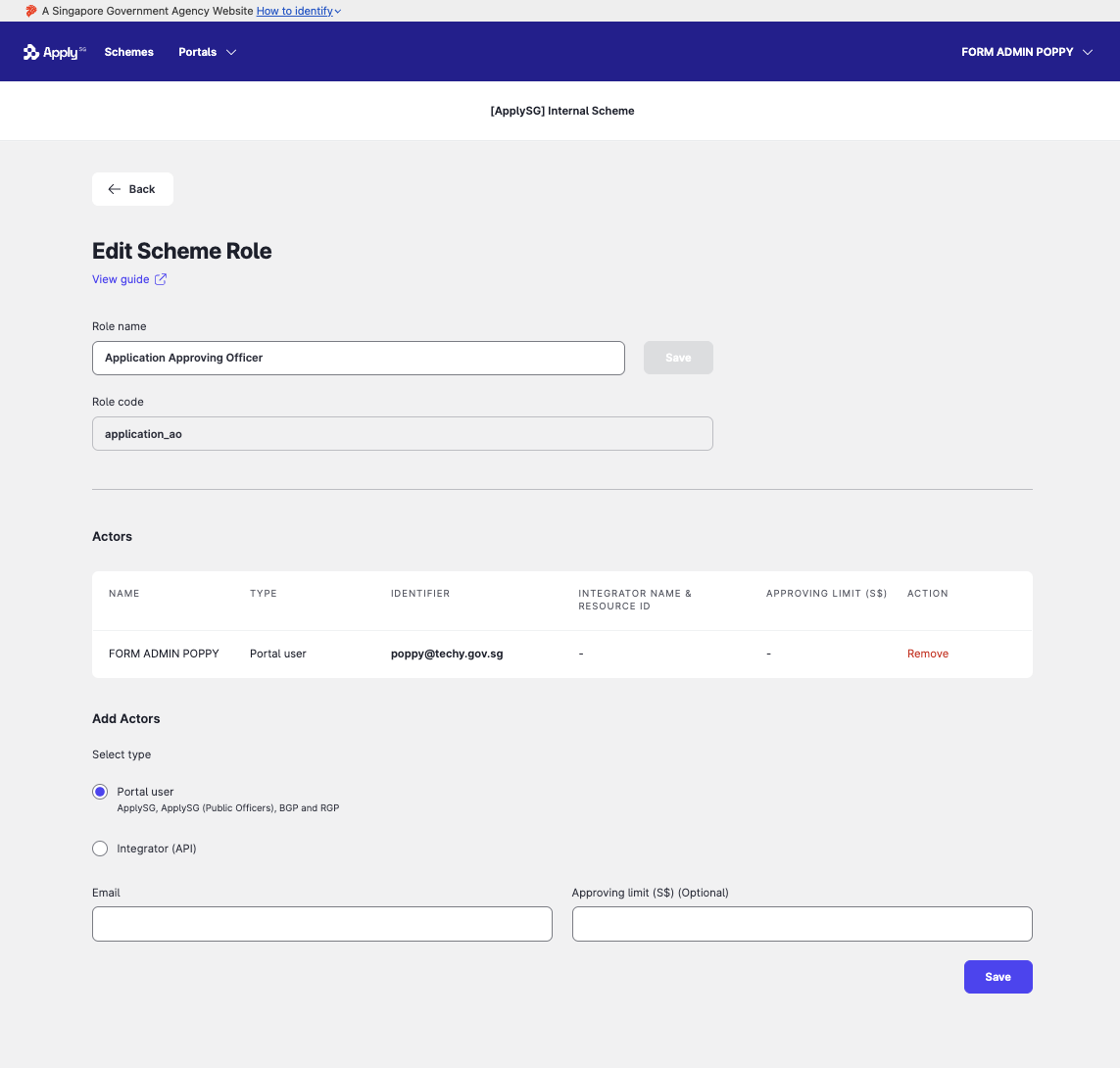
To remove a user from the role, select Remove in that user’s row of the actor list.
Constraints and limitations
| Constraint | Detail |
|---|---|
| Role code format | Starts with a letter. Uses only letters, numbers and underscores (_), with no spaces. Is case sensitive. Is unique within a lifecycle. Has at most 100 characters. |
| Role code is permanent | You cannot edit a role code after you create it. To change it, delete the role and add it again. |
| Backoffice users in applicant roles | Adding a backoffice user to an applicant portal role does not let that user create submissions. |
| Approving limit | The limit applies to approving officers. The forms that use it depend on the portal template. Refer to the portal template pages. |
Related features
- Add form roles: link a role to a form so it can act on that form.
- Set up a data patcher role: create a role for correcting submission data.
- Assign scheme permissions: control who can configure the scheme.
