Assign scheme permissions
Scheme permissions control who can configure a scheme and which parts of it they can change. You assign permissions to people (configurators) and to systems (integrators). Permissions apply across form versions and you can change them at any time.
The permissions that you grant decide which cards a user sees on the scheme overview page. This guide covers adding users and systems and choosing their permissions. For what each permission allows, refer to Scheme permissions. To assign people to processing roles in the approval workflow, refer to Manage scheme roles.
Who this applies to
- Audience: Scheme owners and configurators.
- Access required: The Manage Permissions permission on the scheme. It gives access to the Permissions card.
- Assumed knowledge: You have a scheme and can open its overview page. Refer to Set up your scheme.
Steps
- On the scheme overview page, select the Permissions card.
- Select the identifier type:
- Configurator (email) for public officers who sign in with WoG Entra ID or TechPass.
- Integrator (Resource ID) for systems that act on behalf of a user.
- Enter the identifiers:
- For configurators, enter each person’s WoG Entra ID or TechPass email address. Separate several addresses with semicolons.
- For integrators, enter each integrator’s resource ID. The integrator must already exist in ApplySG. To onboard one, refer to the Integrator guide.
- Open the Permissions list and select every permission to grant.
- Select Add.
The user or system appears in the list below the form, with the identifier type and the permissions that you selected.
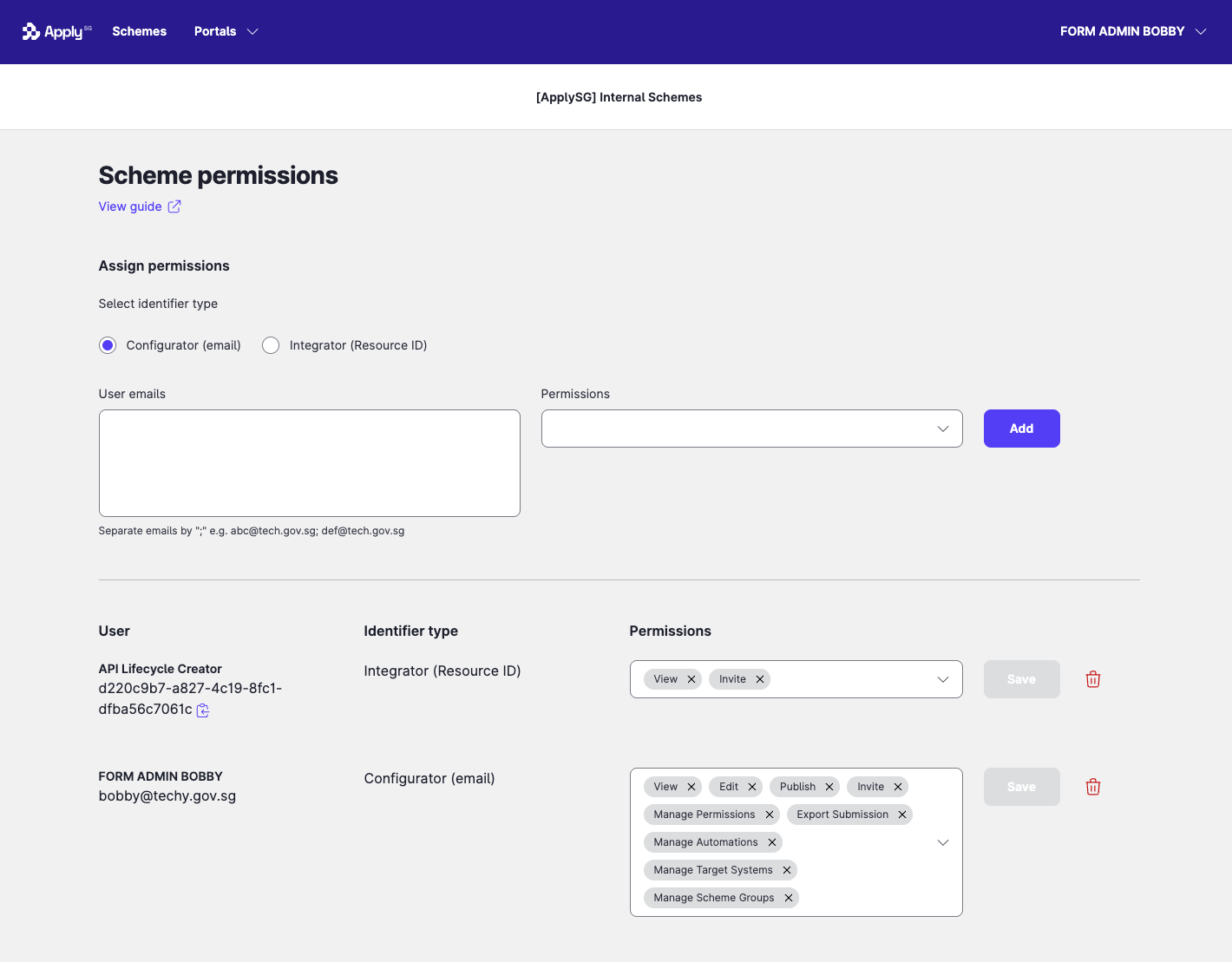
To change the permissions of an existing user, update the permissions in that user’s row and select Save. To remove a user, select the delete icon in the row.
Constraints and limitations
| Constraint | Detail |
|---|---|
| Integrator permissions | Integrators can have only the View and Invite permissions. |
| Publishing | A form version cannot be published unless at least one user has both Manage Permissions and Publish. |
| Combined permissions | A user with both Manage Permissions and Edit can manage all permissions for the scheme, including configuration roles and form and processing roles. Check your agency’s internal advice before you assign both. |
| Integrator must exist | You can add only integrators that already exist in ApplySG. |
Related features
- Scheme permissions: what each of the nine permissions allows.
- Manage scheme roles: assign officers to roles in the approval workflow.
- Pre-publish checklist: confirm the permissions that publishing requires.
