My subscribers
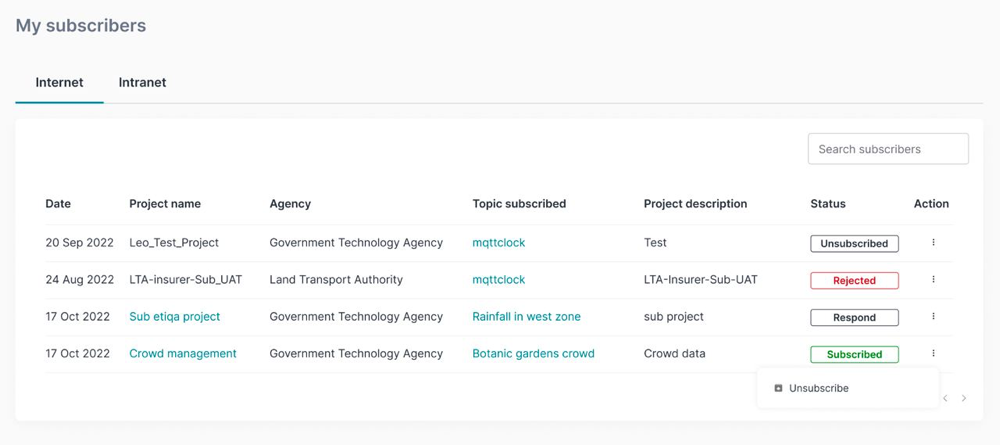
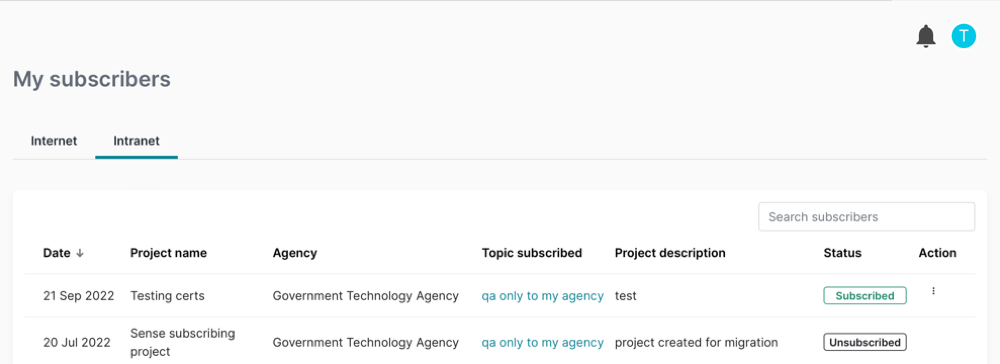
This area allows you to view all Internet and Intranet subscribers who subscribed successfully to all topics within your projects. This page displays the following information:
- Date
- Project name
- Agency
- Topic subscribed
- Project description
- Status - Subscribed, Unsubscribed, Respond to request, Rejected
- Action
Note:
- You can do sorting of columns for date, project name, agency, topic subscribed, project description and status.
- You can do Search subscribers based on project name, topic subscribed, project description.
The following status includes:
- Respond to request – The status where the publisher respond to subscribers request for access to the approval topics. The publisher can Approve to allow subscription or Reject to deny the subscription. For non-approval topic publisher won’t receieve the request for approval
- Subscribed – The status where the publisher approves the subscriber requests
- Rejected – The status where the publisher rejects the subscriber requests
- Unsubscribe - The status where the publisher removed the subscriber
- Subscribed - The status where the publisher Resubscribe an inactive subscription.
Respond to request:
Note:
- After subscriber subscribes to a topic, publisher will receive the Respond to request.
- The topic is removed from My subscribers page when Subscriber Withdraw the request.
Step 1: Navigate to My subscribers page on the left side navigation bar and select the project with Respond to request status.
Step 2 Click  under the Action column.
Step 3: Click Respond to request. A new pop-up window appears showing the details of the project.
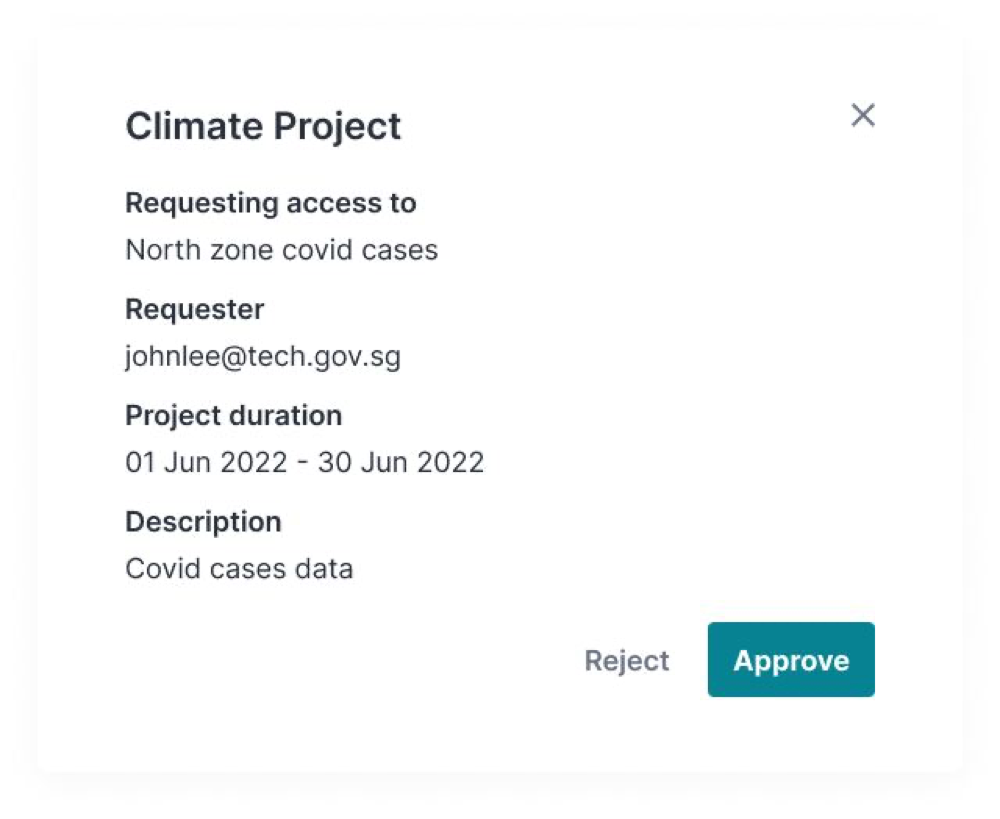
Step 4: Click Approve and the status changed to Subscribed.
Step 5: Otherwise, click Reject. A new pop-up window appears showing the reason to subscribers, for rejecting the request.
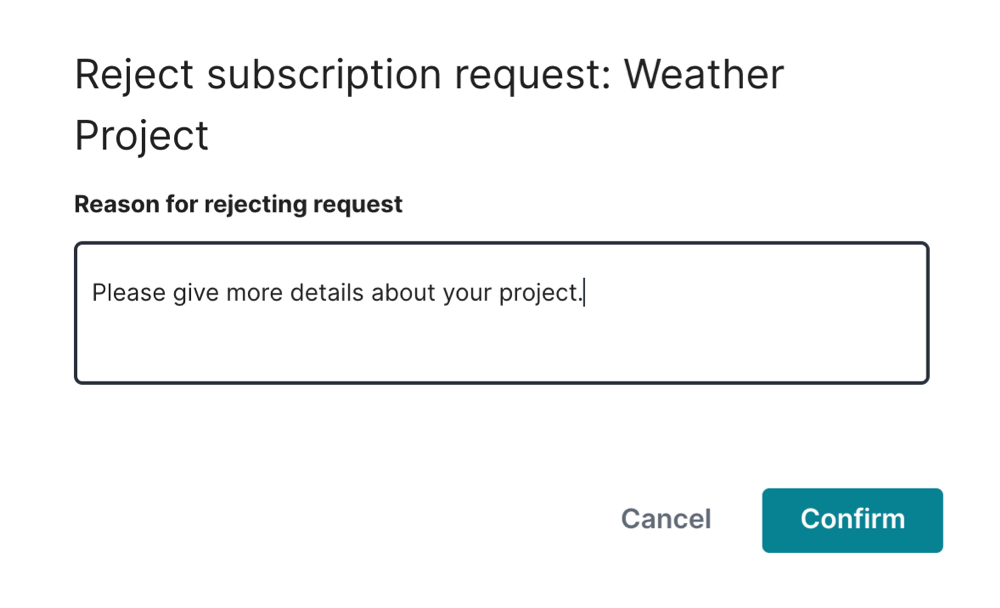
Step 6: Click Confirm and the status changed to Rejected.
Unsubscribe:
Note: Publisher can remove the subscriber, the status of the topic will be change to Unsubscribed.
Step 1: Navigate to My subscribers page on the left side navigation bar and select the project with Subscribed status.
Step 2 Click under the Action column.
Step 3: Click Unsubscribe.
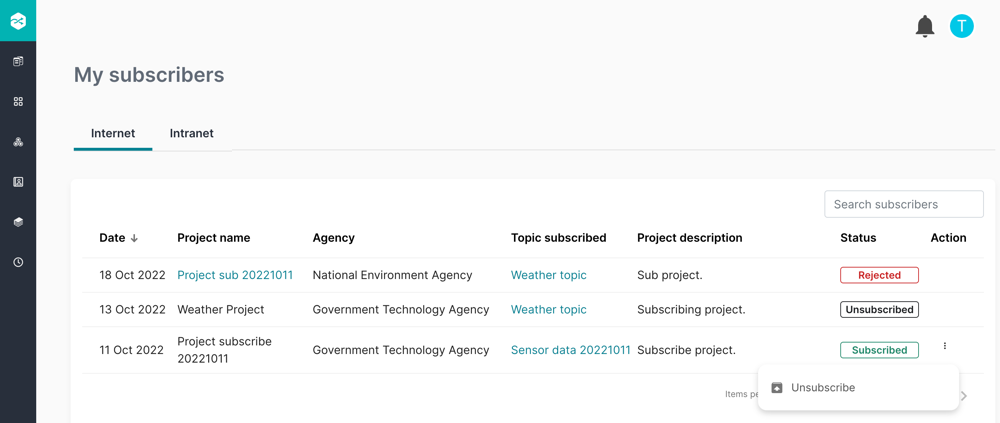
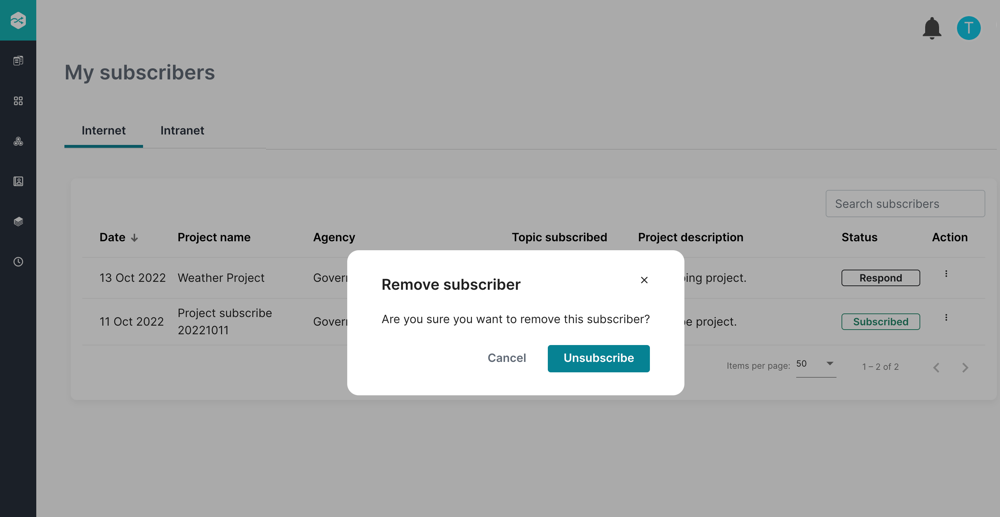
Step 4: A new pop-up window appears showing remove subscriber, click Unsubscribe.
Step 5: The status changed to Unsubscribe.
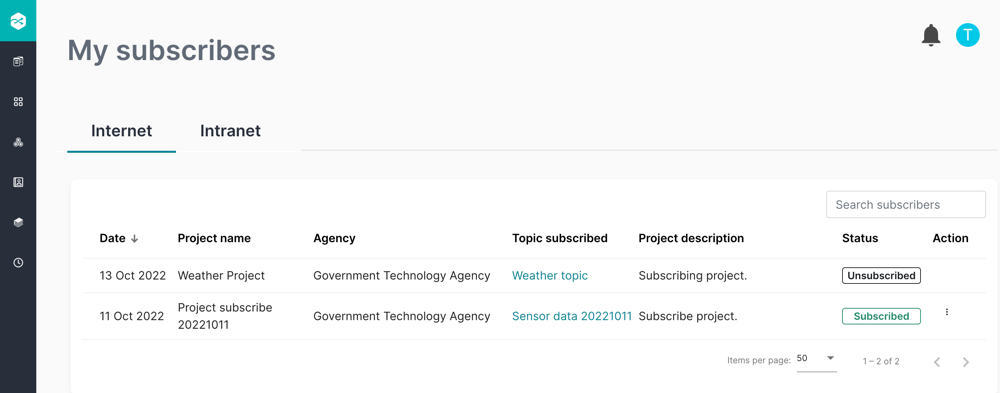
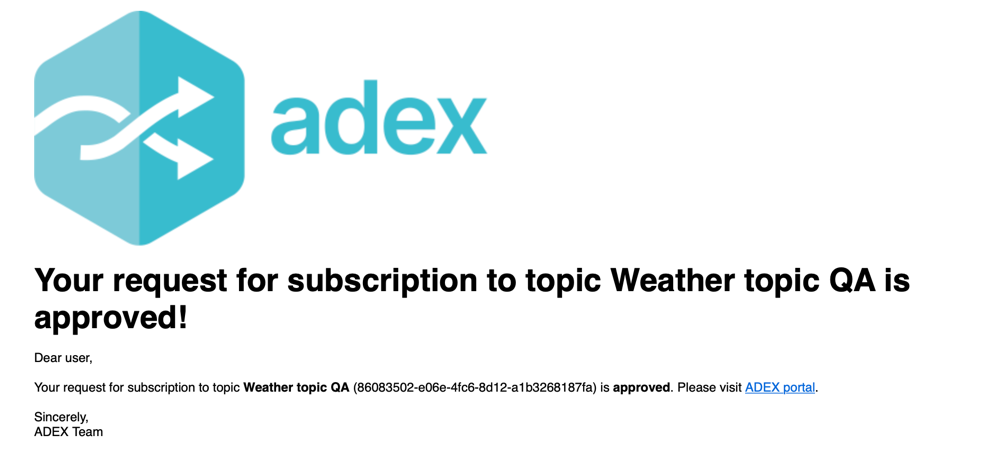
Step 6: Subscriber will receive email notification

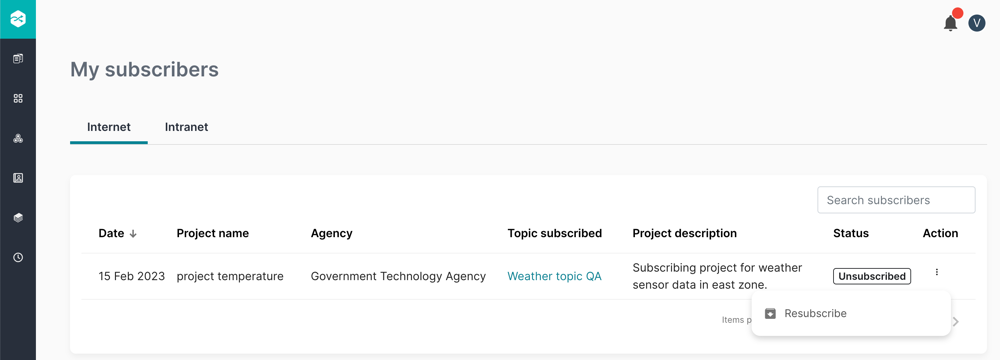
Resubscribe
Note: Publisher can re-subscribe the inactive subscription, if subscriber sends request to publisher.
Step 1: Navigate to My subscribers page on the left side navigation bar and select the project with Unsubscribed status.
Step 2 Click under the Action column.
Step 3: Click Resubscribe .
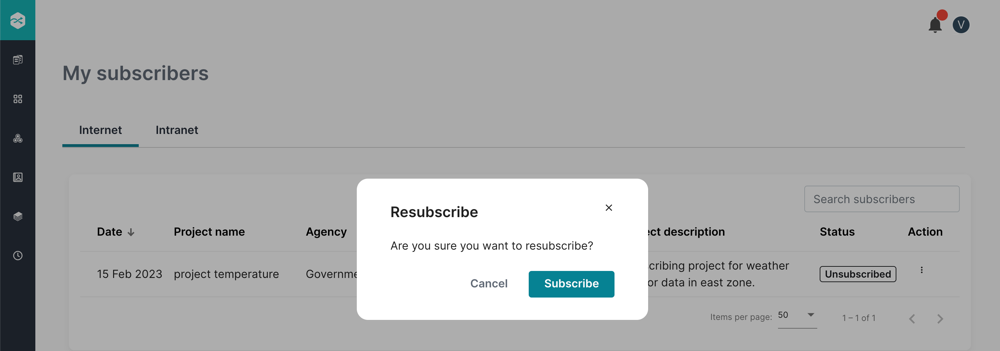
Step 4: In Resubscribe pop-up window, click Subscribe.
Step 4: The status changed to Subscribed.
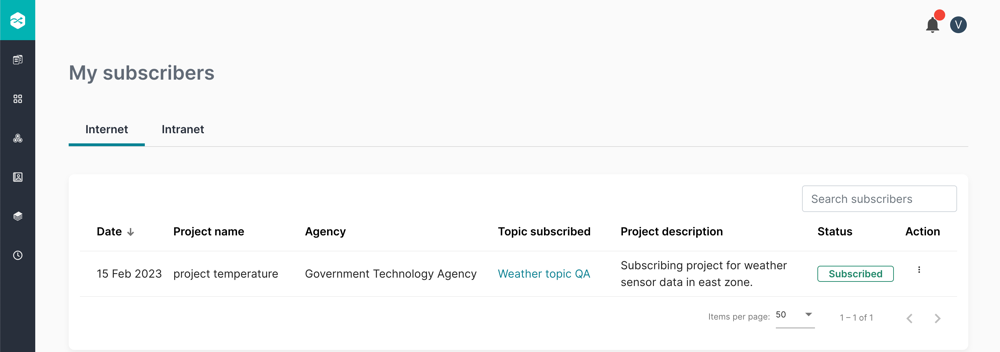
Step 5: Subscriber will receive email notification.