Create new team
Being in a team allows user to use all features available in ADEX which was assigned to user account.
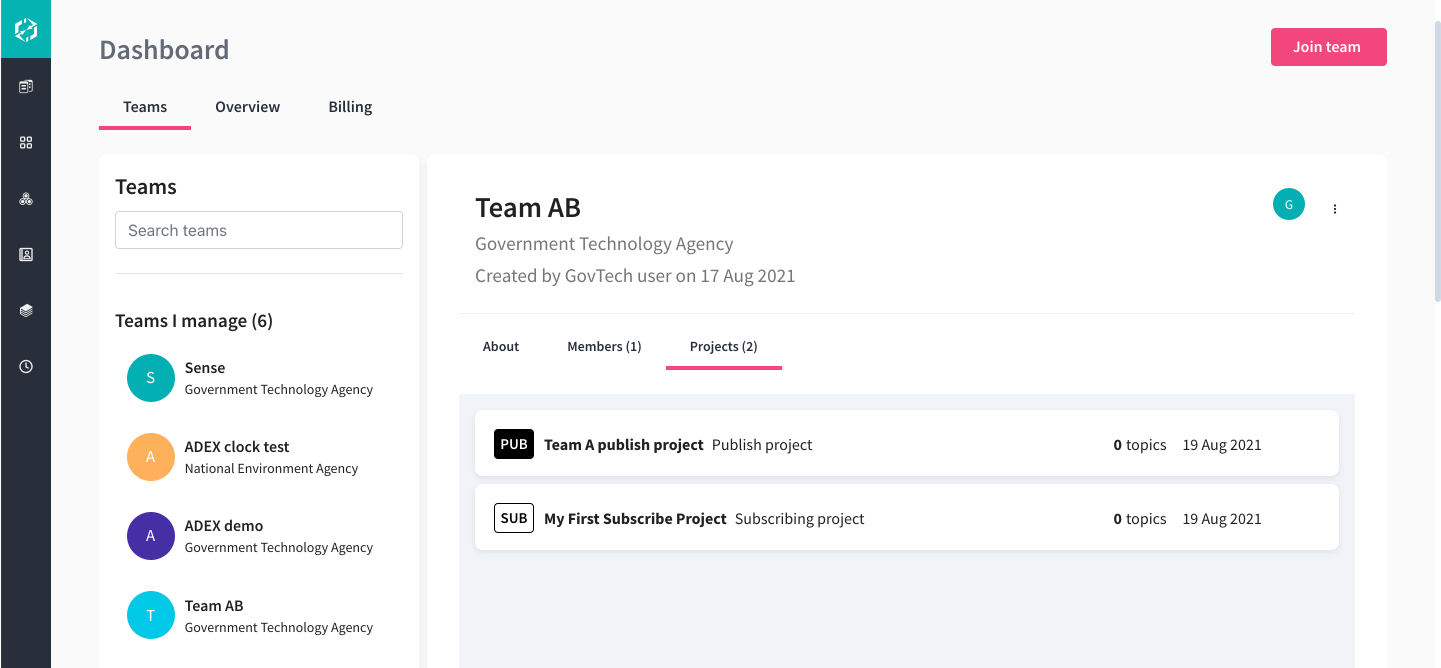
Creating a new team allows user to manage a team by adding members and assigning role to each member. Go to Dashboard to view and manage teams.
- User need to create a team before creating project
- User can create new team using Join team button in Dashboard
- If user cannot find the team, user can create own team
On the left side pane, user can see the following:
- Teams I manage, includes all teams where user is an admin
- My teams, includes all teams where user is a member
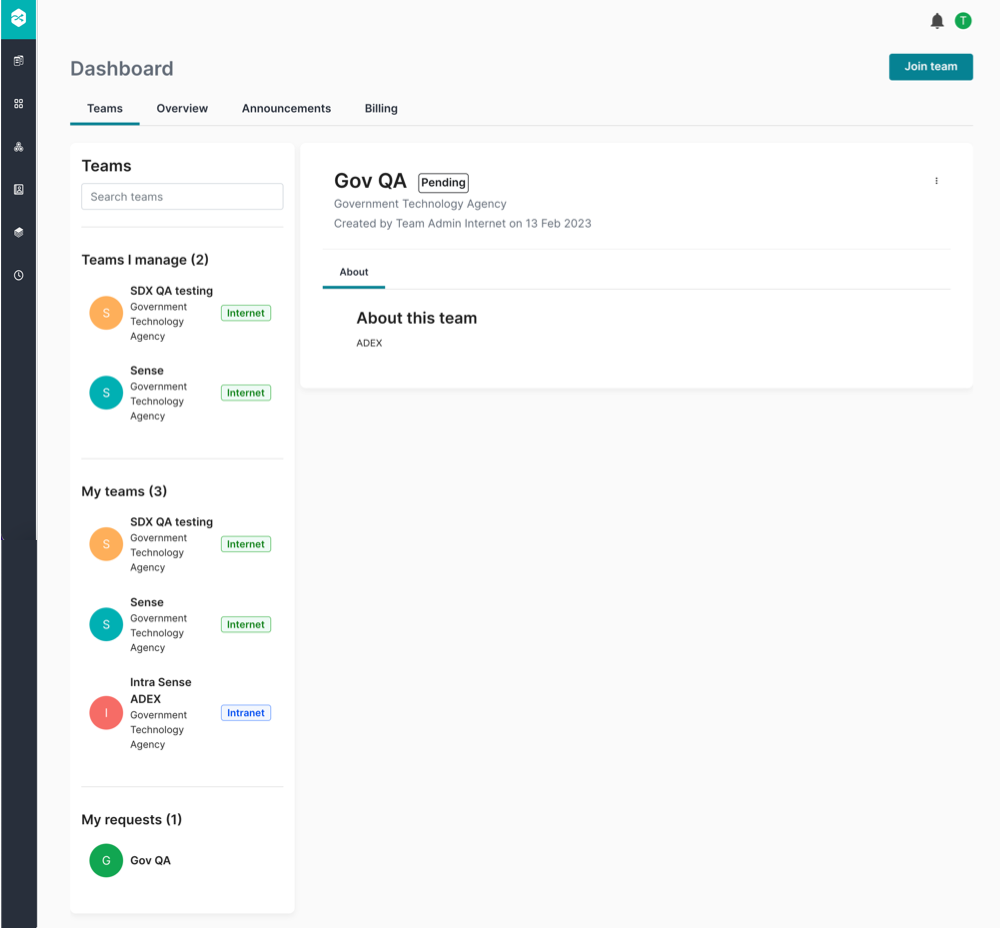
- My requests tab, includes team request which was sent via Join team to the Team admin and its pending for approval. Once user request is approved, user can see under My teams tab
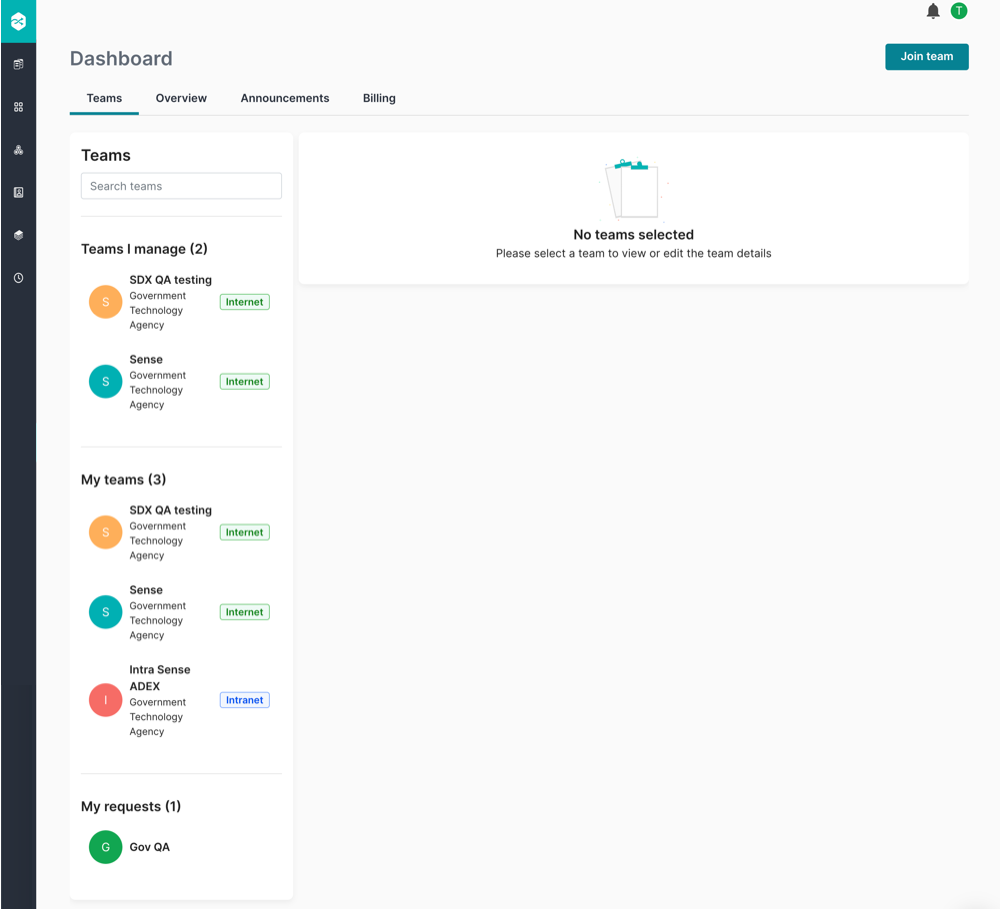
On click the Join team button, user will see the pop-up for to Create or join a team pop-up to create new team.
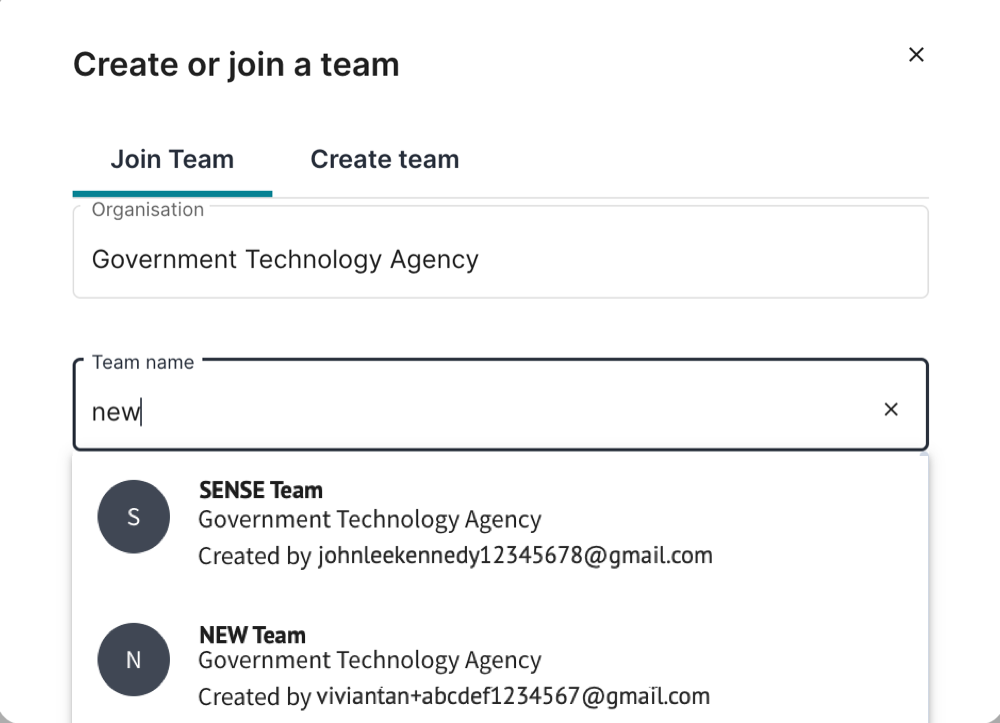
Note:
User can join one or more teams within your organisation. For example, a GovTech member can join to any Govtech team. Use the Add member button to add members from other organisations.
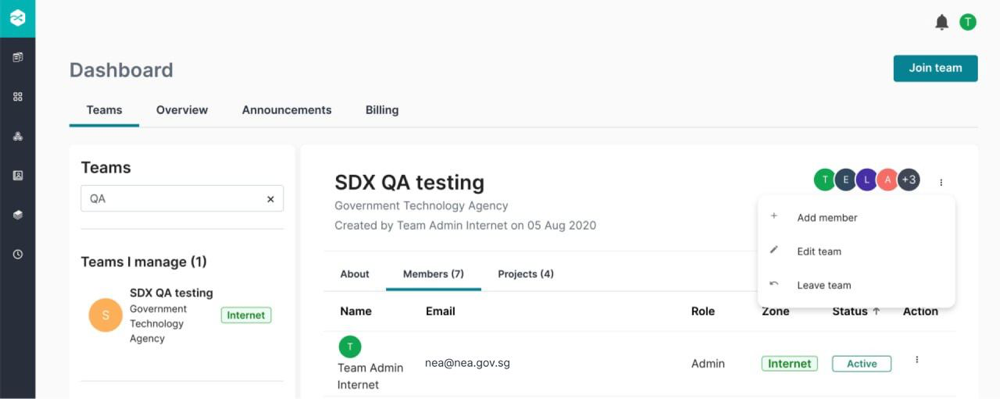
User can click
 you could see following actions:
- Add member, can add other organisations members into your team with a legitimate gov.sg email address, the members account must be registered and Active in ADEX
- Edit team, can update team name and team description
- Leave team, can delete the team if user is the only team admin left
To create a team:
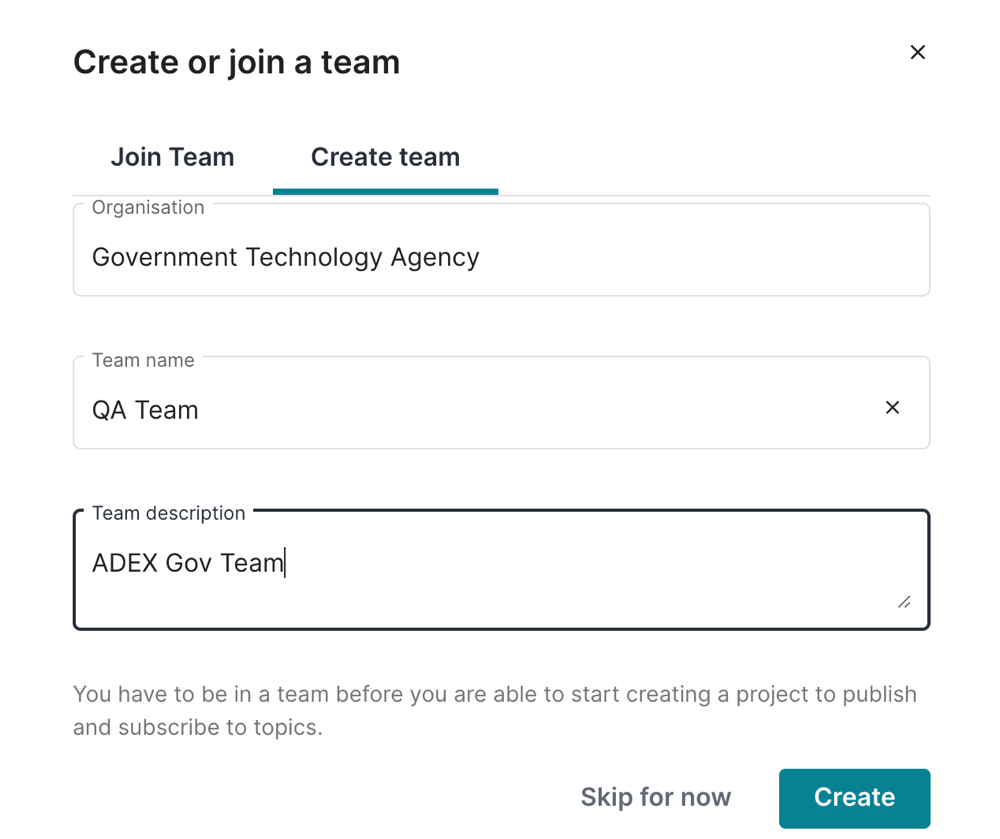
Step 1: In Create or join a team pop-up window, click + Create team to create new team.
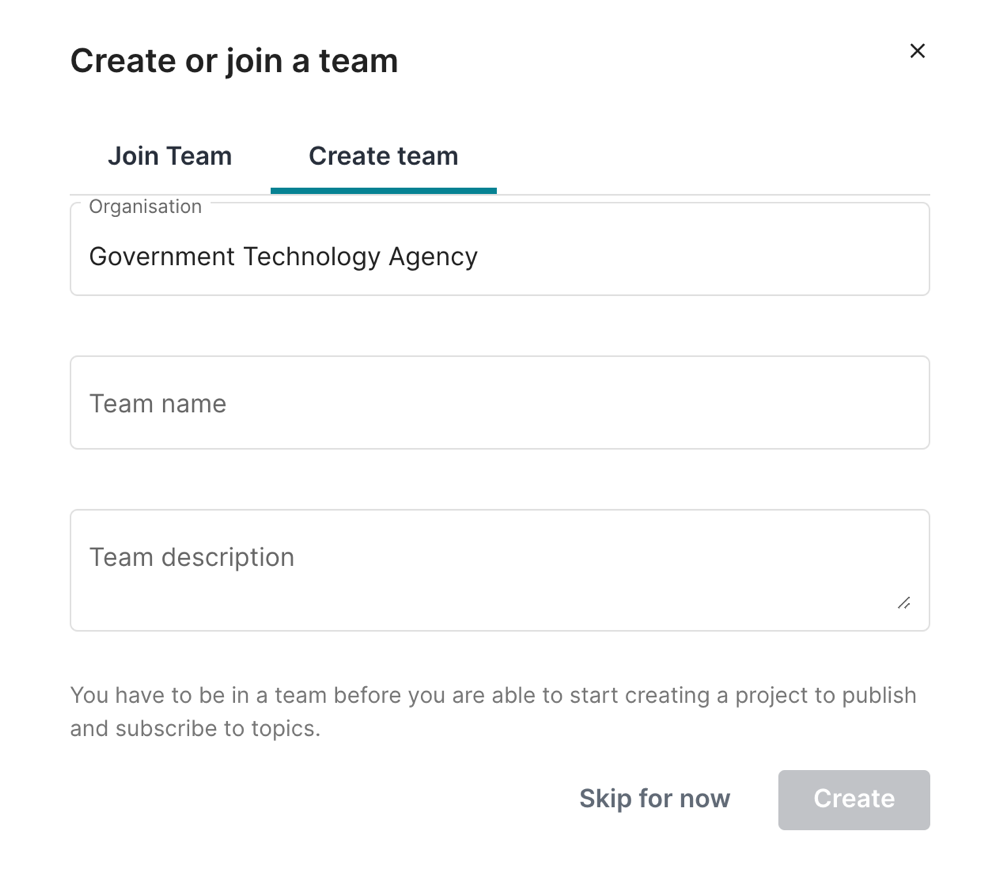
Step 2: In Team description text box, type in description.
Step 3: Click Create.
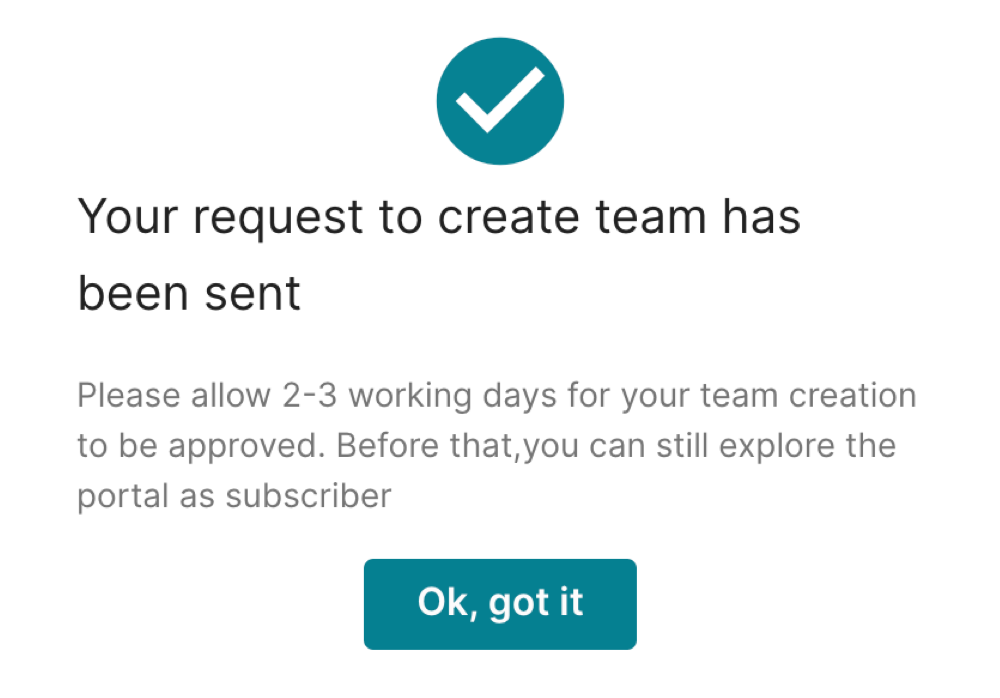
A confirmation message is displayed that your request to create a team has been sent for approval.
Once user sent Create new team request to System admin, the team name will be shown under My requests tab with status=Pending.
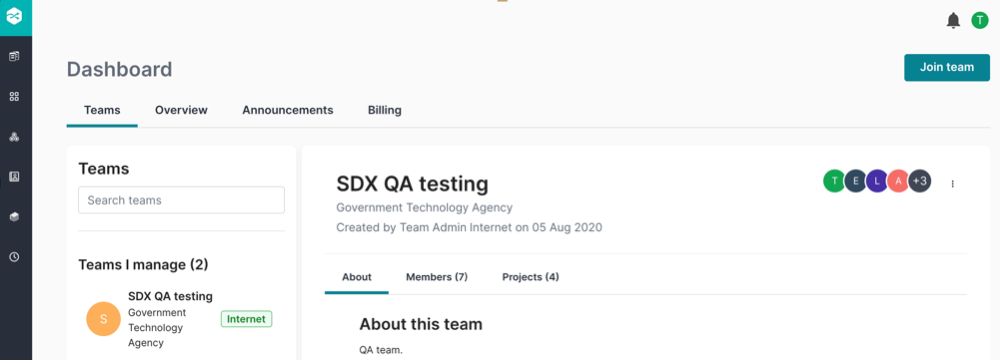
Once System admin approved, user role is Team Admin in the team and user can see team name under Teams I manage and My teams tab.
To note:
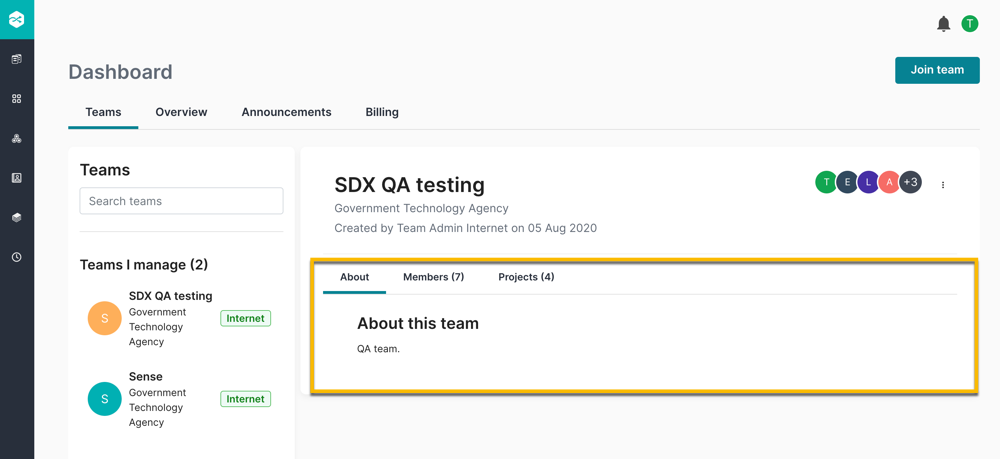
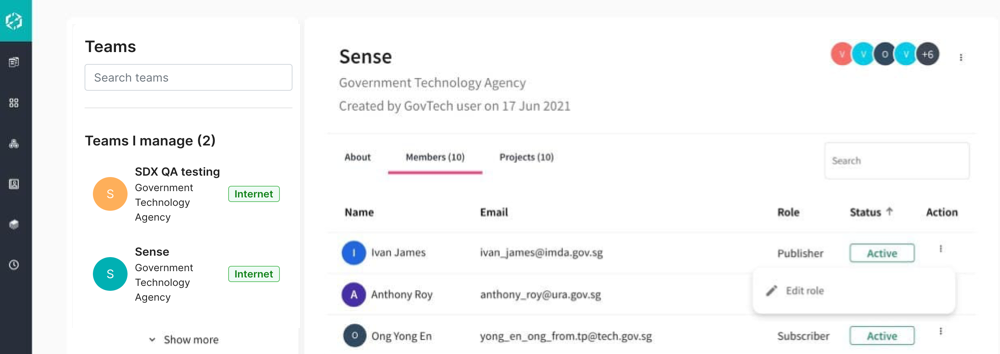
Under Teams I manage, click any team name, at the right side pane, displays About, Members and Projects
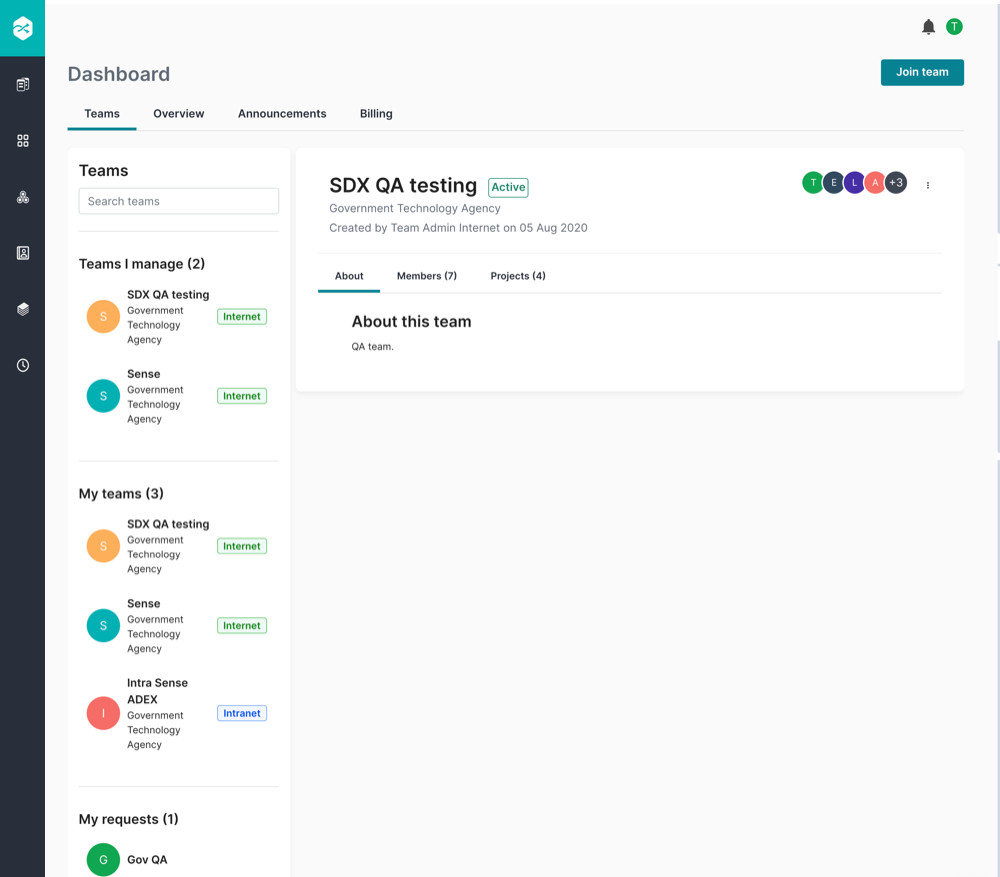
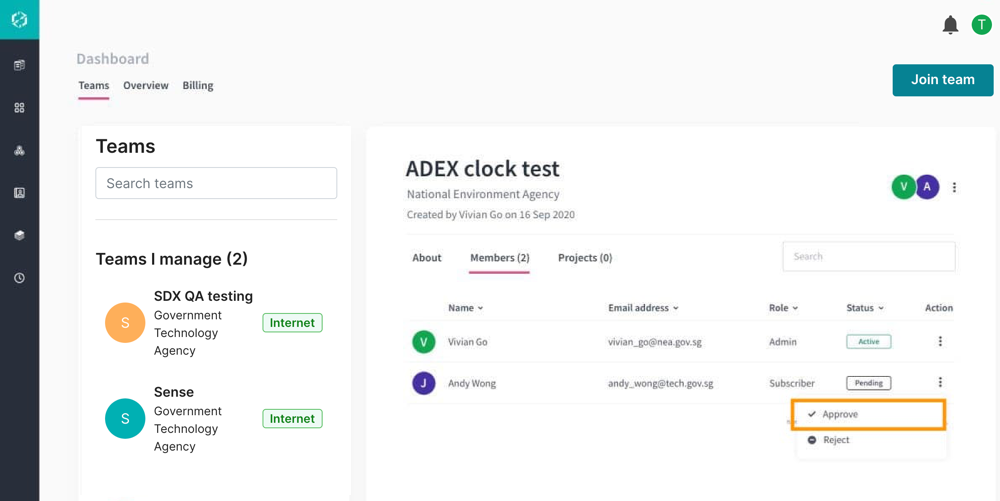
The newly created team will appear under Teams I manage tab. Now user role is Team admin, Now as a Team Admin user can approve or reject members via Join team request.
Also user can view the following tabs:
About tab, view Team description
Members tab, view member details
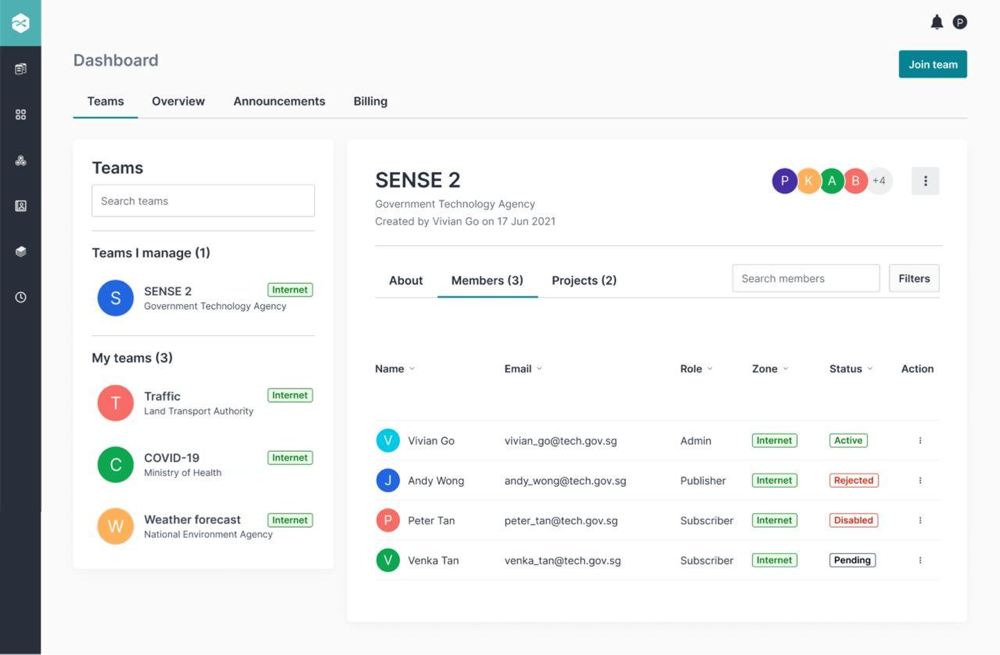
Team admin can also edit team member’s role
- Projects tab, view Projects list
Alternatively user can join to another team within the same org using Join team button
Note:
- After user joined to the team, first time user role is Subscriber in the team
- Team Admin also can change user role to Publisher for the same team.
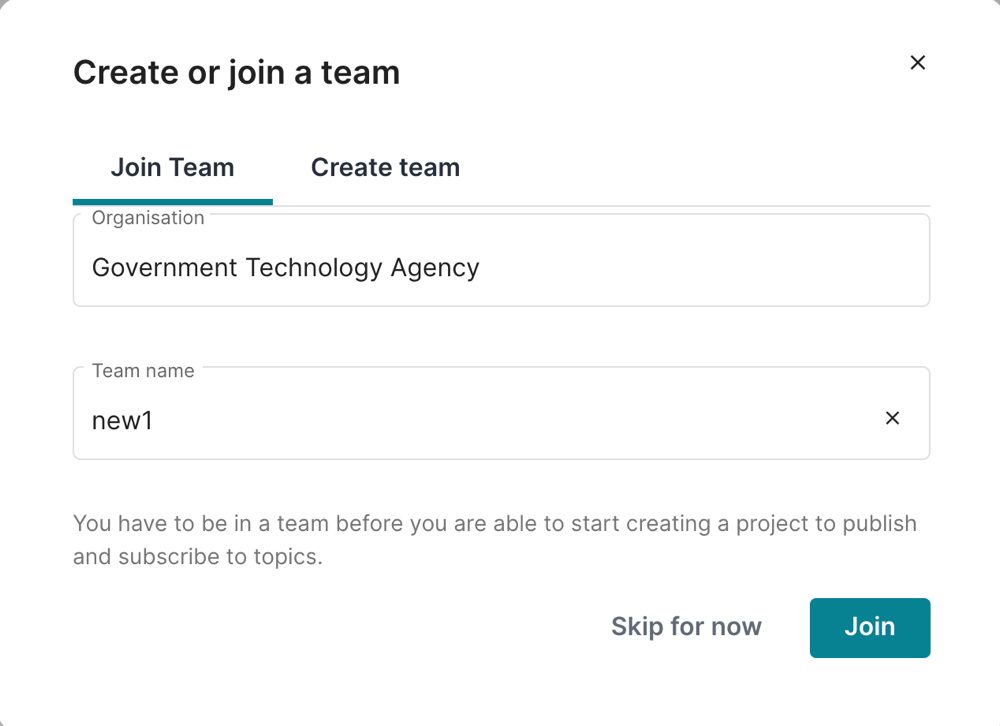
A confirmation message is displayed that user request to join a team has been sent for approval. The Team Admin will receive the join team request to approve or reject.
User can start Create project with the team name to publish or to subscribe to a topic
