FAQs about Account
FAQs for account includes questions about creating account, how to sign up, resetting of password, disabled or locked account.
How do I create an account?
You need to sign up to create an account
Go to ADEX portal and click Sign Up. You must use a valid agency email address when you sign up.
Follow the steps here: Getting Started
For first sign up within your organization, you role will be a Publisher. If you want to upgrade your account as Administrator role, send an email to ADEX Support Team through sense@tech.gov.sg.
How do I reset my password?
There are two ways to reset your account password successfully.
Step 1: Go to Profile icon > Account settings.
Step 2: Click Change and Change your password window appears.
Step 3: Enter the following:
- Current password
- New password
- Confirm new password
Step 4: Click Change password.
or,
Step 1: Go to Home page.
Step 2: Click Forgot password? and Forgot password window appears.
Step 3: Enter email address.
Step 4: Click Send recovery link. You will receive an email with the confirmation code and links if you requested to verify your email address or reset your password.
Step 5: Click Reset Password.
What happens if my account is locked?
You can send request to unlock account to Administrator using Contact us.
Or,
Step 1: Go to Home page.
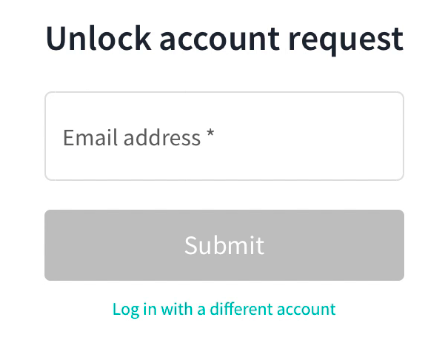
Step 2: Click click here and the Unlock account request window appears.
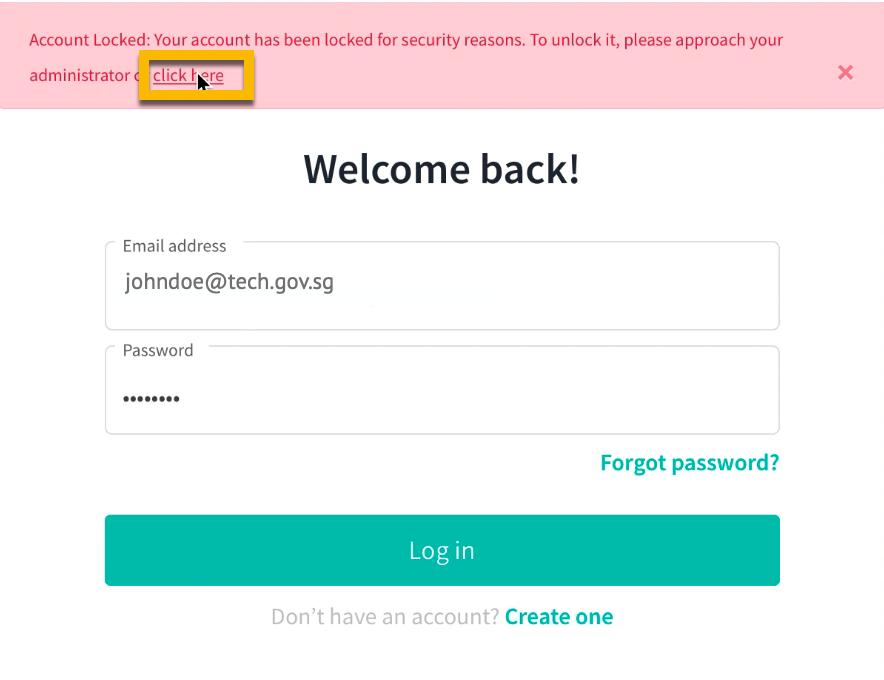
Step 3: Enter email address.
Step 4: Click Submit.
How can I log in if my account is disabled?
If your account is disabled and you cannot log in with your credentials, send an email to your Administrator to help you enable your account.
What happens if my password expires?
You will receive a notification from the portal before 90 days of expiry when you log in to ADEX. If you did not make any change to your password, then your password will be expired.
You can go to Login page and click Forgot password.
How do I reset my MFA?
Step 1: Go to Home page.
Step 2: Click Login
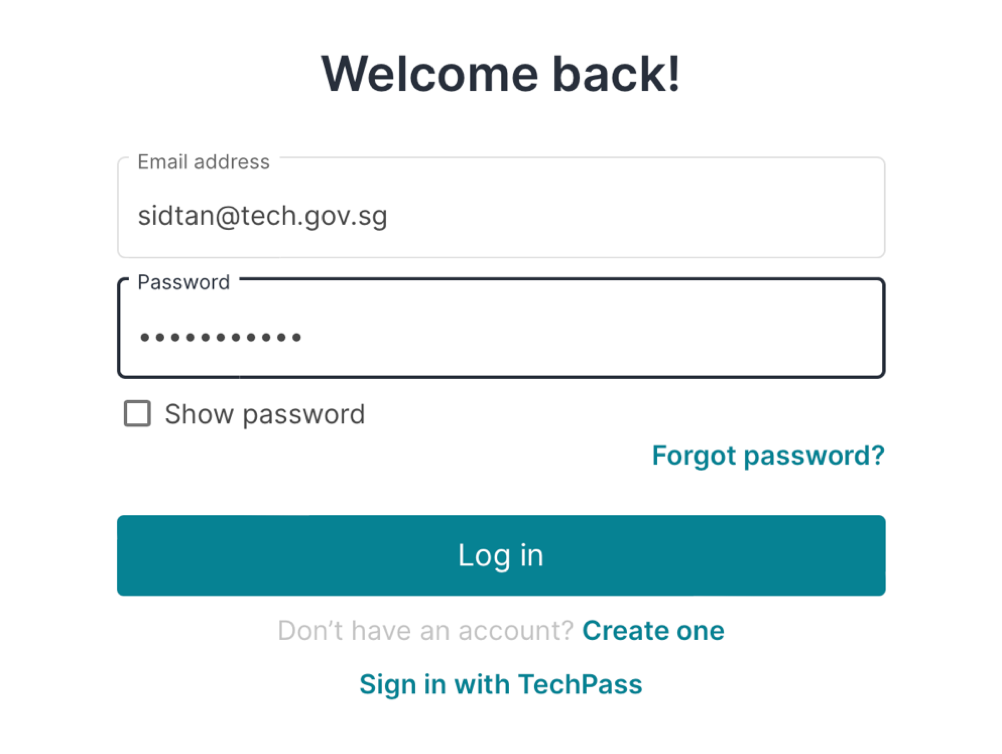
Step 3: Enter your registered Email address and Password.
Step 4: Click Log in.
Step 5: Click Click here
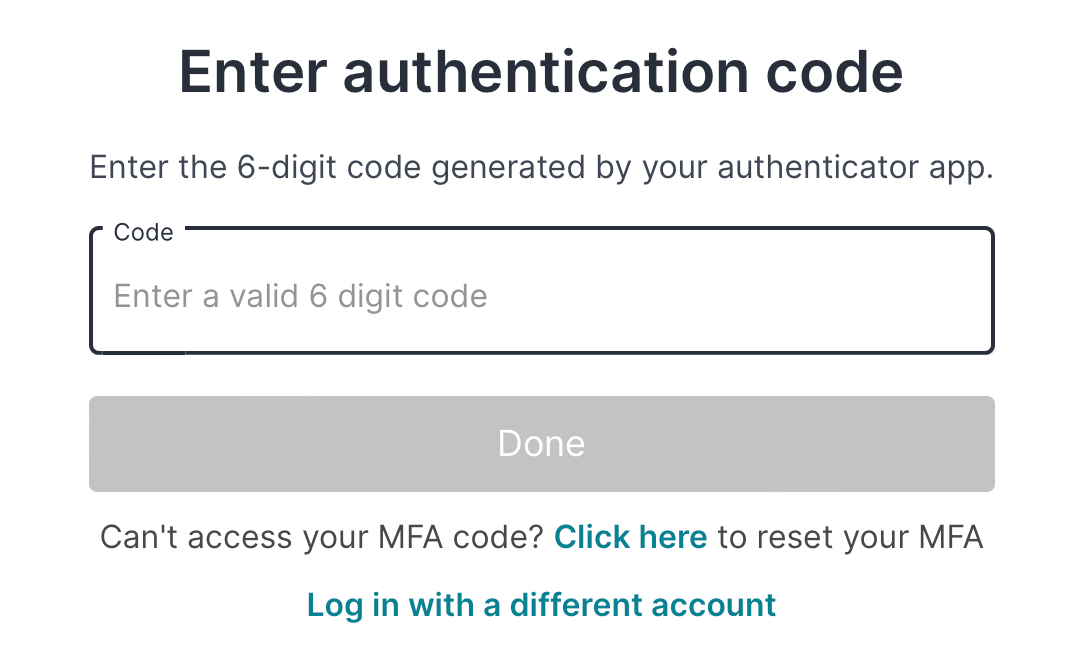
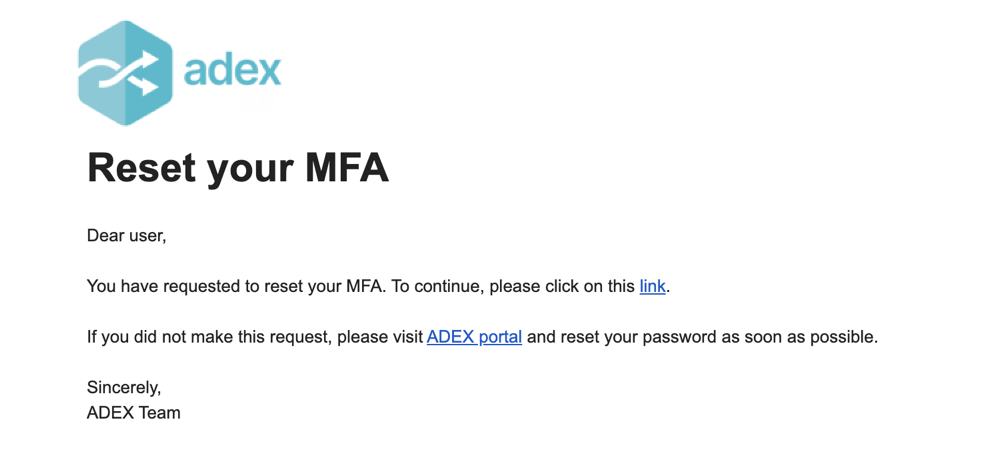
Step 6: You will receive an email with link to reset your new MFA.
Step 7: You can click the link in the email, you could see your old MFA is disabled and can start login with your Email address and password to set up new MFA.
Step 8: You can Log in by entering the Email address and Password and can do MFA to login to ADEX.
