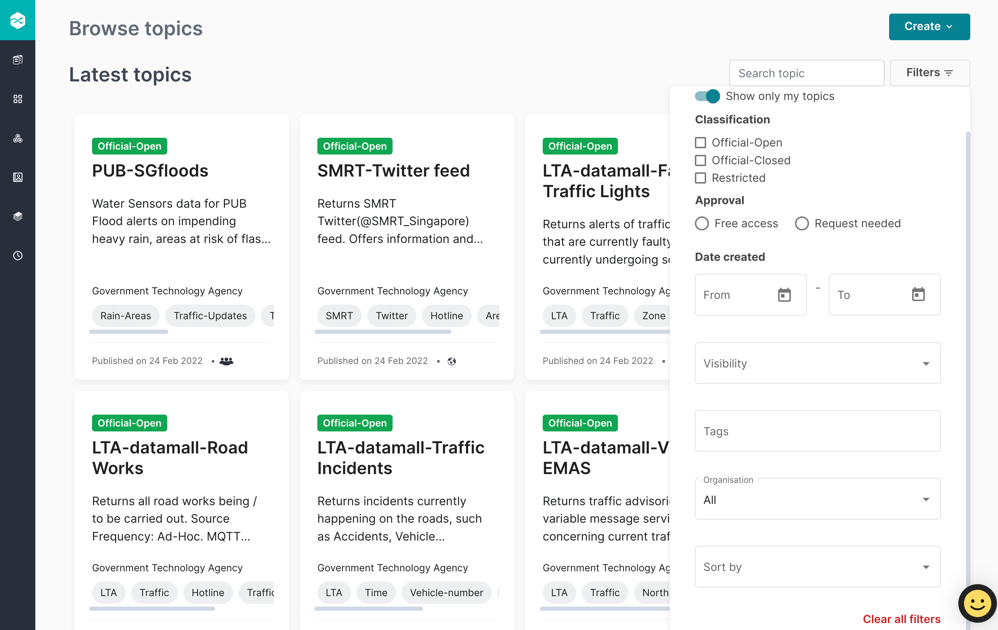
To log in:
Step 1: Navigate to Home page and click Log in.
Step 2: Enter your registered Email address and Password.
Step 3: Click Log in.
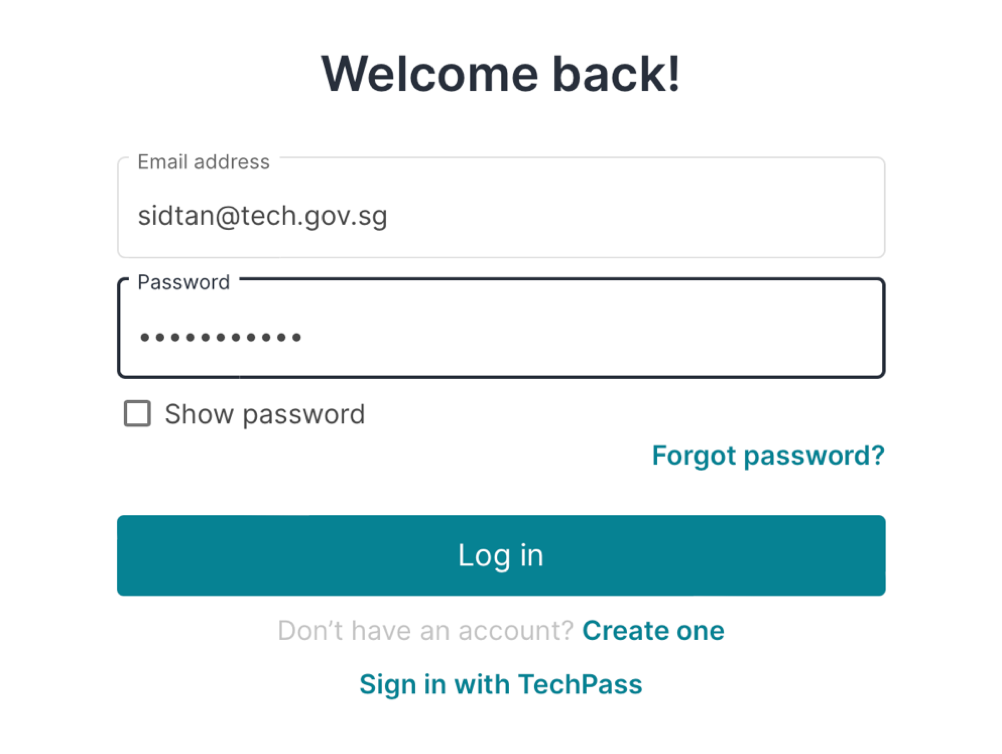
Step 4: After user log in, enter the authentication 6-digit-code from your Authenticator App. Click Done.
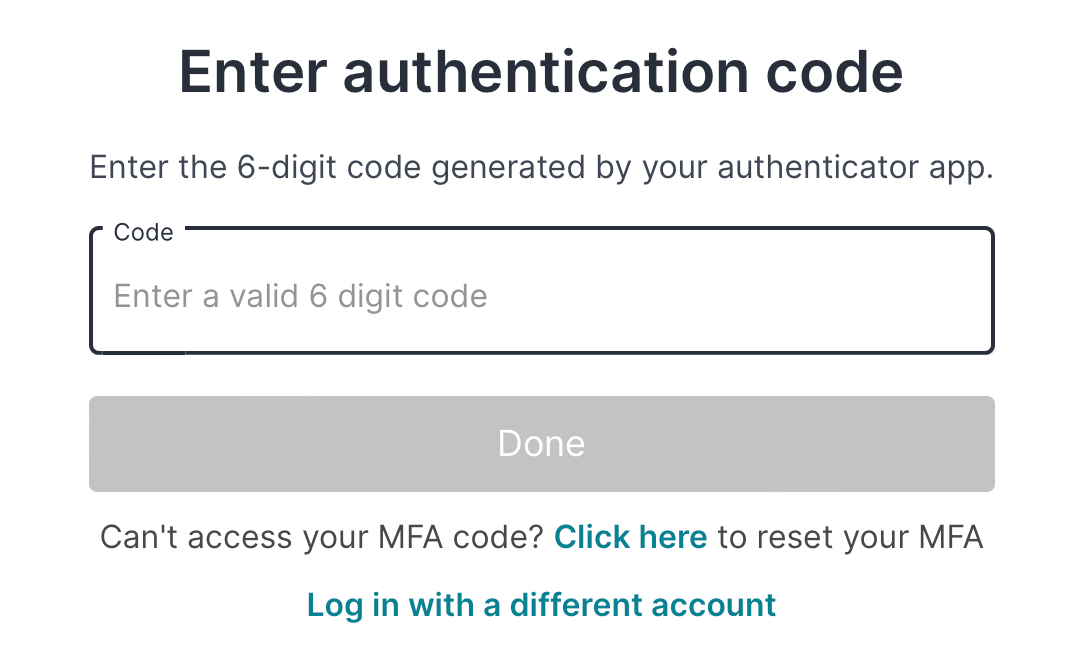
After user login, system shows Browse topics page.
Browse topics
The Browse topics page displays the latest topics and available topics in cards containing the topic related information.
Each topic in the card is classified as:
 - Refers to unclassified information disclosed to the public in the normal course of duty
 - Refers to unclassified information not disclosed to the public in the normal course of duty
 - Refers to unauthorised disclosure could cause SOME DAMAGE to an Agency
Published date for each topic in the card is displayed.
Mouse hover over icons and a tooltip appears for each topic in the card:
 – This icon displays “Approval is needed from publisher before user does subscribe”
Visibility icon – Displays who can view the topic:
 - This icon displays “Anyone can view this topic”
 – This icon displays “All government agencies can view topic”
 – This icon displays “Only members of my agency can view topic”
 - This icon displays “Only members of the team can view this topic”
 - This icon displays “Only you can view this topic”
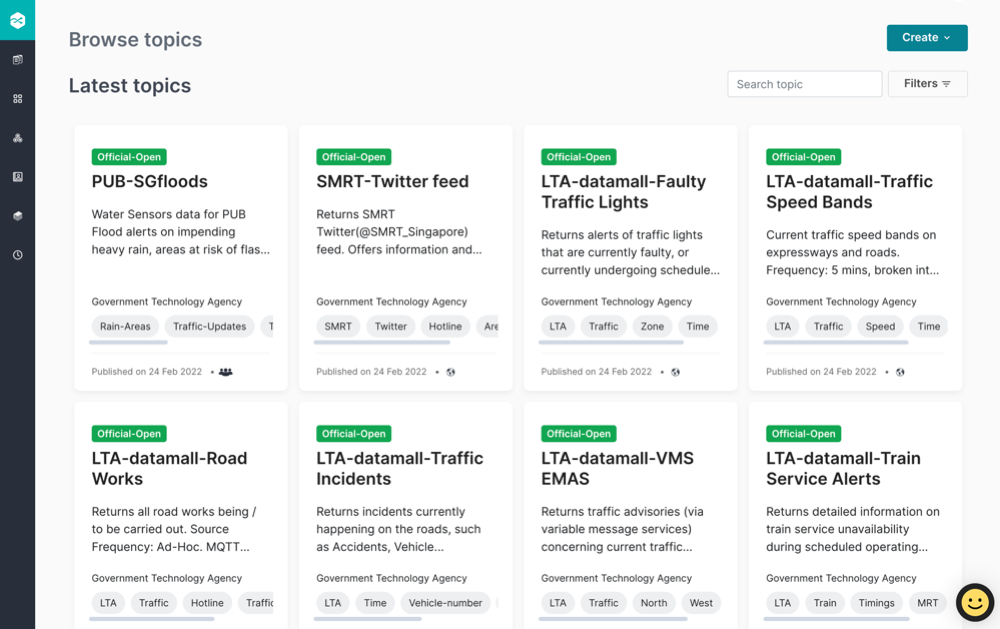
User can search for topic by entering the topic name in the  input box.
Click  to filter the following:
Show only my topics - Filter your own created topics
Classification – Filter the topic classified as Official-Open, Official-Closed, and Restricted
Approval – Filter the topic whether approval is needed from the publisher as Free access or Request needed
Publish date range – Filter the topic based on selected range by published date
Visibility - Select any one visibility from the drop down list for Public, All government agencies, Only my agency, Only my team and Only me
Tags - Filter the keywords used to organise and categorise the topics
Organisation – Select from the dropdown to filter the organisation
Sort by – Select from the dropdown to filter the newest, oldest, and recently updated topics
Alternatively, user can click Clear all filters to reset the filters